How to Change Display on Jeep Grand Cherokee
Changing the display on your Jeep Grand Cherokee is easier than you think. Whether you want to customize the instrument cluster, update the infotainment screen, or adjust the passenger display, this guide covers everything you need. Follow our step-by-step instructions to personalize your dashboard today.
Welcome to the ultimate guide on how to change display on Jeep Grand Cherokee. Whether you own a 2014 model or the latest 2024 version, customizing your display can make driving more enjoyable. Many Jeep owners want to personalize their dashboard but do not know where to start. This guide will walk you through every step with clear instructions.
If you want to change display on Jeep Grand Cherokee, you are in the right place. Your vehicle comes with multiple screens. The instrument cluster sits behind the steering wheel. The infotainment system dominates the center dashboard. Some models even have a passenger screen for rear seat passengers. Each display serves a different purpose. Learning to adjust them all gives you full control over your vehicle.
Changing the display is not just about looks. It improves safety and functionality. A bright screen helps you see speed at night. A clean infotainment screen reduces distractions. Custom settings can match your driving style. Let us dive into the details of how to change display on Jeep Grand Cherokee systems.
The display system in your Jeep is more than just a nice feature. It is your primary interface with the vehicle. You check speed, fuel, and warnings through the display. You control music, navigation, and phone calls through the touchscreen. When something looks wrong or feels outdated, changing the display settings brings it back to life.
Different Grand Cherokee generations have different display technologies. The older WK models used basic LCD screens. The WK2 models introduced color displays and touch controls. The latest WL models feature ultra-high-resolution touchscreens. Each generation requires slightly different steps to customize. This guide covers the most common methods across all years.
Understanding your specific model is crucial before making changes. The 2014 Grand Cherokee has different menus than the 2021 model. The 2022 model introduces new Uconnect features. Always refer to your year-specific manual for exact steps. The general principles remain the same, but button locations vary.
Many owners overlook display customization until something breaks. Regular maintenance of your display settings prevents problems. Dust and grime affect touchscreen responsiveness. Software updates keep the system running smoothly. Taking five minutes to review your display settings can save hours of frustration later.
Key Takeaways
- Instrument Cluster Customization: Learn how to change the speedometer display and dashboard themes.
- Infotainment Screen Settings: Adjust the main touchscreen for better visibility and functionality.
- Passenger Display Controls: Manage the rear screen for entertainment and climate settings.
- Display Brightness Options: Adjust screen brightness for day and night driving.
- Troubleshooting Tips: Common display issues and how to fix them quickly.
- Model Year Differences: Understand variations between different Grand Cherokee generations.
📑 Table of Contents
Understanding Your Jeep Grand Cherokee Display System
Before you make any changes, understand what screens you have. Different model years have different setups. The basic layout includes three main areas. Each area has specific controls and settings for how to change display on Jeep Grand Cherokee systems.
The Instrument Cluster
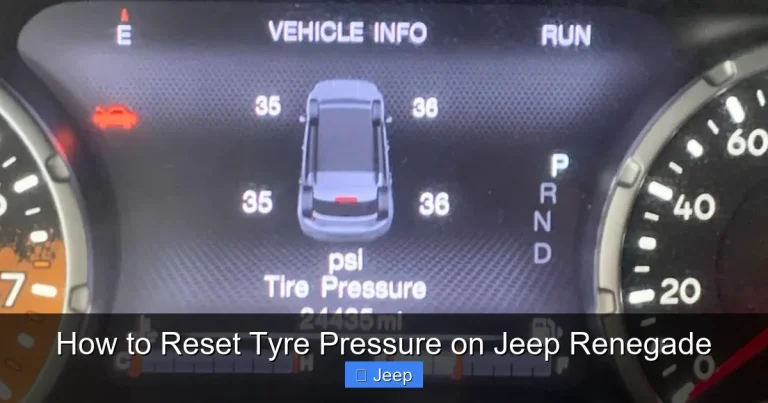
The instrument cluster is the panel behind your steering wheel. It shows your speed, RPM, fuel level, and warning lights. Older models use analog gauges with small digital screens. Newer models have fully digital displays. You can change the theme and information shown here.
To access the instrument cluster settings, press the menu button on the steering wheel. Use the arrow keys to navigate. Look for display or theme options. Some models require you to press the trip button on the dashboard. The exact method depends on your year and trim level.
The instrument cluster displays critical driving information. You need to read it quickly and clearly. A cluttered or dim display can cause safety issues. Taking time to customize this area improves your driving experience. You can choose what data appears and how it looks.
Digital clusters offer more customization than analog ones. You can move the speedometer to the center or left side. Some displays show a mini map next to the speed. Others display trip computer data in detailed graphs. Explore these options to find what works best for you.
The cluster also displays warning messages. Low fuel, low tire pressure, and service reminders appear here. You can choose which warnings are urgent and which are informational. This customization helps you focus on what matters most.
The Infotainment Screen
The center screen controls navigation, audio, and vehicle settings. It is the most interactive display in your Jeep. You can tap it or use the Uconnect controller. The screen size varies from 5 inches to 10 inches depending on the package. Adjusting this screen is part of how to change display on Jeep Grand Cherokee customization.
This screen shows your media, phone connections, and climate controls. You can change the home screen layout. You can also adjust brightness and themes. The infotainment system remembers your preferences. It is the heart of the digital experience in your Grand Cherokee.
Modern infotainment systems do much more than play music. They provide real-time traffic updates. They display backup camera images. They connect to your smartphone for hands-free calling. Keeping this screen optimized ensures you get the most from your investment.
The infotainment screen also controls vehicle settings. You can adjust mirrors, seats, and climate from here. Some models allow profile creation. Each driver saves their preferred display settings. This personalization makes the vehicle feel like it belongs to you.
Touchscreen responsiveness varies by model year. Newer screens are faster and more accurate. Older screens may lag slightly. Understanding this helps you interact safely. Tap gently and wait for responses on older models.
The Passenger Display
Some Grand Cherokee models include a rear passenger screen. This screen entertains backseat riders. It can show movies, play games, or mirror the main display. Not all models have this feature. It usually comes with the premium audio or luxury packages.
The passenger screen operates independently in many cases. You can control it from the rear or from the front. Understanding this screen helps you manage rear seat entertainment. For detailed instructions on this specific screen, see our guide on how to use passenger screen in Jeep Grand Cherokee.
Rear passengers appreciate having their own entertainment. Kids can watch movies while adults navigate. The passenger screen reduces front seat conflicts. It makes long road trips more peaceful for everyone.
The rear screen can also display vehicle information. It may show rear camera feeds or climate controls for the back seat. This adds convenience for the driver. Passengers can adjust their own climate zones from the rear screen.
Some systems allow the rear screen to work while driving. Others disable video playback when the vehicle is in motion. This safety feature prevents driver distraction. Check your settings to understand how your system behaves.
How to Change the Speedometer Display
The speedometer is one of the most important displays. You need to read it quickly and clearly. Jeep offers different speedometer formats. You can switch between digital and analog styles. Some models allow you to change the unit from miles to kilometers. These steps help you change display on Jeep Grand Cherokee instrument clusters.
Accessing the Display Menu
To change the speedometer display, start the vehicle. Press the menu button on the left steering wheel controls. Scroll to the vehicle settings tab. Look for instrument cluster options. Select display format or theme.
You may see options like Classic, Modern, or Dark themes. Each theme changes the background and layout. Preview each option before selecting. The change takes effect immediately. You can always go back and choose another style.
Some models require you to use the steering wheel buttons only. Others allow touchscreen interaction. Check your specific model instructions. The menu layout changes slightly between Uconnect 3, 4, and 5 systems.
If you cannot find the display menu, try the settings app on the infotainment screen. Look for vehicle preferences or instrument panel settings. The exact path varies by year. Consulting the manual saves time and frustration.
Take note of your current settings before changing them. This helps you revert if you do not like the new format. Most changes are reversible. You can experiment safely without permanent consequences.
Choosing Your Preferred Format
Digital speedometers show numbers clearly. Analog speedometers use a traditional needle. Many drivers prefer digital for precision. Others like the classic look of an analog gauge.
Some Grand Cherokee models let you combine both. You get a digital speed readout with a tachometer ring. This hybrid approach offers the best of both worlds. Choose the format that suits your eyesight and preference.
Consider your driving conditions. If you drive in low light, a dark theme reduces glare. If you drive in bright sun, a light theme improves visibility. Test different formats during various times of day.
Digital displays can show more information simultaneously. You might see speed, RPM, fuel, and trip data all at once. Analog displays focus on the essentials. Choose based on what information you need most.
Some drivers prefer a large central speed display. Others like the speed integrated into a graphic layout. Your preference depends on driving style. City drivers may want minimal information. Highway drivers may want detailed data.
Customizing Warning Lights and Indicators
You can also change what warnings appear on the cluster. Some alerts are always on. Others can be toggled in the settings. Check your manual for specific warning light meanings.
Common customizable warnings include:
- Low fuel reminders
- Maintenance due alerts
- Tire pressure warnings
- Door ajar indicators
You can choose which alerts appear on the digital display. Some drivers prefer minimal warnings. Others want every possible alert visible. Find the balance that keeps you informed without overwhelming you.
Customizing warnings reduces distraction. You only see what matters to you. Critical alerts like engine temperature remain mandatory. Less urgent notifications can be silenced or minimized.
If you want detailed instructions on changing the speedometer display specifically, refer to our dedicated article on how to change speedometer display on Jeep Grand Cherokee. That guide covers advanced customization options.
Adjusting the Infotainment Touchscreen
The center screen is the command center of your Jeep. It handles navigation, audio, phone, and vehicle settings. Making it work for you improves every drive.
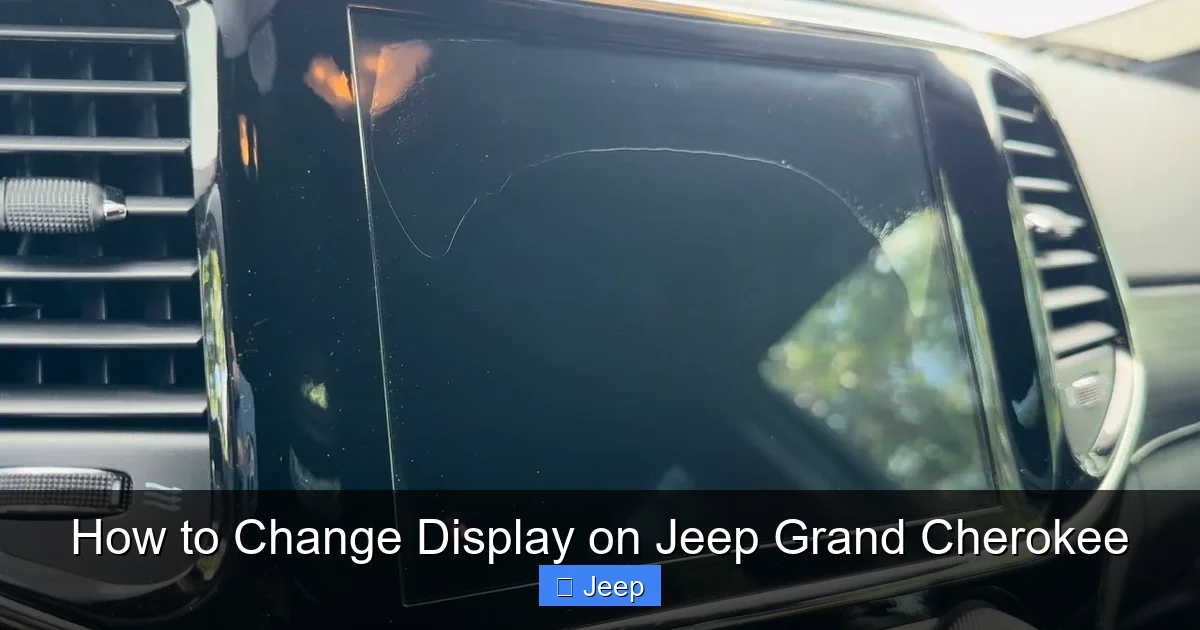
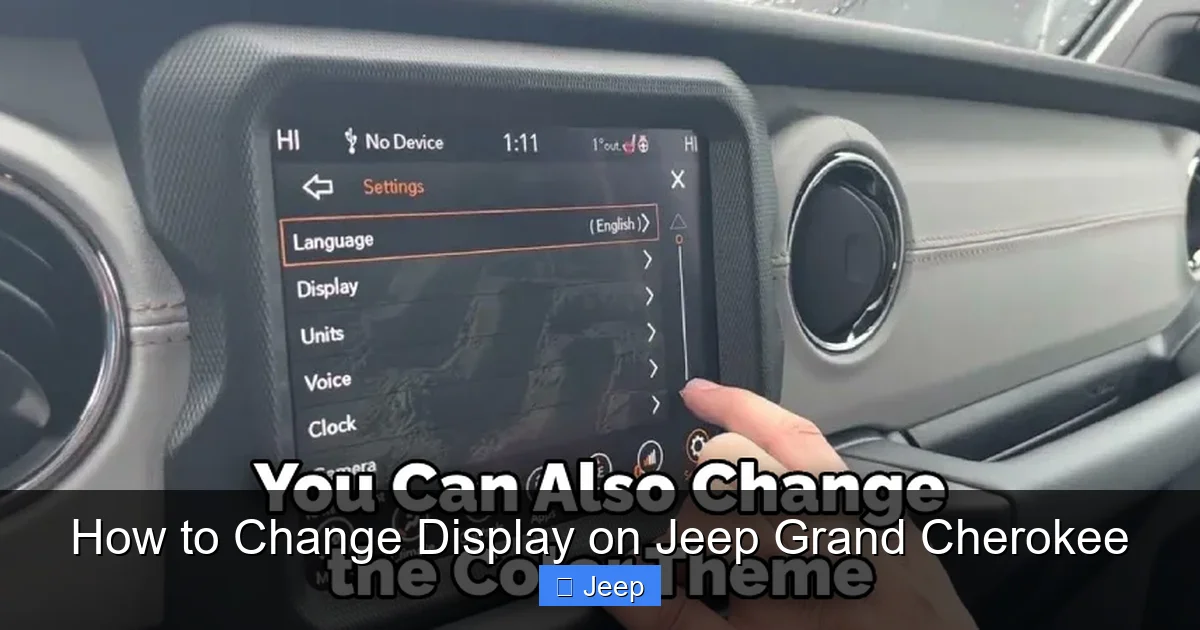
Visual guide about How to Change Display on Jeep Grand Cherokee
Image source: i.ytimg.com
Changing the Home Screen Layout
Press the home button on the touchscreen. Look for the layout icon or settings gear. You can rearrange shortcuts and widgets. Drag items to your preferred positions.
Common home screen items include:
- Navigation shortcut
- Media player
- Phone contacts
- Climate controls
- Vehicle status
Select which items appear on the main page. Remove what you do not use. Keep the most important tools at your fingertips. A clean home screen reduces driving distractions.
You can also add favorite contacts to the home screen. This lets you call frequently dialed numbers with one tap. Pin your home location for quick navigation access. These small changes save time during your daily commute.
Consider your daily routine when arranging the layout. If you navigate to work every day, make it a shortcut. If you listen to specific podcasts, pin the media app. Tailoring the home screen to your habits improves efficiency.
You can also create folders for related apps. Group all media apps together. Put all vehicle settings in another folder. This keeps the home screen organized and clutter-free.
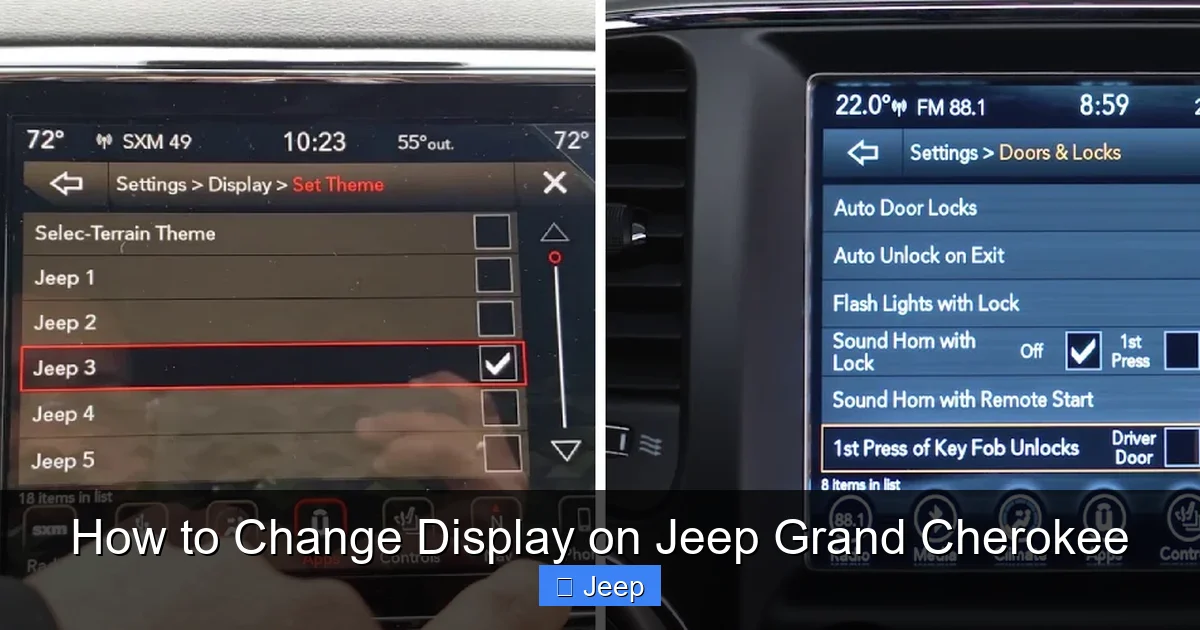
Modifying Display Themes and Colors
Go to settings and look for display options. You can choose light mode or dark mode. Dark mode reduces glare at night. Light mode is easier to read in bright sunlight.
Some models allow color accent changes. You can match the theme to your interior. Blue, red, and white are common options. The change applies to buttons and menus.
Theme selection affects battery life on some models. Dark themes use less power on OLED screens. Light themes may drain the battery faster. Consider this when choosing your preferred look.
Color choices also affect visibility. Bright colors stand out more but may cause eye strain. Muted colors are easier on the eyes during long drives. Test different color schemes to find the most comfortable option.
Some themes change the font size as well. Larger fonts improve readability. Smaller fonts show more information. Adjust font size to match your vision needs.
Setting Up Quick Controls
Quick controls let you adjust settings without diving into menus. Press the quick settings icon on the home screen. You can toggle Wi-Fi, Bluetooth, and GPS here.
You can also adjust screen brightness from quick settings. This is useful when driving into tunnels or shaded areas. Set it to auto for the best experience. Quick controls save you from stopping to adjust settings.
Customize the quick control shortcuts to match your habits. If you use navigation often, make it a shortcut. If you rarely use Wi-Fi, remove it from the quick panel. Personalization makes the system feel like it belongs to you.
Quick controls also include audio settings. You can adjust volume, change inputs, or mute calls. These shortcuts are accessible from any screen. They provide instant control without interrupting your drive.
You can rearrange quick control tiles. Drag them to your preferred order. Put the most used controls in the first row. This minimizes scrolling and tapping during driving.
Managing the Passenger Screen
If your Grand Cherokee has a rear passenger screen, you have extra control options. This screen keeps backseat passengers entertained and informed.
Visual guide about How to Change Display on Jeep Grand Cherokee
Image source: jeepfixes.com
Controlling Rear Entertainment
From the front screen, go to the rear entertainment menu. You can select what plays on the passenger screen. Options include DVD, streaming, or connected devices.
Set parental controls if needed. You can block certain content or limit volume. This keeps the rear seat peaceful during long trips. You can also set a timer to turn off the screen automatically.
Passengers can use wireless headphones to avoid driver distraction. This lets them enjoy audio without affecting the driver. The system supports multiple headphone connections. Everyone can watch or listen to their preferred content.
Rear entertainment systems often include game options. Simple games keep children occupied during travel. Some systems support wireless controllers for older kids. This turns long car rides into more enjoyable experiences.
The passenger screen can also display charging status. It shows which devices are connected and charging. This helps passengers manage their device battery life. They know when their phone is ready to go.
Linking to the Main Display
Some systems let you mirror the front screen to the rear. This shows the same navigation or media everywhere. Other systems run independent content.
Check your settings for the mirror option. Toggle it on or off based on your needs. This feature is great for family road trips. Everyone sees the same route and stops.
Independent mode gives passengers more freedom. They can watch a different movie or play different games. This works well when passengers have different interests. Choose the mode that fits your current trip.
Mirroring navigation helps rear passengers understand the route. They can see upcoming turns and estimated arrival times. This reduces questions from the back seat. Everyone stays informed about the journey progress.
Some systems allow the rear screen to act as a backup camera display. This helps when towing or parking. The rear view fills the passenger screen. It provides an extra layer of safety.
Display Brightness and Visibility Settings
Screen visibility affects safety and comfort. Too bright causes glare. Too dim makes reading difficult. Jeep provides several ways to adjust brightness. These controls are essential when you change display on Jeep Grand Cherokee settings.
Automatic Brightness Adjustment
Many Grand Cherokee models have automatic brightness. The screen senses ambient light and adjusts itself. This works well for day and night driving.
To enable auto brightness, go to display settings. Toggle the automatic adjustment switch. The screen will now adapt to lighting conditions. You can still override it manually if needed.
Auto brightness is convenient but not perfect. Sometimes it adjusts too slowly for changing conditions. In tunnels, the screen may stay bright too long. In bright sun, it may not brighten enough. Manual adjustment gives you precise control.
The ambient light sensor is usually near the windshield. Dirt or obstructions can affect its accuracy. Keep the sensor area clean for best performance. If auto brightness behaves erratically, clean the sensor gently.
Some owners report auto brightness issues after screen replacements. This may indicate a calibration problem. Visit a dealer if automatic adjustment fails completely. They can recalibrate the sensor properly.
Manual Brightness Controls
For manual control, find the brightness slider in settings. Drag it left for dimmer screens. Drag it right for brighter displays.
Test the setting while driving. Make sure you can read the speedometer clearly. Adjust until you find the sweet spot for your eyes. What works for one driver may not work for another.
Consider the time of day when setting brightness. Daytime driving needs higher brightness. Nighttime driving needs lower brightness. Many drivers set two preferences and switch between them.
Manual brightness also helps preserve battery life. Lower brightness uses less power. This is especially important when the engine is off. You can still use the display for limited functions.
Bright screens reflect sunlight more strongly. This creates glare on sunny days. Reduce brightness when driving into the sun. This improves visibility and reduces eye strain.
Troubleshooting Common Display Problems
Sometimes displays act up. Freezing, flickering, or black screens can happen. Most issues have simple fixes. Understanding these fixes helps you change display on Jeep Grand Cherokee problems quickly.
Screen Freezing or Unresponsive
If the touchscreen freezes, try a soft reset. Press and hold the power button for ten seconds. The screen should restart within thirty seconds.
For persistent freezing, check for software updates. Go to settings and look for system updates. Install any available patches. This often fixes bugs and improves performance.
Avoid using the touchscreen while updating. Wait for the process to complete completely. Interrupting an update can cause serious problems. If the screen remains frozen after a soft reset, try disconnecting the battery for five minutes.
Frequent freezing may indicate a software bug. Check online forums for your specific model year. Other owners may have found solutions. Jeep sometimes releases patches for known issues.
Overheating can cause screen freezes. Park in shade on hot days. Let the system cool before restarting. Direct sunlight on the dashboard increases internal temperature.
Flickering or Dim Screens
Flickering usually means a loose connection or software glitch. Try adjusting the brightness first. If that fails, restart the infotainment system.
Check if the flickering happens only at certain brightness levels. If so, the automatic sensor might be faulty. You can disable auto brightness and use manual settings. This eliminates the sensor as the cause.
Flickering can also indicate a failing backlight. If the screen flickers constantly, professional inspection is needed. Do not ignore persistent flickering. It can lead to complete screen failure.
Dim screens may need bulb replacement. Older models use CCFL or LED backlights. These components degrade over time. A professional can test and replace the backlight assembly.
Voltage fluctuations can cause dimming. Check your alternator and battery health. Weak electrical systems affect display performance. A mechanic can test your charging system.
Resetting the Display System
A full reset can solve many display issues. Go to settings and find the reset option. Choose restore defaults or factory reset.
Warning: This erases your saved settings. Back up your preferences first. After resetting, reconfigure your display choices. The system should run smoother afterward.
If you are dealing with GPS issues on the display, learn how to turn off GPS tracking display on Jeep Grand Cherokee to troubleshoot navigation problems.
After a reset, update the software immediately. Newer software often fixes known bugs. Check for updates as soon as the system restarts. This prevents the same issues from returning.
A reset is like giving your display a fresh start. It clears temporary files and corrupted data. The system runs faster after a reset. Make it a regular maintenance task if you experience issues.
If problems persist after a reset, hardware failure is possible. The touchscreen itself may be damaged. Water intrusion causes many display failures. Check for signs of moisture under the screen bezel.
Model Year Differences and Compatibility
Not all Grand Cherokees have the same displays. Understanding your model year helps you use the right settings. This knowledge is key to change display on Jeep Grand Cherokee effectively.
WK2 Generation Displays
The WK2 generation covers models from 2011 to 2021. These models use the Uconnect 3 or 4 systems. The screens are responsive but older technology.
Display customization options are limited compared to newer models. You can change themes and brightness. Advanced customization requires aftermarket solutions. The resolution is lower than modern screens.
WK2 models may benefit from software updates. Check with your dealer for available updates. Some updates add new display features. Others fix known bugs and improve stability.
The WK2 generation introduced touchscreens to many Jeep models. This was a major step forward. Early versions had slower processors. Later updates improved responsiveness significantly.
WK2 screens are prone to glare in bright conditions. Aftermarket screen films can reduce glare. These films do not affect touch sensitivity. They improve visibility in direct sunlight.
WL Generation Upgrades
The WL generation starts with the 2022 model year. These Jeeps feature the Uconnect 5 system. The displays are faster and more colorful.
You get more customization options. Widgets, themes, and layout choices are expanded. The interface feels modern and intuitive. Wireless Apple CarPlay and Android Auto are standard.
WL models support over-the-air updates. This means your display improves without dealer visits. New features arrive regularly. The system evolves with your needs.
The WL generation includes high-resolution screens. Text is sharper and images are clearer. This reduces eye strain during long drives. The overall experience feels premium and polished.
WL screens are more resistant to glare. The anti-reflective coating improves visibility. This is a welcome improvement over older models. You spend less time squinting at the display.
Aftermarket Display Options
Some owners upgrade to aftermarket displays. These offer more features than factory screens. Popular brands include Pioneer, Kenwood, and Alpine.
Aftermarket installs require professional help. They may void your warranty. Consider the pros and cons before upgrading. Make sure the new display fits your dashboard.
Aftermarket displays often include better navigation. They may offer wider screens and faster processors. However, they can integrate poorly with factory systems. Research compatibility before purchasing.
Aftermarket upgrades can be expensive. Factor in installation costs and potential wiring modifications. Some upgrades require antenna adapters or wiring harnesses. Get quotes from multiple installers before deciding.
Aftermarket displays may not support all factory features. Backup camera integration can be tricky. Steering wheel controls may need adapters. Research these compatibility issues thoroughly.
Conclusion
Changing the display on your Jeep Grand Cherokee is straightforward. Start with the instrument cluster and work your way to the infotainment screen. Adjust brightness and themes to match your style. Follow these steps to change display on Jeep Grand Cherokee systems with confidence.
Remember that each model year has slight differences. Consult your owner manual for model-specific steps. Test each change before driving away.
Customizing your display makes every drive more comfortable. You get a dashboard that fits your needs perfectly. Enjoy your personalized Jeep Grand Cherokee experience.
Take time to explore all display options. Your Jeep Grand Cherokee has more capabilities than you might think. Small adjustments make a big difference in daily driving. Start customizing today and enjoy the results.
Share your display customization tips with other Jeep owners. Online communities offer great advice and inspiration. Your experience helps others make their vehicles unique. The Jeep community values personalization and creativity.
Frequently Asked Questions
Can I change the display theme on my Jeep Grand Cherokee?
Yes, you can change the display theme through the settings menu. Go to vehicle settings and select display options. Choose from light, dark, or classic themes. The change applies immediately to your instrument cluster.
How do I adjust screen brightness on the Jeep Grand Cherokee?
You can adjust brightness manually or set it to automatic. Find the brightness slider in the display settings menu. Drag it left for dimmer screens or right for brighter ones. Auto mode adjusts based on ambient light conditions.
Why is my Jeep Grand Cherokee display flickering?
Flickering usually indicates a loose connection or software glitch. Try adjusting the brightness or restarting the system. If flickering persists, check for software updates. Persistent issues may require professional inspection.
Can I customize the home screen layout on my Jeep Grand Cherokee?
Yes, you can rearrange shortcuts and widgets on the home screen. Press the layout icon in the infotainment settings. Drag items to your preferred positions. This customization helps you access frequently used features quickly.
Does the Jeep Grand Cherokee passenger screen work while driving?
Some systems allow rear screen use while driving. Others disable video playback for safety. Check your settings for the video restriction option. This feature prevents driver distraction during travel.
How do I reset the display system on my Jeep Grand Cherokee?
Go to settings and select the reset option. Choose restore defaults or factory reset. Warning: this erases your saved preferences. Back up your settings before performing a full reset.