How to Use Passenger Screen in Jeep Grand Cherokee
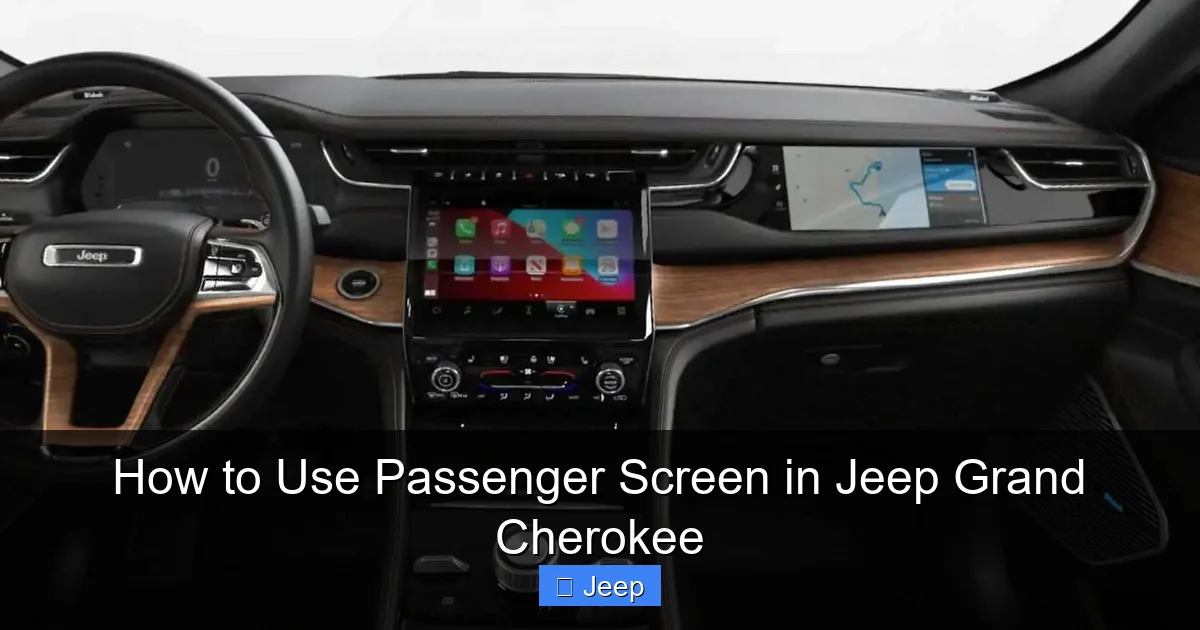
The passenger screen in your Jeep Grand Cherokee is a powerful tool for managing vehicle functions while driving. This guide walks you through navigating menus, adjusting display settings, and solving common issues. Whether you want to access navigation, adjust audio levels, or troubleshoot glitches, you’ll find clear steps to help you get the most out of your grand cherokee’s advanced interface.
Your Jeep Grand Cherokee comes equipped with a sophisticated passenger screen that serves as your central hub for navigation, communication, and vehicle management. While many drivers leave this feature untouched, unlocking its full potential can transform your daily commute into a seamless experience. Whether you’re parking in tight city lots or cruising scenic highways, understanding how to use the passenger screen empowers you to stay informed, entertained, and connected without taking your eyes off the road.
Key Takeaways
- Master the menu navigation: Learn shortcuts and gestures to quickly reach important functions.
- Adjust audio and display settings: Customize volume, equalizer, and screen layout for your preferences.
- Troubleshoot common problems: Resolve frozen screens, button unresponsiveness, and connectivity issues.
- Integrate with vehicle systems: Connect the passenger screen to climate controls, lights, and safety features.
- Maintain performance: Keep software updated and clean the display for optimal visibility.
- Use official resources: Refer to Jeep documentation and trusted guides for accurate instructions.
📑 Table of Contents
Understanding the Passenger Screen Interface
The passenger screen in a Jeep Grand Cherokee looks similar across recent model years, but every owner needs to know what each element does. At first glance, it may seem cluttered with buttons, touch-sensitive areas, and icons, but once you learn the basics, everything makes sense. This section breaks down the core components so you can navigate confidently every time you sit behind the wheel.
Home Dashboard and Quick Access Buttons
When you start your Jeep Grand Cherokee, the home dashboard displays several quick-access buttons right away. These are designed for immediate actions when you pull up after a long drive or during morning commutes. Think of them as your command center for basic functions. The primary buttons typically include climate control adjustments, radio station selection, and the power window toggle. Because these are always visible, you don’t need to dig deep into menus—you can make changes instantly by simply tapping or swiping.
Navigation Interface Overview
The touchscreen portion of the passenger screen is where the real magic happens. Modern Jeep models offer an intuitive map interface that works similarly to Apple Maps and Google Maps. Here, you can enter addresses, search for points of interest, and receive turn-by-turn directions. The system also supports voice commands through integration with Android Auto or Apple CarPlay, making hands-free navigation a breeze. If you frequently travel to work, shopping districts, or adventure locations, mastering this section will save both time and frustration.
Once you’ve explored the home screen, the next step is learning how to navigate deeper into the infotainment options. The menu system uses a combination of tap gestures and swipe motions, and getting comfortable with these controls takes practice. Many users initially struggle because they expect every option to appear immediately upon touching a specific area, but the screen often requires a slight delay before displaying hidden features.
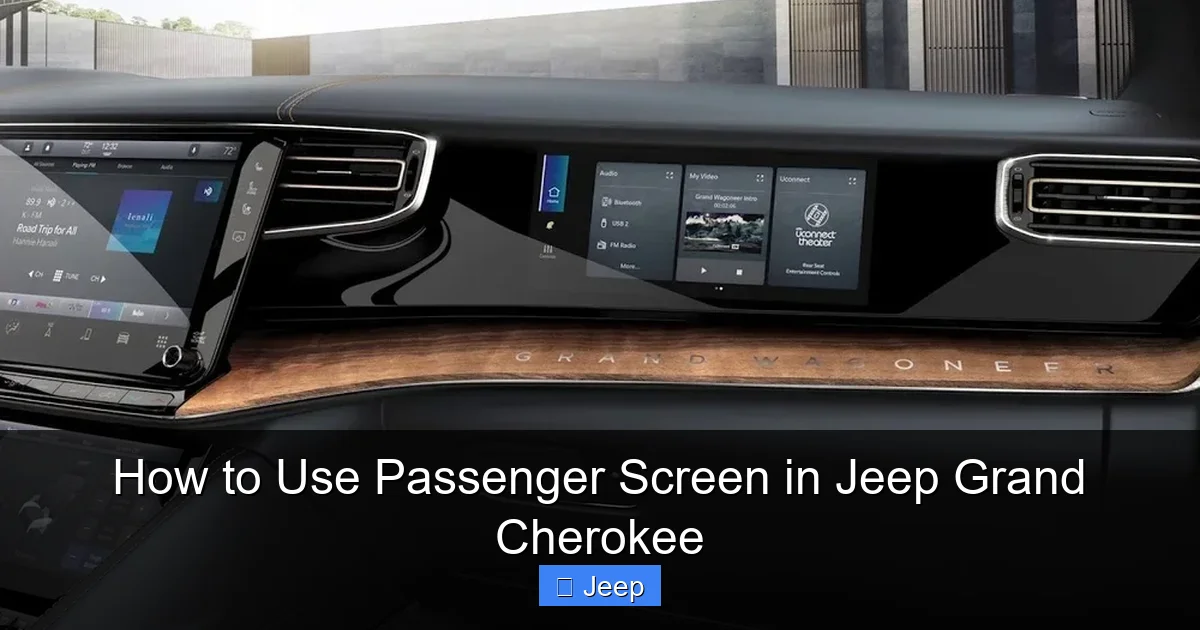
Visual guide about How to Use Passenger Screen in Jeep Grand Cherokee
Image source: jeepcorner.com
Accessing Navigation Options
To open the navigation menu, tap the large magnifying glass icon typically located near the top-right corner of the screen. Alternatively, you can swipe downward from the top or pinch-zoom to reveal the navigation section. Once inside, you’ll see a carousel of destinations and route planning tools. For those who prefer hands-free operation, saying “Hey Jeep, navigate to…” activates the voice assistant that pulls up nearby maps and traffic information.
Customizing Voice Commands
If your Grand Cherokee was recently upgraded with an Android Auto or Apple CarPlay connection, you’ll notice additional customization opportunities. These platforms allow you to personalize app placements, set default destinations, and organize media libraries. Creating a dedicated folder for work-related apps and another for family entertainment ensures you have instant access to what matters most. Experiment with rearranging these folders until your preferred order feels natural—this small adjustment can significantly improve your overall usability.
Adjusting Display Settings and Layouts
One of the most valuable aspects of the passenger screen is how customizable it is. Manufacturers give you ample room to tweak colors, fonts, and layout arrangements to match your taste and driving conditions. Understanding these settings helps you optimize the screen for nighttime driving, bright sunlight, or crowded urban environments.
Visual guide about How to Use Passenger Screen in Jeep Grand Cherokee
Image source: jeepfixes.com
Screen Brightness and Color Schemes
Brightness controls prevent eye strain on sunny days and ensure visibility at night. Most models feature three brightness levels plus a manual slider. For those with photosensitive children or elderly passengers, selecting a warmer color temperature reduces glare. Additionally, some Jeep versions support custom wallpaper themes that change based on weather conditions—rainstorm mode offers darker shades, while beach mode brings calming blues.
Layout Customization
Beyond appearance, you can rearrange which icons occupy the screen real estate. Common layouts include a central navigation bar, side panels for media and climate controls, and bottom navigation for system-wide options. If your favorite music app isn’t showing anywhere, try reordering your home screen widgets. The ability to drag and drop elements means you can build a personalized dashboard that reflects your driving habits perfectly.
Troubleshooting Common Issues
Even the best-designed passenger screen can encounter hiccups over time. Technology evolves, and sometimes the screen becomes unresponsive or displays error codes. Being prepared with solutions prevents unnecessary anxiety and keeps you focused on driving.
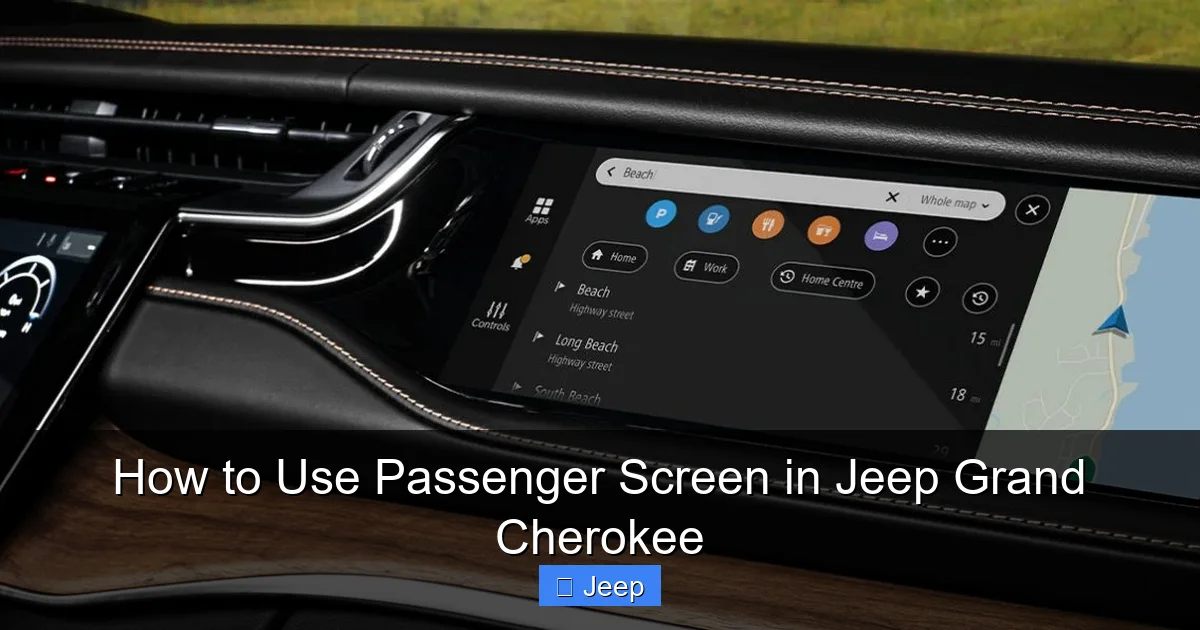
Visual guide about How to Use Passenger Screen in Jeep Grand Cherokee
Image source: jeep-caribbean.com
Resolving Frozen Screens
A completely stuck screen can happen due to overheating, software glitches, or battery drainage. The safest method is to perform a soft reset: press and hold the power button for five seconds until the screen goes black. Afterward, wait a few moments before attempting to restart. If the problem persists, you may need to consult your owner’s manual for a hard reset procedure, which involves disconnecting the vehicle’s battery for ten minutes.
Fixing Unresponsive Buttons
Sometimes individual buttons fail to register touches despite being physically functional. Try clearing the sensor buffer by performing a “scan” function found in the settings menu—it resets touch sensitivity across the entire screen. If scanning doesn’t help, there could be a loose connection between the touch panel and the controller board; this usually requires professional repair. For temporary relief, consider using a stylus or your phone’s screen protector to create more precise contact areas.
Connectivity Problems
If your passenger screen loses connection to wireless assistants or fails to sync with smartphone devices, the issue might stem from outdated firmware or incompatible accessories. Updating the operating system through Jeep’s mobile application ensures all features remain current. Also verify that Bluetooth pairing remains active and that your phone’s Bluetooth radio is enabled when using hands-free calling.
Integrating with Other Vehicle Systems
The passenger screen isn’t limited to infotainment—it connects with various vehicle subsystems to enhance safety and convenience. Understanding these integrations gives you a holistic view of how modern Jeep technology works together seamlessly.
Climate Control Integration
The screen allows you to adjust heating and cooling settings remotely, even while parked. By accessing Climate Control through the navigation menu, you can precondition your cabin before entering—perfect for winter commutes where you arrive freezing cold. Some models also provide humidity and airflow direction selections, letting you tailor airflow patterns for maximum comfort.
Light and Safety Features
In addition to climate controls, the passenger screen can manage exterior lighting such as fog lamps, high beams, and emergency flashers. During severe weather, activating fog lights through the screen ensures adequate visibility on wet or snowy roads. Additionally, many owners use the screen to check tire pressure alerts, low fuel warnings, and navigation waypoints before leaving home.
Emergency Services Connection
Modern Jeep Grand Cherokees can connect directly to emergency services via the passenger screen or linked mobile app. In case of accidents or medical emergencies, you can summon assistance from a central dispatch center with real-time location data. This feature is especially valuable in remote areas where roadside assistance may take longer to arrive.
By familiarizing yourself with the passenger screen’s capabilities and addressing potential challenges head-on, you’ll discover why this feature has become a cornerstone of your driving experience. The screen transforms from a mere display into an interactive partner that anticipates your needs and adapts to changing surroundings. Whether you’re a seasoned traveler or a casual commuter, the journey ahead looks brighter—and easier—with proper knowledge of your vehicle’s intelligent interface.
Frequently Asked Questions
Question?
What is the purpose of the passenger screen in my Jeep Grand Cherokee?
The passenger screen serves as your central control hub for navigation, media, climate controls, and vehicle settings. It allows you to manage multiple functions simultaneously, reducing distractions while keeping essential information accessible at a glance.
Question?
Can I use voice commands on the passenger screen of my Jeep Grand Cherokee?
Yes, newer models with Android Auto or Apple CarPlay support built-in voice assistants. Simply activate the assistant through the speaker, say “navigate to,” and the screen will locate destinations and display routes verbally.
Question?
How do I update the software on my Jeep Grand Cherokee’s passenger screen?
Software updates are available through the Jeep Mobile App or dealership service portals. Follow the prompts to download and install the latest version, which resolves bugs, adds new features, and improves security.
Question?
Why does my passenger screen freeze occasionally?
Freezing can result from extreme heat, prolonged use, or interaction with third-party apps. Performing a soft reset by holding the power button for five seconds often clears the lock-up. More frequent freezes may indicate underlying hardware issues requiring professional diagnosis.
Question?
Is it possible to customize the screen layout on my Jeep Grand Cherokee?
Absolutely. Through the settings menu, you can rearrange icons, change font sizes, adjust brightness, and select different display themes. This level of personalization ensures the interface matches your style and driving environment.
Question?
Does the passenger screen connect to my smartphone?
Many Jeep Grand Cherokees support Android Auto and Apple CarPlay, allowing direct smartphone integration. This enables streaming music, making calls, and accessing web content entirely through your phone, with the passenger screen acting as the bridge between the two devices.