How Do I Connect Google Maps to Toyota Navigation?
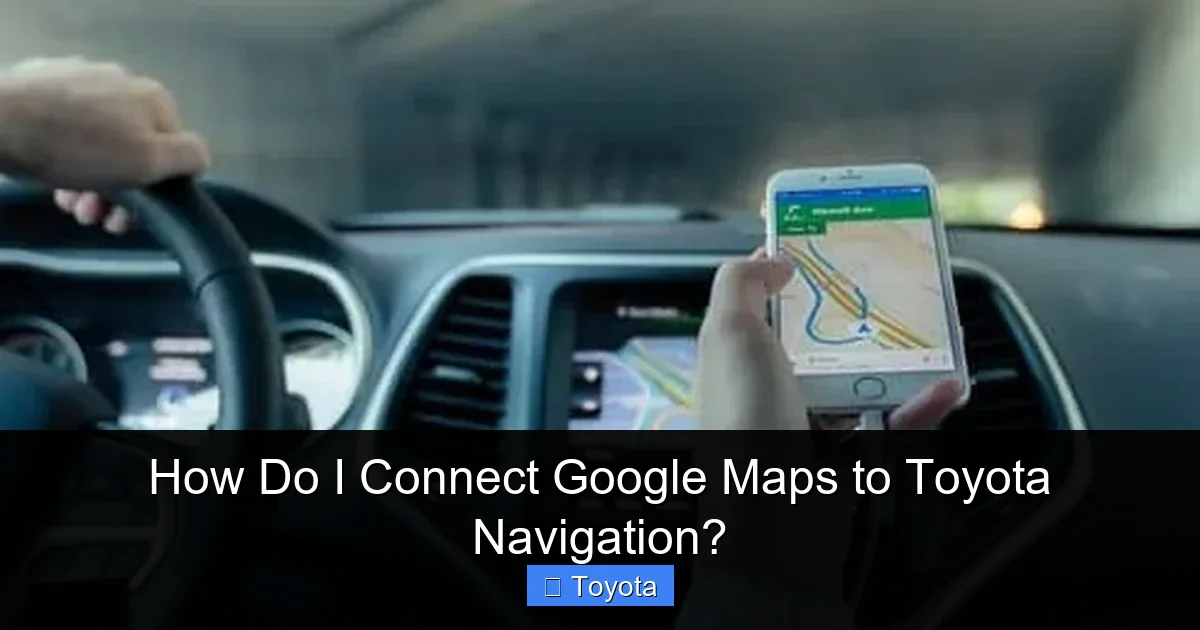
Connecting Google Maps to your Toyota navigation system is easier than you think, but the exact method depends on your vehicle’s model year and infotainment setup. This comprehensive guide walks you through checking compatibility, setting up Android Auto or Apple CarPlay, troubleshooting connection issues, and getting the most from your integrated navigation experience.
Key Takeaways
- Compatibility varies by model: Not all Toyota models support direct Google Maps integration through Android Auto or Apple CarPlay.
- Android Auto setup: Requires USB connection and compatible Android phone running Android 5.0 or higher.
- Apple CarPlay alternative: iPhone users can access Google Maps through Apple CarPlay on supported Toyota models.
- Vehicle preparation steps: Ensure your Toyota’s infotainment system is updated and properly configured before attempting connection.
- Common troubleshooting solutions: Address frequent issues like connection failures, screen mirroring problems, and app compatibility errors.
- Safety considerations: Always set up connections while parked and follow proper smartphone integration protocols.
- Alternative navigation options: Consider aftermarket solutions or built-in Toyota navigation upgrades when factory integration isn’t available.
📑 Table of Contents
Before diving into how do I connect Google Maps to Toyota navigation, it’s important to understand what you’re working with. Toyota vehicles come equipped with various infotainment systems depending on the model year and trim level. Some newer models feature Entune systems, while others use Toyota Audio Multimedia or even basic touchscreen interfaces.
Many drivers ask “how do I connect Google Maps to Toyota navigation” because they want the familiar interface and real-time traffic updates that Google Maps provides. The good news is that most modern Toyota vehicles support smartphone integration through either Android Auto or Apple CarPlay. However, older models might require different approaches or aftermarket solutions.
Checking Your Vehicle’s Capabilities
To determine how to connect Google Maps to Toyota navigation in your specific vehicle, start by identifying your infotainment system type. Check your owner’s manual or look for icons on your dashboard display. If you see Android Auto or Apple CarPlay logos, you’re in luck. These systems allow seamless integration of Google Maps directly onto your Toyota’s screen.
For those wondering about the technical requirements, Android Auto needs Android 5.0 or higher, while Apple CarPlay requires iOS 7.1 or newer. Make sure your smartphone meets these minimum requirements before attempting any connection process.
Preparing Your Toyota for Connection
Now that we understand the basics, let’s talk about preparing your vehicle. When figuring out how to connect Google Maps to Toyota navigation, proper preparation is key to success. Start by turning on your vehicle and accessing the main infotainment menu.
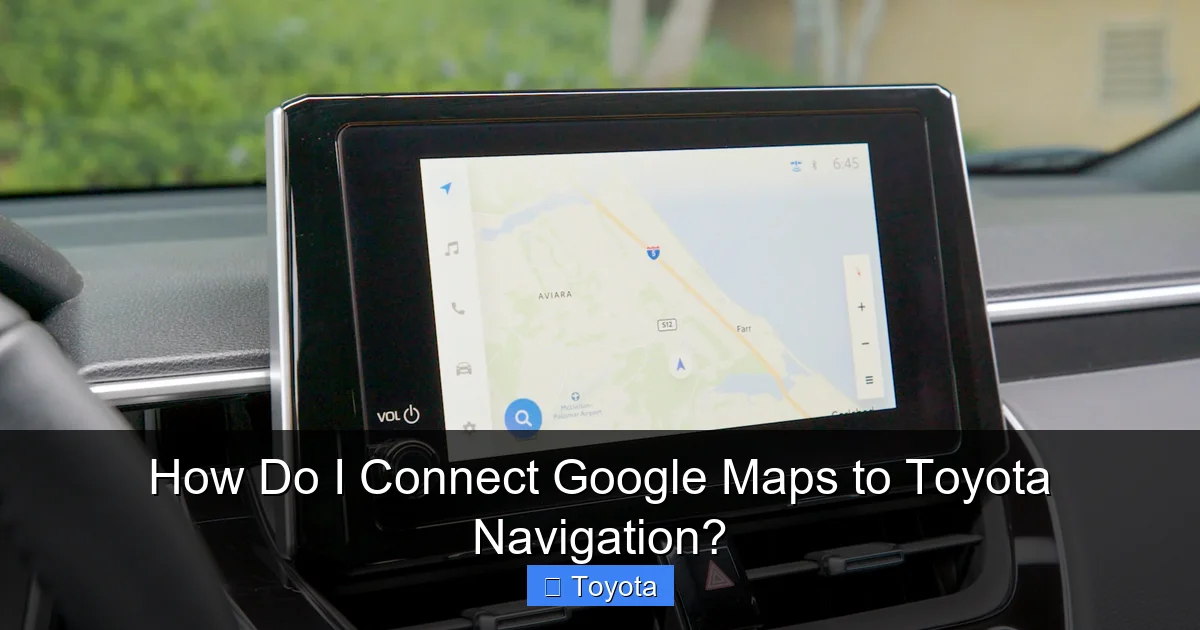
Visual guide about How Do I Connect Google Maps to Toyota Navigation?
Image source: motortrend.com
First, check for any available system updates. Navigate to your settings menu and look for software update options. Keeping your Toyota’s infotainment system current ensures better compatibility with smartphone applications. This step is often overlooked but can save hours of frustration later.
Enabling Developer Options (If Needed)
Some Toyota models may require enabling developer options on your smartphone for optimal connection. On Android devices, go to Settings > About Phone and tap the build number seven times. For iPhone users, ensure your device settings allow for CarPlay integration by going to Settings > General > CarPlay.
Once you’ve confirmed compatibility and prepared both systems, you’re ready to tackle the main question: how do I connect Google Maps to Toyota navigation? The answer lies in the connection method that works best for your specific setup.
Connecting Through Android Auto
Android Auto is the primary method for connecting Google Maps to Toyota navigation in compatible vehicles. This Google-developed platform mirrors your Android phone’s screen onto your car’s display, providing access to maps, music, and messaging apps while driving.
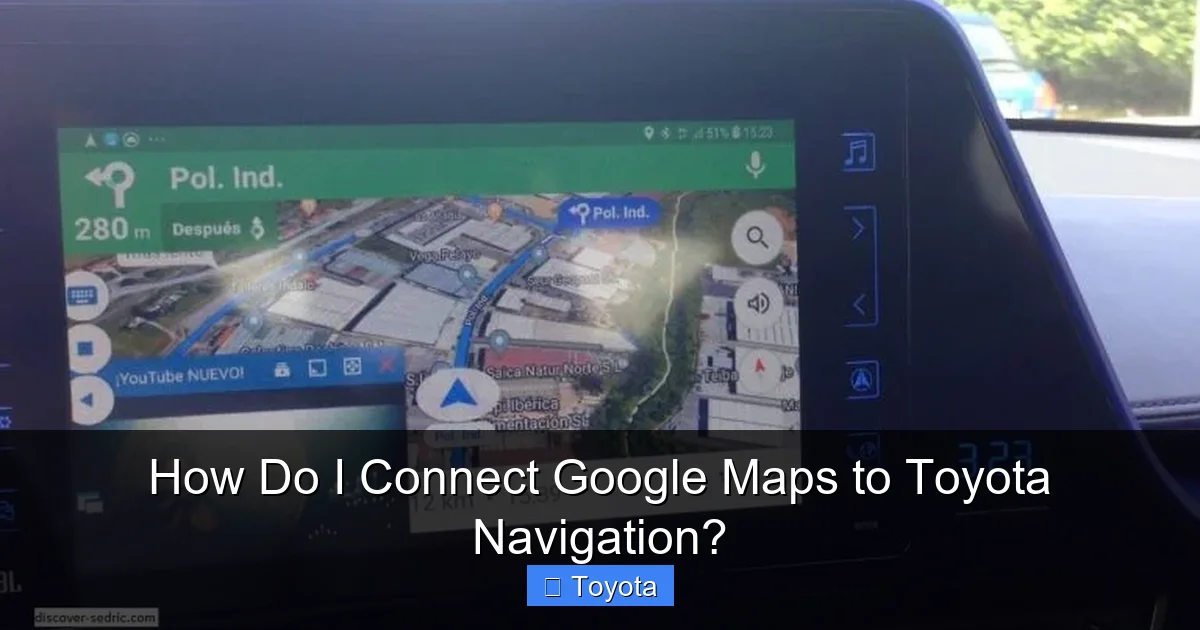
Visual guide about How Do I Connect Google Maps to Toyota Navigation?
Image source: discover-sedric.com
To begin the connection process, use a high-quality USB cable to connect your Android phone to your Toyota’s USB port. This is typically located in the center console or near the gear shifter. Once connected, your phone should prompt you to enable Android Auto if it’s your first time.
Initial Setup Process
Follow these steps to complete the Android Auto setup: Unlock your phone and accept the terms and conditions. Grant necessary permissions for location services, notifications, and app access. Your Toyota’s display should automatically switch to Android Auto mode within seconds.
If you encounter issues during this phase, don’t panic. Many drivers initially struggle with the connection process. The key is ensuring both devices recognize each other properly. Check that your USB cable is functioning and that your phone isn’t locked with security features that might interfere with the connection.
Launching Google Maps
Once Android Auto is running, launching Google Maps becomes straightforward. Tap the map icon on your Toyota’s screen or use voice commands by pressing the steering wheel button and saying “Navigate to [destination].” The Google Maps interface will appear on your dashboard display, complete with turn-by-turn directions and real-time traffic information.
It’s worth noting that some Toyota models may have navigation systems that work differently. If you’re also interested in optimizing other vehicle systems, you might want to learn about how to calibrate Uconnect navigation for similar functionality in different vehicle brands.
Using Apple CarPlay for Google Maps
iPhone users can breathe a sigh of relief knowing that Google Maps works beautifully with Apple CarPlay. While Apple promotes its own Maps application, Google Maps remains fully compatible and offers many drivers a preferred navigation experience. The process for connecting is remarkably similar to Android Auto.
Visual guide about How Do I Connect Google Maps to Toyota Navigation?
Image source: aautomotives.com
Connect your iPhone using a Lightning-to-USB cable and wait for the CarPlay interface to appear on your Toyota’s screen. If it doesn’t launch automatically, look for a CarPlay icon in your vehicle’s infotainment menu. Once activated, you’ll see a grid of available apps including Google Maps.
Optimizing Google Maps Performance
To get the best performance from Google Maps on Apple CarPlay, ensure your iPhone’s operating system is current. Go to Settings > General > Software Update to check for available updates. Additionally, keep the Google Maps app updated through the App Store for optimal compatibility and new features.
Some Toyota models offer wireless CarPlay connectivity, eliminating the need for cables. However, this feature requires newer iPhone models (iPhone 8 or later) and compatible Toyota infotainment systems. Check your owner’s manual to see if wireless connectivity is supported in your vehicle.
Troubleshooting Connection Issues
Even with careful preparation, you might face challenges when trying to connect Google Maps to Toyota navigation. Don’t worry – most issues have simple solutions. Let’s explore common problems and their fixes.
If your phone connects but Google Maps won’t launch, try restarting both your phone and your Toyota’s infotainment system. Sometimes a simple reboot resolves temporary glitches that prevent proper app functionality. Ensure your phone’s screen is unlocked during the connection process, as locked screens can block certain features.
Dealing with Recognition Problems
When your Toyota doesn’t recognize your phone, check several key factors. First, verify that your USB cable supports data transfer, not just charging. Some cables only provide power and won’t establish the necessary data connection for Android Auto or CarPlay.
Next, examine your phone’s settings to ensure Android Auto or CarPlay permissions are enabled. On Android, go to Settings > Apps > Android Auto and confirm all permissions are granted. iPhone users should check Settings > General > CarPlay to verify proper configuration.
Audio and Display Solutions
Audio problems are another common complaint when connecting Google Maps to Toyota navigation. If voice guidance isn’t audible, check your vehicle’s audio settings and ensure the correct input source is selected. Sometimes the system defaults to a different audio channel that needs manual adjustment.
Display issues like screen freezing or delayed responses often stem from outdated software. Regular updates to both your phone’s operating system and Google Maps app prevent most performance problems. Additionally, closing unnecessary background apps on your phone can improve connection stability.
If your Toyota model doesn’t support Android Auto or Apple CarPlay, several alternatives exist for integrating Google Maps functionality. Aftermarket head units offer modern smartphone integration while maintaining your vehicle’s original aesthetic appeal.
Portable navigation devices remain popular among drivers who prefer dedicated hardware. These units often include Google Maps integration and can be easily transferred between vehicles. Many also feature larger screens and more robust mounting systems than smartphone displays.
Utilizing Built-in Features
Your Toyota’s existing navigation system might offer similar functionality to Google Maps. Modern Toyota navigation includes real-time traffic updates, points of interest, and route optimization. Before investing in additional solutions, explore your current system’s full capabilities through the settings menu.
Some Toyota models support over-the-air map updates, keeping your built-in navigation current without expensive dealership visits. Check your owner’s manual for update procedures and frequency recommendations to maximize your investment.
While we’re discussing vehicle optimization, many new Toyota owners also wonder how to break in a new car Toyota properly. Both topics involve understanding your vehicle’s systems and getting the most from its features.
Once you’ve successfully connected Google Maps to Toyota navigation, take time to explore advanced features that enhance your driving experience. Voice commands allow hands-free operation, crucial for maintaining focus on the road ahead.
Customize your Google Maps settings for optimal performance in your Toyota. Enable features like lane guidance, speed limit indicators, and alternate route suggestions. These tools become invaluable during complex driving situations or unfamiliar territories.
Integration with Other Apps
Google Maps integrates seamlessly with other Google services like Calendar and Contacts. Your Toyota’s navigation system can automatically suggest destinations based on upcoming appointments or frequently visited locations. This level of personalization makes every journey more convenient.
Music streaming services also work well alongside Google Maps navigation. Create playlists for long drives or let Google’s algorithms suggest music based on your destination type. The combination of reliable navigation and great music creates an enjoyable driving atmosphere.
Maintaining Connection Reliability
Keep your connection reliable by regularly updating both your smartphone and Toyota’s infotainment system. Set reminders to check for updates monthly, ensuring you always have access to the latest features and security patches. This proactive approach prevents most connection failures.
Consider investing in a quality phone mount designed specifically for your Toyota model. Proper positioning reduces distractions and keeps your device secure during travel. Many mounts offer wireless charging capabilities, eliminating cable clutter while maintaining battery life.
Future-Proofing Your Setup
As technology evolves, staying current with navigation trends becomes increasingly important. Toyota continues improving smartphone integration across model years, so newer vehicles typically offer better connectivity options.
Monitor Toyota’s official announcements for upcoming infotainment upgrades or new partnership developments. The automotive industry moves quickly toward more intuitive, connected experiences that benefit drivers seeking seamless Google Maps integration.
Whether you’re commuting daily or embarking on road trips, mastering how to connect Google Maps to Toyota navigation enhances every journey. The combination of Google’s mapping expertise with Toyota’s reliable vehicle platform creates an unbeatable navigation solution for modern drivers.
Frequently Asked Questions
Why won’t my Toyota recognize my Android phone for Google Maps connection?
Your Toyota might not recognize your Android phone due to several common issues. First, ensure you’re using a data-transfer capable USB cable rather than a charging-only cable. Second, check that Android Auto is enabled in your phone’s settings and that your vehicle’s infotainment system supports the feature. Finally, try restarting both devices and checking for software updates.
Can I use Google Maps wirelessly in my Toyota instead of plugging in my phone?
Some newer Toyota models support wireless Android Auto connectivity, which eliminates the need for cables. However, this feature requires compatible hardware in both your vehicle and smartphone. Check your owner’s manual to confirm wireless capability, and ensure your Android phone supports wireless projection (typically Android 10 or higher).
Does Google Maps work better than Toyota’s built-in navigation system?
Google Maps often provides more frequent updates and real-time traffic information compared to built-in navigation systems. However, Toyota’s native navigation offers seamless integration without smartphone dependency and doesn’t drain your phone’s battery. The choice depends on your priorities: Google Maps excels in live data, while built-in systems offer convenience and reliability.
How do I fix audio issues with Google Maps navigation in my Toyota?
Audio problems with Google Maps usually stem from incorrect input selection or volume settings. Check that your Toyota’s audio system is set to the correct input source for Android Auto or CarPlay. Adjust the volume controls for both your phone and vehicle separately. If issues persist, try disconnecting and reconnecting your phone, or check for software updates.
Is there a monthly fee to use Google Maps with my Toyota navigation system?
No, using Google Maps through Android Auto or Apple CarPlay doesn’t require monthly fees beyond your existing smartphone data plan. However, be aware that navigation apps consume data for real-time traffic updates and map downloads. Monitor your data usage if you have limited plans, or download offline maps for frequently traveled areas.
What should I do if Google Maps keeps freezing on my Toyota’s display?
If Google Maps freezes frequently on your Toyota’s display, try closing other background apps on your phone to free up memory. Ensure both your phone’s operating system and the Google Maps app are updated to the latest versions. You can also try clearing the Google Maps cache in your phone’s app settings, or temporarily disable and re-enable Android Auto/CarPlay.