Aux Cable to Usb C
Connecting an aux cable to USB-C doesn’t have to be complicated. This guide breaks down everything you need to know about compatibility, setup, and troubleshooting. Whether you’re upgrading your car audio or organizing your workspace, we’ve got you covered.
[Featured Image Placeholder]
Key Takeaways
- Compatibility Check: Ensure your devices support USB-C and aux ports before purchasing a cable.
- Adapter Needs: Some devices may require an adapter to convert between aux and USB-C.
- Signal Quality: High-quality cables reduce interference and improve audio performance.
- Troubleshooting: Common issues include no audio output or poor connection stability.
- Device Preparation: Update software and check settings before connecting.
- Maintenance Tips: Proper handling and storage extend cable lifespan.
- Budget Considerations: Prices vary widely; choose based on quality and intended use.
📑 Table of Contents
Introduction: Bridging the Gap Between Old and New
Technology moves fast, and so does the evolution of ports and connectors. If you’ve ever looked at your old headphones with a 3.5mm aux plug and wondered how to connect them to your new smartphone with a USB-C port, you’re not alone. The transition from traditional aux cables to modern USB-C has left many users searching for reliable solutions.
An aux cable to USB-C adapter or converter opens up a world of possibilities. Whether you’re connecting your favorite headphones to a newer laptop, linking your phone to a car stereo, or setting up a home audio system, understanding how these cables work is essential.
This guide will walk you through everything you need to know about aux cables and USB-C connections. From compatibility checks to troubleshooting common issues, we’ll help you make the most of your audio setup.
Understanding Aux Cables and USB-C
What is an Aux Cable?
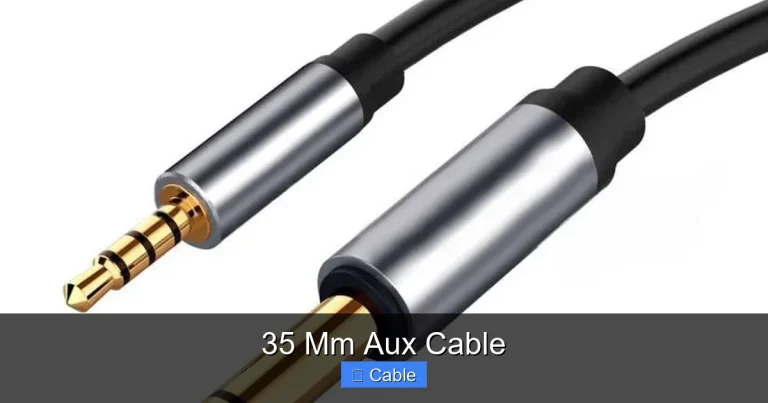
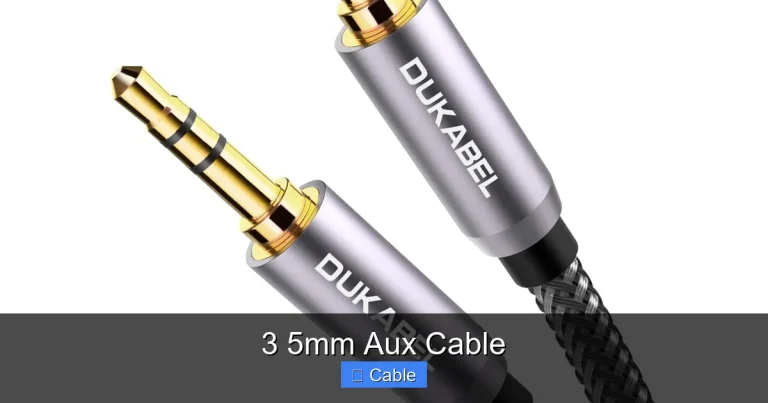
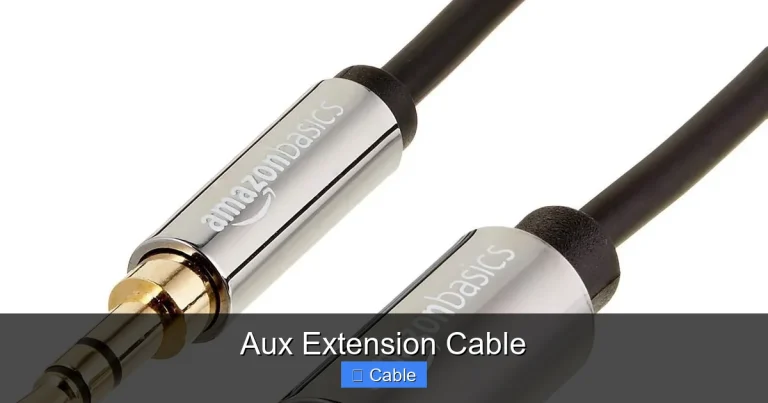
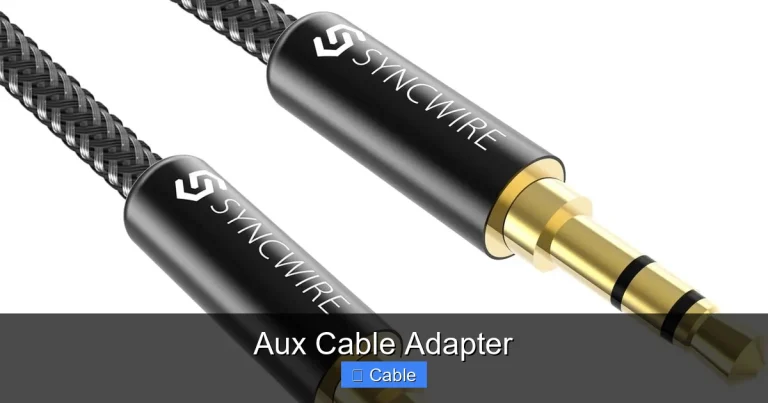
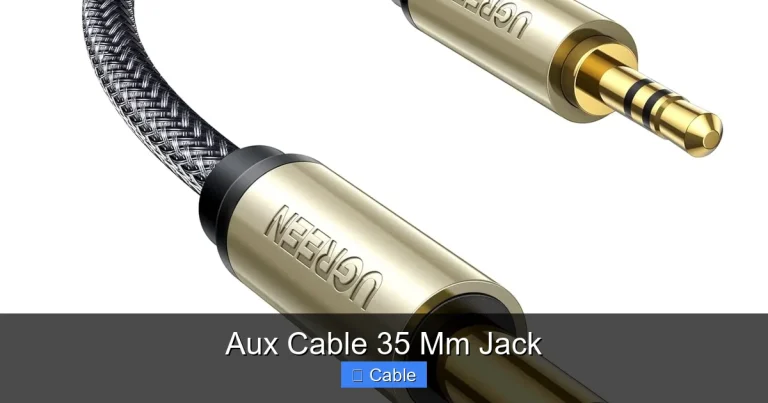
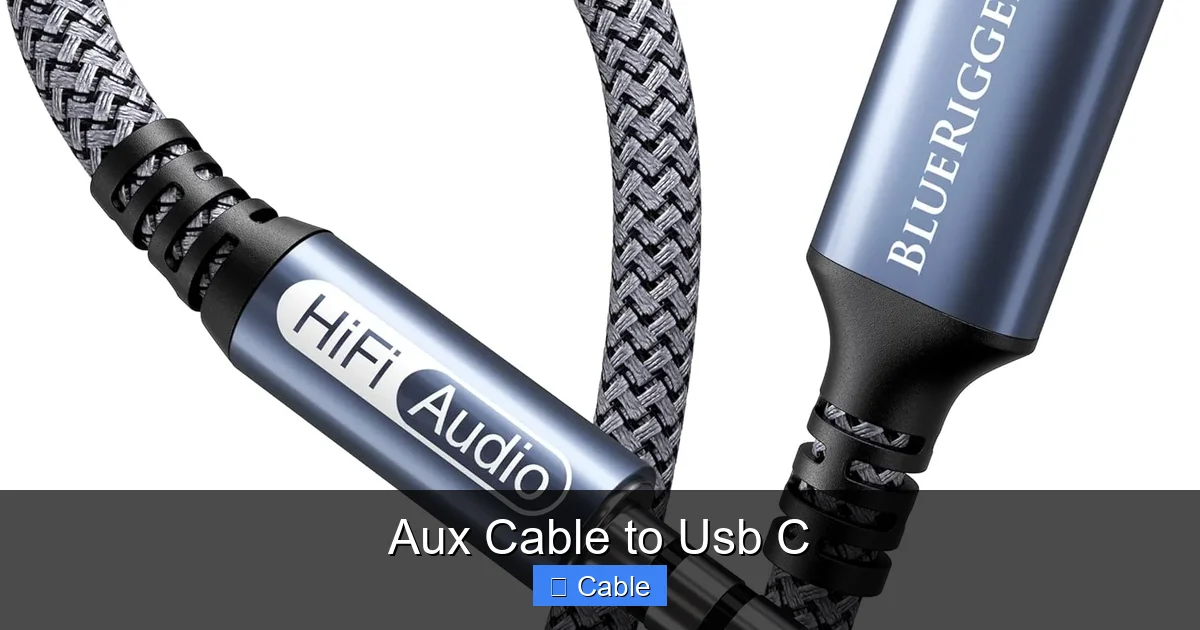
Auxiliary cables, often called aux cables, are wired connections that transmit analog audio signals. They typically feature a 3.5mm jack on both ends and work with headphones, speakers, and other audio devices. These cables have been the standard for decades, offering simplicity and reliability.
Visual guide about Aux Cable to Usb C
Image source: silentsoundsystem.com
Despite being older technology, aux cables remain popular due to their universal compatibility and ease of use. They don’t require batteries or pairing, making them a go-to choice for quick audio connections.
What is USB-C?
USB-C is a newer, reversible connector that supports data transfer, video output, and power delivery. Unlike traditional USB ports, USB-C can carry both digital and analog signals, depending on the device’s capabilities. This versatility makes it a favorite among smartphone and laptop manufacturers.
While USB-C is increasingly common, not all devices can handle analog audio through this port. Some require a digital-to-analog converter, which is where aux-to-USB-C cables or adapters come into play.
Why the Transition Matters
As more devices eliminate the traditional 3.5mm jack, users need ways to connect legacy audio equipment. Apple led this trend by removing the headphone jack from iPhones, followed by many Android manufacturers. This shift has increased demand for aux-to-USB-C solutions.
The transition isn’t just about convenience—it’s also about maintaining audio quality. While digital signals through USB-C can offer advantages like higher bit rates, analog aux connections still provide reliable performance for most users.
Compatibility and Connectors
Checking Device Ports
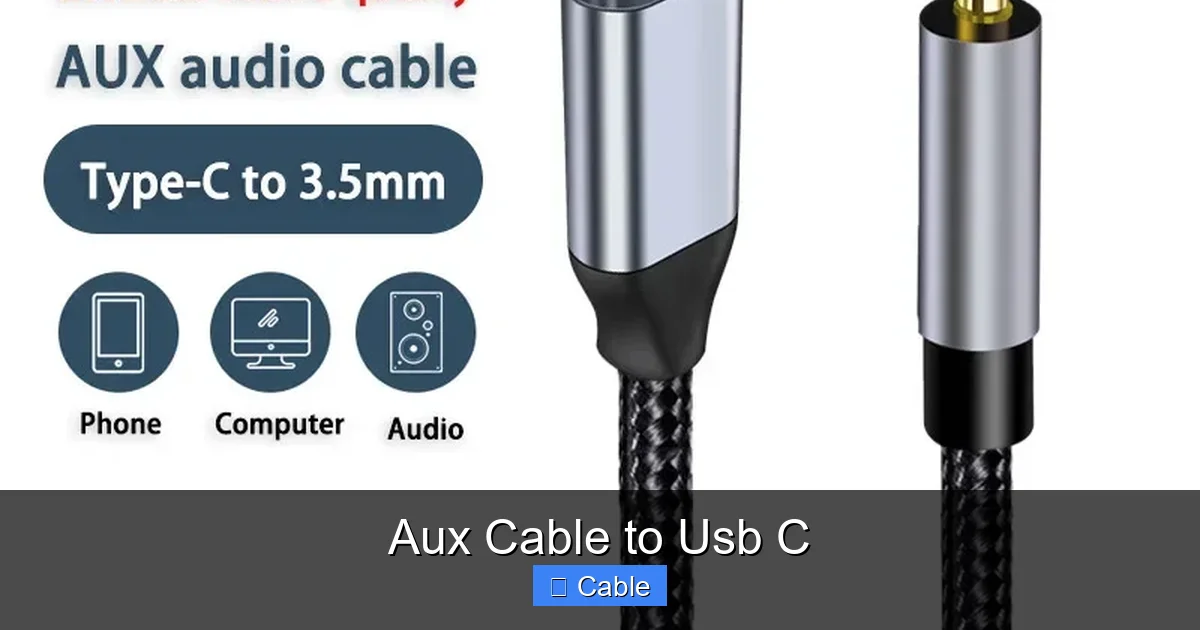
Before purchasing an aux-to-USB-C cable, verify your devices’ port types. Smartphones, tablets, and laptops with USB-C ports may or may not support audio output. Check your device’s manual or manufacturer specifications to confirm.
Visual guide about Aux Cable to Usb C
Image source: ae01.alicdn.com
For example, some laptops allow audio output through USB-C when connected to a compatible receiver, while others require a separate adapter. Similarly, cars with USB-C ports might need a specific setup to play audio through the aux input.
Adapter Requirements
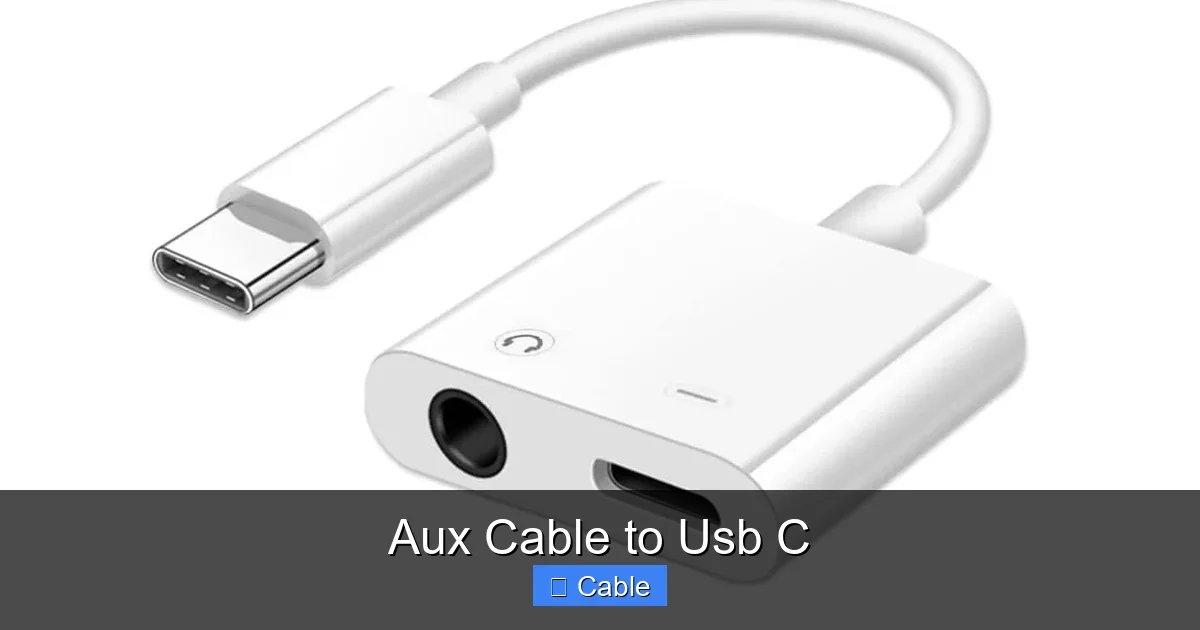
If your device doesn’t natively support analog audio through USB-C, you’ll need an adapter. These converters include a built-in digital-to-analog converter (DAC) to process the signal. Look for adapters that specify compatibility with your device model.
Active adapters require power, often drawn from the USB-C port, while passive adapters simply convert the signal. Active adapters are more common and generally offer better sound quality, though they may drain your device’s battery slightly faster.
Common Compatibility Issues
Some users encounter issues where their device doesn’t recognize the aux cable. This can happen if the USB-C port doesn’t support audio or if the adapter lacks proper drivers. Updating your device’s software or trying a different adapter can resolve these problems.
Another issue is inconsistent audio output. If the connection cuts in and out, check for loose connections or a damaged cable. High-quality cables with reinforced connectors tend to perform better over time.
Step-by-Step Connection Guide
Preparing Your Devices
Start by powering off both devices to prevent potential damage. Check the audio settings on each device to ensure they’re set to output through the correct port. For example, your phone might need to be configured to play audio through the USB-C port instead of Bluetooth.
If using an adapter, plug it into the USB-C port first. Make sure it’s securely connected before attaching the aux cable. Some adapters come with additional features like volume controls or microphones, so refer to the manual for specific instructions.
Connecting the Cable
Insert the aux end of the cable into the audio input or output port on your device. Gently twist or push until it’s fully seated. Avoid forcing the connection, as this can damage the port or the cable.
Once connected, test the audio by playing a song or video. If you’re connecting to a car stereo, turn on the ignition and select the appropriate input source. For home systems, ensure the amplifier or receiver is set to the correct mode.
Testing the Connection
Play a clear audio track to test the connection. Listen for any distortion, static, or intermittent sound. If the audio is unclear, try adjusting the volume on both devices or replacing the cable.
Check for physical issues like frayed wires or loose connections. A multimeter can help diagnose electrical problems, but for most users, swapping cables is a quick fix.
Common Problems and Solutions
No Audio Output
If there’s no sound, first check the volume levels on both devices. Ensure the aux cable is plugged into the correct ports and that the receiving device is set to the right input source.
Try a different aux cable or adapter to rule out hardware issues. If the problem persists, your device might not support audio output through USB-C. In that case, consider using a Bluetooth adapter or a different connection method.
Poor Sound Quality
Distorted or weak audio can stem from a low-quality cable or interference. Replace the cable with a reputable brand or check for nearby sources of electromagnetic interference like wireless chargers or microwaves.
Adjust the equalizer settings on your device to enhance audio clarity. Some adapters may also benefit from a firmware update, so check the manufacturer’s website for the latest software.
Device Not Recognized
If your device doesn’t detect the aux cable, the USB-C port might not support audio. Consult your device’s documentation or contact the manufacturer for confirmation.
For smartphones, enabling USB debugging or OTG (On-The-Go) mode might help. On some devices, you may need to grant permission for the connection through a notification prompt.
Tips for Optimal Performance
Cable Quality Matters
Invest in a high-quality aux-to-USB-C cable or adapter. Cheaper alternatives may work initially but often fail prematurely or deliver subpar audio. Look for cables with gold-plated connectors, which resist corrosion and improve signal transmission.
Reputable brands often provide warranties and customer support, which can be invaluable if you encounter issues. Avoid extremely cheap options, as they may not meet safety standards or could damage your devices.
Proper Handling
Always handle your cable with care. Avoid bending or twisting it sharply, as this can damage internal wires. Store it in a cool, dry place to prevent moisture damage or extreme temperature exposure.
When not in use, coil the cable loosely rather than tying it in a knot. This reduces stress on the connectors and extends the cable’s lifespan. Consider using a cable organizer or case for added protection.
Maintenance Tips
Regularly inspect your cable for signs of wear, such as frayed insulation or loose connectors. Clean the ports gently with a soft cloth or cotton swab to remove dust and debris.
If you notice a decrease in audio quality, try cleaning the connectors with a mild alcohol solution. Avoid using harsh chemicals or submerging the cable in water, as this can cause irreversible damage.
Choosing the Right Cable
Brand vs. Generic
Brand-name cables often come with guarantees and better build quality, but generic options can be cost-effective for basic use. For professional or frequent use, investing in a reputable brand is advisable.
Check reviews and ratings online to gauge user satisfaction. Many retailers offer return policies, so you can test a generic cable and switch to a branded one if necessary.
Features to Look For
When shopping, look for features like shielding to reduce interference, a durable jacket to withstand wear, and a reversible design for easy plugging. Some cables include additional functions like charging or data transfer.
Ensure the cable supports the version of USB-C you’re using, such as USB-C 3.1 or USB4, especially if you plan to use it for data transfer alongside audio.
Where to Buy
Purchase from reputable retailers or the manufacturer’s website to avoid counterfeit products. Online marketplaces like Amazon or Best Buy often offer competitive prices and customer reviews.
For specialized needs, electronics stores or automotive accessory shops might have cables designed for specific applications, such as car audio systems. The best car stereo for USB thumb drive display could pair well with an aux-to-USB-C setup for enhanced audio experiences.
Conclusion: Making the Most of Your Audio Setup
Connecting an aux cable to USB-C might seem daunting at first, but with the right knowledge and tools, it’s a straightforward process. By understanding compatibility, choosing quality components, and following proper setup steps, you can enjoy seamless audio connectivity across your devices.
Remember to troubleshoot common issues and maintain your cables for long-lasting performance. Whether you’re upgrading your car’s audio system or organizing your home setup, a reliable aux-to-USB-C solution can make all the difference. Explore different options, read reviews, and don’t hesitate to consult professionals if needed.
With this guide, you’re now equipped to tackle any aux-to-USB-C challenge. Happy listening!
Frequently Asked Questions
Can I use an aux cable with a USB-C port directly?
Not all USB-C ports support analog audio. Check your device’s specifications to confirm compatibility. If not, you’ll need an adapter with a built-in digital-to-analog converter.
Do I need a special adapter for my iPhone?
Yes, iPhones with USB-C (like newer models) may require an adapter to connect aux cables. Apple offers official adapters, but third-party options can also work well.
Will an aux-to-USB-C cable charge my device?
Most aux-to-USB-C cables are designed for audio only. For charging, use a dedicated USB-C cable or adapter that supports power delivery.
How do I fix poor sound quality with my aux cable?
Check for loose connections, replace low-quality cables, or adjust equalizer settings. Interference from nearby devices can also cause issues, so keep the cable away from wireless chargers or microwaves.
What’s the difference between active and passive adapters?
Active adapters include a digital-to-analog converter and require power, while passive adapters simply convert the signal. Active adapters generally offer better sound quality but may drain your device’s battery slightly.
Is it safe to use generic aux-to-USB-C cables?
Generic cables can be safe if they meet basic safety certifications. However, branded cables often provide better durability and reliability. Always purchase from reputable sources to avoid counterfeit products.