How Do I Reset My Backup Camera
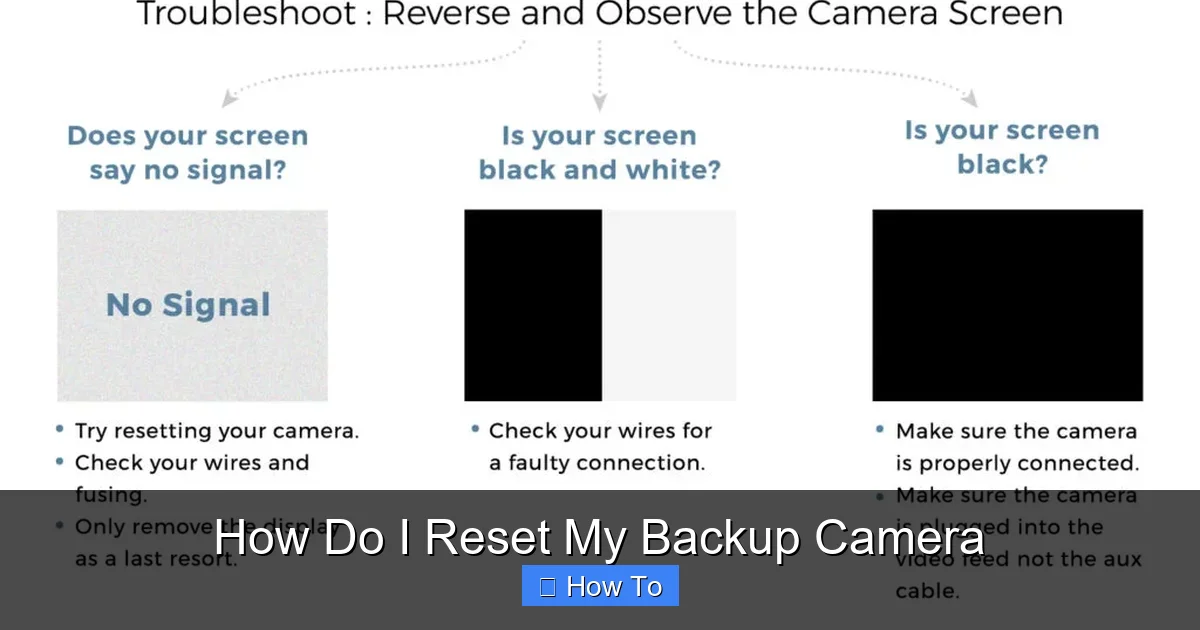
Resetting your backup camera is easier than you think! Most issues like a frozen screen, blurry image, or glitchy display can be fixed with a simple reset. This guide walks you through how to reset my backup camera using soft resets, hard resets, and fuse checks. Whether you drive a Toyota, Ford, or any other brand, these steps will help. No mechanic needed—just a few minutes of your time and basic tools.
Key Takeaways
- Soft Reset First: Always try a soft reset by restarting your car or infotainment system before attempting harder fixes.
- Check the Connections: Loose or dirty wiring is the #1 cause of backup camera problems, especially in older vehicles.
- Inspect the Fuse: A blown fuse can shut off your backup camera completely, and replacing it takes just minutes.
- Factory Reset Works: Most factory and aftermarket head units have a factory reset option buried in the settings menu.
- Camera Location Matters: The camera sits near your license plate and faces the road, so it’s prone to dirt and weather damage.
- Aftermarket vs OEM: Aftermarket cameras may need different reset steps than factory-installed ones.
- Know When to Call a Pro: If all else fails, the camera itself may be broken and need replacement by a technician.
📑 Table of Contents
Why Your Backup Camera Stops Working
You hop in your car, shift into reverse, and… nothing. No camera view. Just a blank or frozen screen staring back at you. It’s super frustrating, right? Your backup camera is one of those things you don’t really think about until it stops working. Then it feels like driving blind.
The good news? Most backup camera issues are pretty easy to fix. You don’t need to be a car expert or spend big bucks at a dealership. In most cases, you can solve the problem right in your driveway with a few simple tricks. The trick is knowing where to start.
Before you panic or rush to a mechanic, take a deep breath. Most glitches come from minor issues. A loose wire. A dirty lens. A software hiccup. Or a blown fuse. These are all things you can handle on your own with this guide on how to reset my backup camera.
This article covers everything from quick soft resets to deeper fixes. We’ll talk about factory cameras, aftermarket ones, and even some brand-specific tips. By the end, you’ll feel confident enough to tackle any backup camera problem that comes your way.
Understanding How Backup Cameras Work
Before we dive into the fixes, let’s quickly cover the basics. Knowing how your camera works helps you understand why it acts up. Plus, it makes troubleshooting way easier.
Visual guide about How Do I Reset My Backup Camera
Image source: rvingbeginner.com
The Main Components
Your backup camera system has three main parts:
- The Camera: This little lens sits near your rear license plate. It’s built tough but hates dirt, mud, and extreme weather.
- The Display: This is your dashboard screen or rearview mirror screen. It shows you what the camera sees.
- The Wiring: These wires connect the camera to the display and your car’s electrical system.
How They Talk to Each Other
When you shift into reverse, your car sends a signal to the camera. The camera wakes up and starts recording. It sends that video feed through the wiring to your display. All of this happens in seconds. Pretty cool, right?
But here’s the thing. Since so many parts work together, lots can go wrong. A weak signal, a bad wire, or a glitchy screen can break the chain. That’s why resets often fix the issue. They basically give the system a fresh start to talk to each other again.
The Easy Stuff First: Soft Reset Methods
Let’s start with the simplest fixes. These take less than five minutes and solve a huge chunk of backup camera problems. Think of it like restarting your phone when an app acts weird.
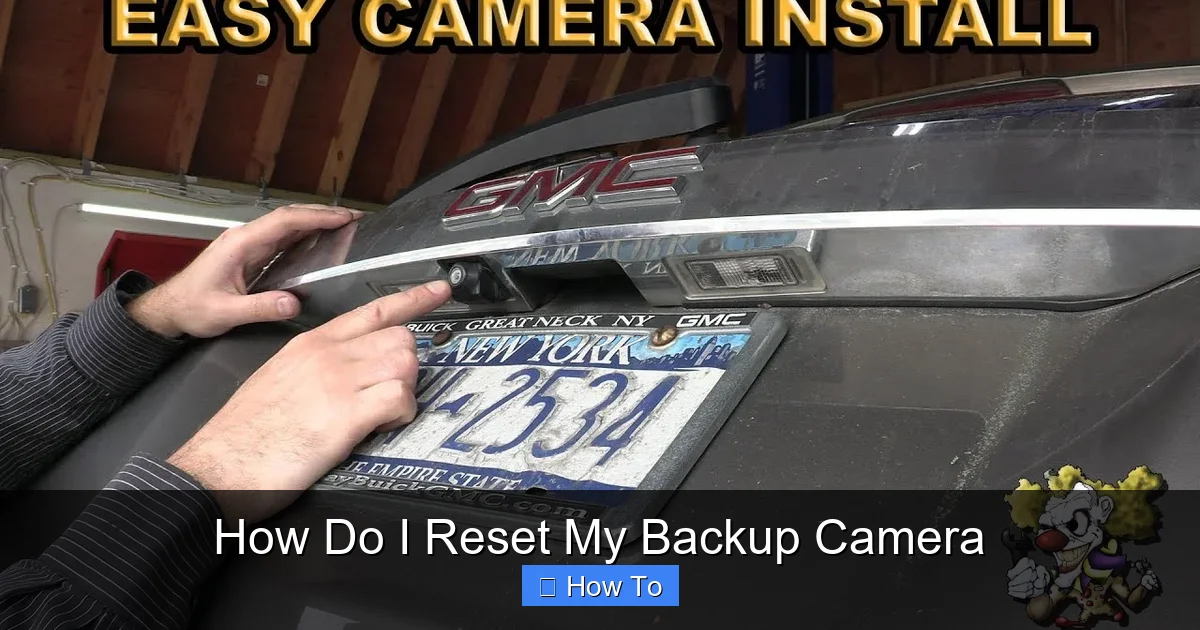
Visual guide about How Do I Reset My Backup Camera
Image source: i.ytimg.com
Method 1: Restart Your Car
This sounds almost too simple, but it works. Your car’s computer runs software just like your phone. Sometimes that software gets stuck. A quick restart clears the cobwebs.
Here’s what to do:
- Turn off your car completely
- Remove the key from the ignition (or press the stop button if you have push-start)
- Wait 60 seconds. Yes, a full minute. Don’t cheat!
- Restart your car and shift into reverse
Many drivers swear by this trick. It resets the infotainment system and clears minor software bugs. If your camera was just being moody, this should do the trick.
Method 2: Disconnect the Battery
If a simple restart didn’t work, try a battery disconnect. This is a deeper reset that clears more stubborn glitches. But it does require a basic tool.
Steps to follow:
- Turn off your car and pop the hood
- Find your car’s battery (usually a black box with two cables)
- Use a wrench to loosen the negative cable (the black one with a minus sign)
- Remove the cable and tuck it away from the battery
- Wait 10 to 15 minutes
- Reconnect the negative cable and tighten the bolt
- Start your car and test the camera
This method works great for older cars and aftermarket systems. It forces everything to reboot from scratch. Just remember, you might lose your radio presets and clock settings. That’s totally normal.
Method 3: Reset Through the Infotainment System
Most modern cars have a touchscreen that controls everything, including your backup camera. These systems often have a hidden reset menu.
For Toyota owners, this process looks similar to resetting a Toyota touch screen. Check your owner’s manual for exact steps. But generally, you can:
- Go to your car’s Settings menu
- Look for System or Display options
- Find a Factory Reset or Reboot option
- Confirm the reset and wait for the system to restart
This works great for software-related issues. If your camera screen freezes mid-video or shows weird colors, this reset can save the day.
Checking the Hardware: When Software Isn’t the Problem
Sometimes the issue isn’t software. It’s actual physical stuff. Wires, connections, lenses, and fuses. Let’s tackle each one.
Visual guide about How Do I Reset My Backup Camera
Image source: i.redd.it
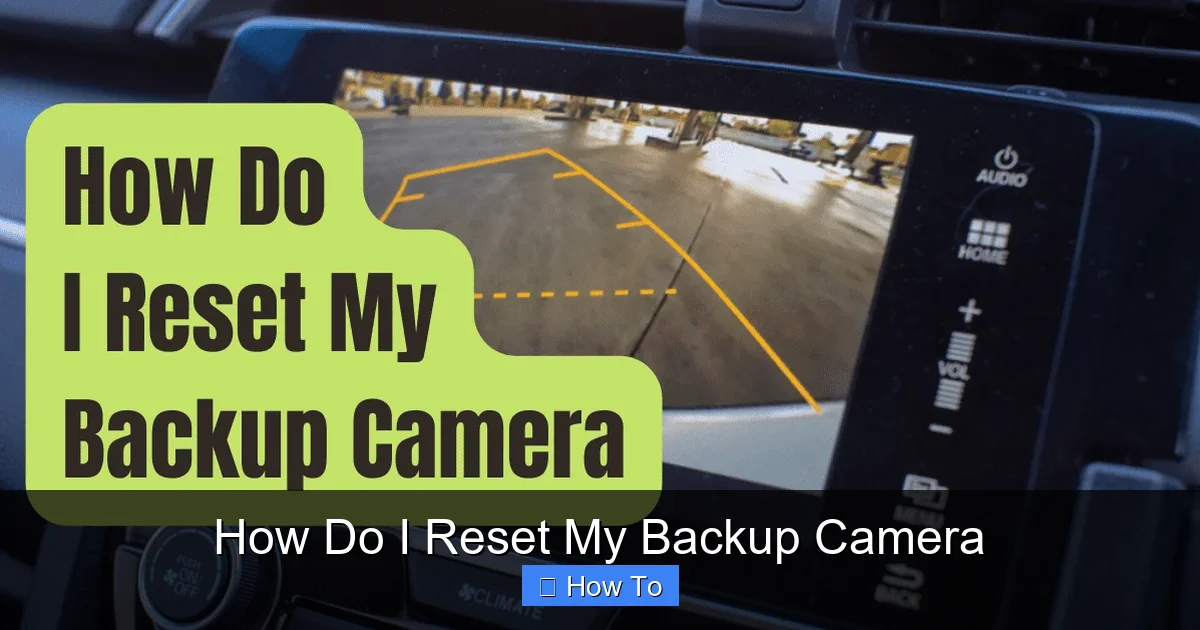
Step 1: Clean the Camera Lens
This is the easiest fix people forget about. Your camera sits outside your car near the license plate. It gets dirty fast. Dust, mud, rain spots, and road grime all love to stick to that little lens.
Grab a soft microfiber cloth and some lens cleaner. Gently wipe the camera lens until it’s crystal clear. Don’t use paper towels. They can scratch the lens. A clean lens often brings a blurry image back to perfect.
Step 2: Inspect the Wiring
Loose or damaged wires cause tons of backup camera problems. Over time, vibrations from driving can shake wires loose. Weather can also damage the insulation.
Here’s how to check:
- Find where the camera connects to your car’s wiring (usually near the trunk or hatch)
- Look for loose plugs or corroded connectors
- Gently wiggle the connections to see if they’re secure
- If you see corrosion, clean it with electrical contact cleaner
For aftermarket cameras, the wiring often runs from the back of your car to the dashboard. Check the whole path if you can. One loose plug can kill the whole system.
Step 3: Check the Fuse
Your backup camera runs through a fuse. If that fuse blows, your camera dies instantly. The good news? Fuses are cheap and easy to replace.
To check your fuse:
- Find your car’s fuse box (usually under the dashboard or in the engine bay)
- Look at the diagram on the fuse box cover
- Find the fuse labeled “Backup Camera” or “Reverse Camera”
- Pull it out and look at the metal strip inside
- If the strip is broken or blackened, the fuse is blown
- Replace it with a fuse of the same amperage
This is a super common fix. Fuses blow for no apparent reason sometimes. Just swap it out and you’re good to go.
Brand-Specific Reset Tips
Different car brands have slightly different reset processes. Here are some tips for popular brands.
Toyota Models
Toyota owners often run into camera glitches after software updates or battery swaps. The fix usually involves resetting the entire multimedia system. Similar to learning how to reset the trip meter on a 2022 Toyota Camry, the steps are pretty straightforward.
For most Toyotas, you can reset the camera by:
- Holding down the power button on the display for 10 seconds
- Or accessing the hidden service menu using a specific button sequence
Ford and Chevy Trucks
Trucks like the Ford F-150 and Chevy Silverado have camera systems in the tailgate handle. These can get water damage easily. A reset usually involves disconnecting the battery for 15 minutes.
Aftermarket Systems
If you installed an aftermarket camera, the reset process depends on the brand. Some have physical reset buttons. Others need you to access settings through the head unit. The Rydeen backup camera and similar brands often include reset instructions in the manual.
For truck owners looking to upgrade, you might also enjoy reading about the best aftermarket backup camera for Ram 1500.
When to Replace Instead of Reset
Sometimes a reset just won’t cut it. Here are signs that you need a new camera instead.
The Camera Is Physically Damaged
If your camera lens is cracked or the housing is broken, no reset will help. You’ll need to replace the camera unit. The good news is, aftermarket cameras are pretty affordable and easy to install.
Water Has Gotten Inside
If you see fog or water droplets inside the camera lens, water has seeped in. This usually means the seal is broken. Time for a replacement. Continuing to use a water-damaged camera can short out your whole system.
The Problem Keeps Coming Back
Reset your camera and it works for a few days. Then it glitches again. This points to a deeper issue like a failing power supply or damaged wire. A mechanic can run a full diagnostic to find the root cause.
Preventing Future Backup Camera Problems
An ounce of prevention is worth a pound of cure. Here are easy habits to keep your camera working great.
Clean the Lens Regularly
Make it part of your car wash routine. Every time you wash your car, wipe down the camera lens. It takes 30 seconds and prevents blurry footage.
Avoid Pressure Washers Near the Camera
High-pressure water can force its way past the seals. Use a gentle stream when cleaning around the camera area.
Check Connections During Routine Maintenance
Whenever you have your car in for service, ask the tech to quickly check the camera connections. It’s a small thing that prevents big headaches later.
Update Your System Software
Car manufacturers release software updates that fix bugs. If your infotainment system has update alerts, don’t ignore them. These updates often improve camera performance.
Final Thoughts
So, how do I reset my backup camera? As you’ve seen, there are lots of ways to try. Start with the simple stuff first. A restart. A battery disconnect. A settings menu reset. These solve the majority of problems.
If those don’t work, dig into the hardware. Clean the lens. Check the wires. Replace the fuse. These steps handle most physical issues. And remember, a backup camera is a safety feature. Don’t ignore it when it acts up. You rely on it every time you back up.
Whether you drive a brand-new Toyota or an older truck with an aftermarket system, the basics stay the same. With a little patience and the right know-how, you can fix most backup camera problems yourself. Save the mechanic visits for the truly tricky stuff.
Got questions about your specific car model? Drop them in the comments below. I’m happy to help you figure out the exact reset steps for your ride. And if this guide helped you, share it with a friend who might be struggling with the same issue!
Frequently Asked Questions
Why is my backup camera showing a black screen?
A black screen usually means a power or connection issue. Start with a soft reset by restarting your car. If that doesn’t work, check the wiring connections and the fuse for the backup camera system.
How long does it take to reset a backup camera?
Most reset methods take between 5 and 15 minutes. A simple restart takes about 2 minutes. A battery disconnect takes around 15 minutes including wait time. You won’t need to set aside a whole afternoon.
Will resetting my backup camera delete my other settings?
A soft reset won’t affect your settings. However, disconnecting your battery might reset your radio presets, clock, and other minor electronic settings. Your saved seats and driving preferences usually stay intact.
Can I reset my backup camera without disconnecting the battery?
Yes! Try restarting your car first. You can also reset through your infotainment system’s settings menu. Many modern cars have a factory reset option that only affects the camera system without touching the battery.
How do I know if my backup camera fuse is blown?
Pull out the fuse and look at the metal strip inside. If the strip is intact, the fuse is fine. If it’s broken, blackened, or melted, the fuse has blown and needs replacement with one of the same amperage.
Do aftermarket backup cameras reset differently than factory ones?
Yes, aftermarket systems often have their own reset process. Check the manual that came with your camera. Many aftermarket brands have reset buttons or specific menu options that differ from factory-installed systems.