How to Reset Toyota Camry Touch Screen
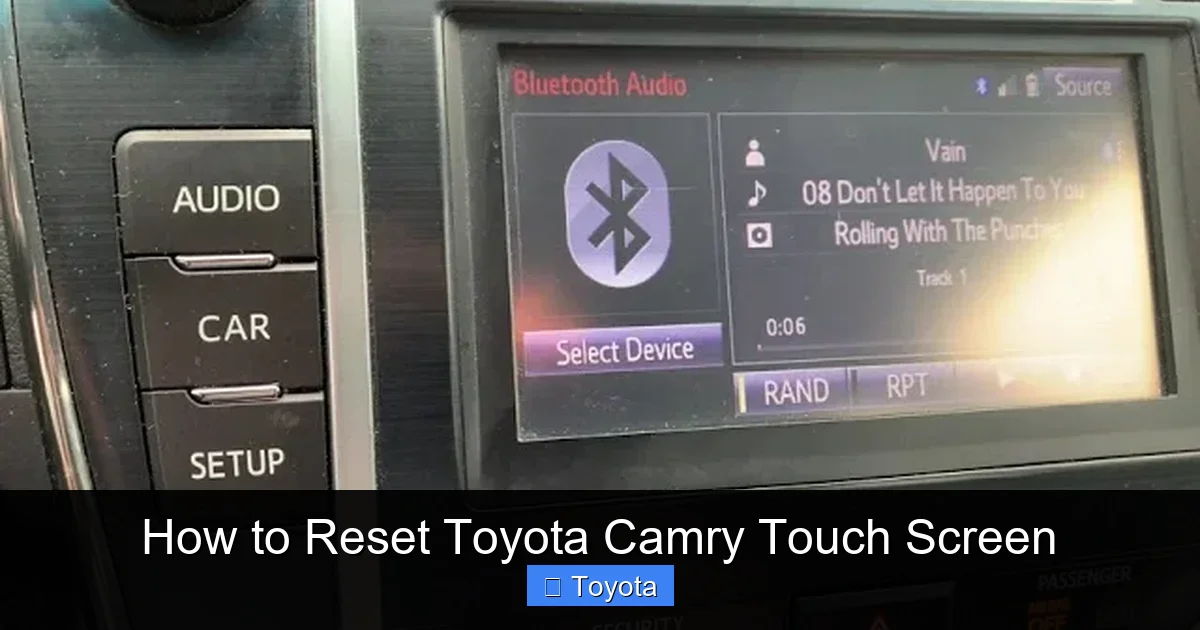
Having trouble with your Toyota Camry touch screen? This guide walks you through simple reset steps, common fixes, and preventative tips to keep your infotainment verso smooth and responsive. Follow the clear instructions below and get back to a fully functional system in minutes.
Key Takeaways
- Reset Basics: A quick reboot often solves most touch screen glitches.
- Check Connections: Loose or dirty cables can cause intermittent failures.
- Software Updates: Keep your Toyota Camry firmware up to date for optimal performance.
- Preventive Care: Treat your infotainment panel with care to avoid future issues.
- Know When to Call a Pro: Persistent problems may need a dealer’s diagnostics.
📑 Table of Contents
Introduction
Every Toyota Camry owner knows that the touch screen is the heart of the car’s infotainment experience. From navigation to music, the screen controls everything. But like any electronic component, it can glitch, freeze, or simply stop responding. The good news is that resetting your Toyota Camry touch screen is usually a quick, hassle‑free fix. In this guide, we’ll walk you through the simplest ways to get your screen back in working order, troubleshoot common problems, and keep it running smoothly for years.
Whether you’re a first‑time owner or a seasoned driver, understanding how to reset the Toyota Camry touch screen will save you time and frustration. The instructions below are written in plain language, so you can follow along without any technical background.
Common Issues With the Toyota Camry Touch Screen
Screen Stays Black or Blank
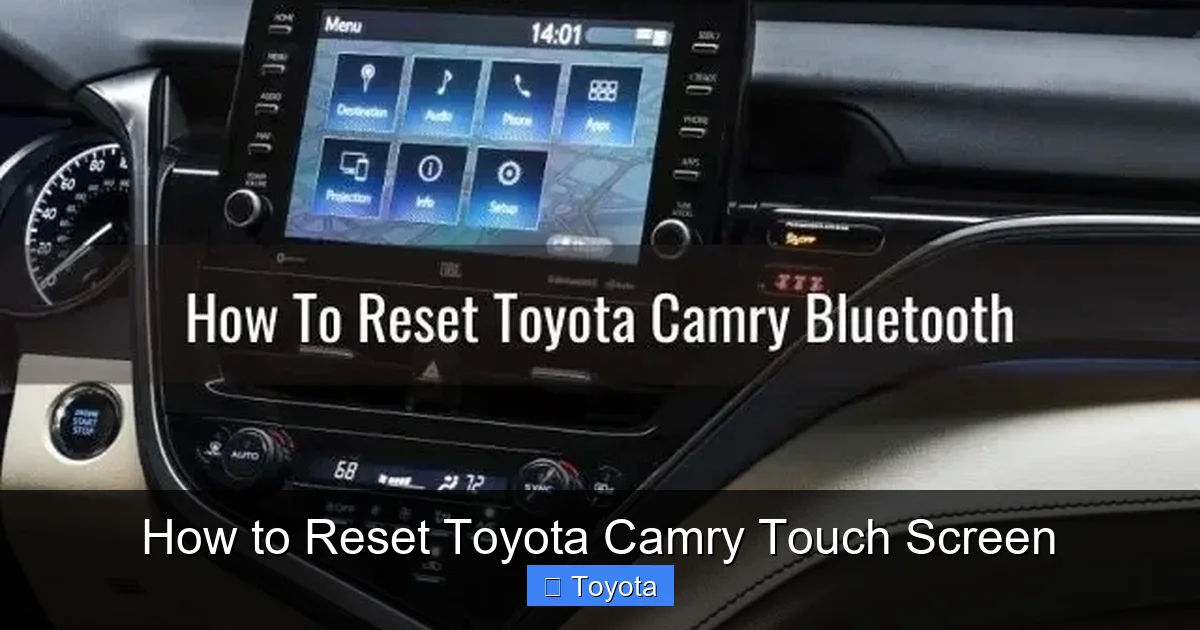
A blank screen is one of the most common symptoms. The display may show a logo or kyk but then go dark. This can happen after a software update, a power surge, or simply a long drive that drained the battery.
Visual guide about How to Reset Toyota Camry Touch Screen
Image source: knowmyauto.b-cdn.net
Touch Input Is Unresponsive
If tapping or swiping on the screen seems to have no effect, the touch sensor may be misaligned or the software may have crashed.
Random Pop‑Ups or Error Messages
Occasional error dialogs can indicate corrupted data or a pending firmware update that didn’t complete correctly.
Audio and Navigation Fail to Work
When the screen is functioning but audio or GPS stops, the system may need a full reset to re‑establish connections.
Quick Fixes Before Resetting
Check the Power Supply
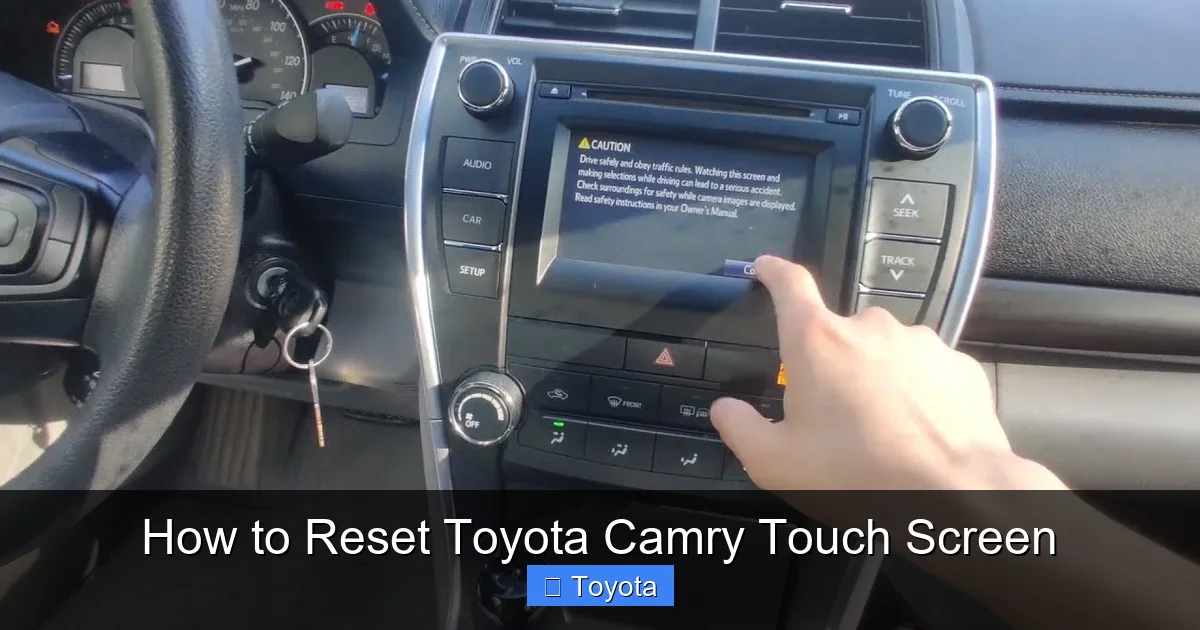
Make sure your Toyota Camry’s battery is charged. A low battery can cause the infotainment system toemaker issues. If you suspect a weak battery, try plugging in a charger or letting the car idle for a few minutes.
Visual guide about How to Reset Toyota Camry Touch Screen
Image source: i.ytimg.com
Disconnect the Seat Belt Sensor
Some models temporarily disable the screen while the seat belt is unfastened. viktig.
Perform a Soft Reboot
Turn off the ignition, wait 10 seconds, then restart. This simple step can clear minor software glitches without a full reset.
Update the Software
Check if a firmware update is available via the Toyota My Toyota app or at a dealer. Updating often resolves bugs that cause the screen to misbehave.
Resetting the Touch Screen: Step‑by‑Step
Method 1: Soft Reset (Recommended First)
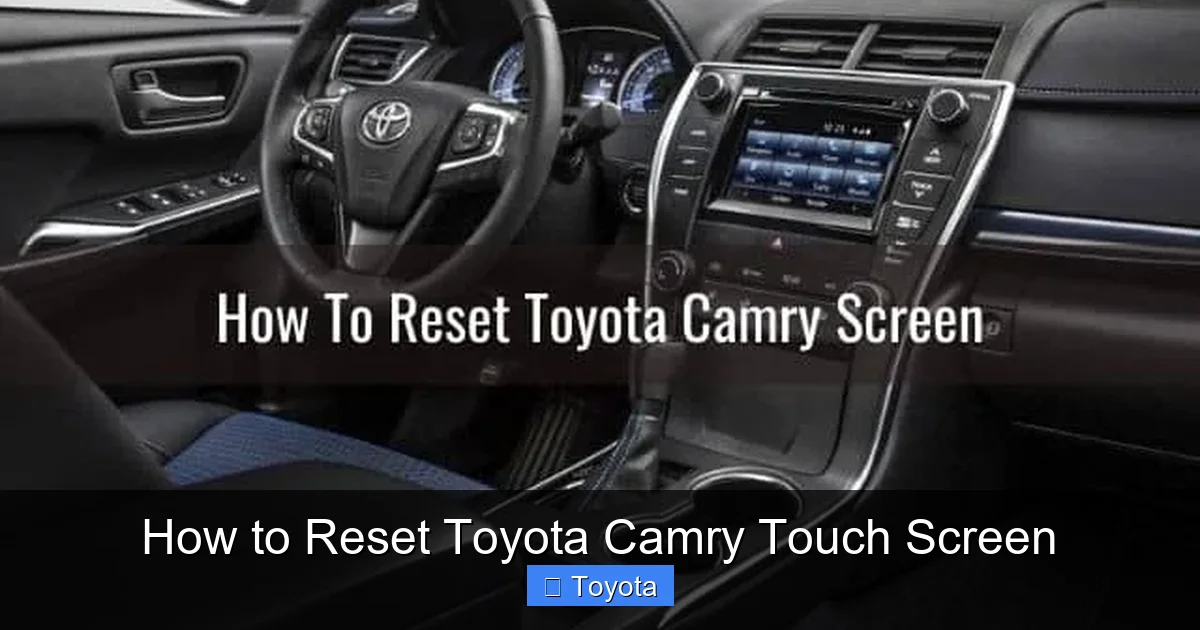
1. Turn on the ignition. 2. Press the “Menu” button on the steering wheel. 3. Navigate to Settings → System → Reset. 4. Select Soft Reset and confirm. The screen will briefly go black and then reboot. This preserves your settings while clearing the software hiccup.
Visual guide about How to Reset Toyota Camry Touch Screen
Image source: knowmyauto.com
Method 2: Hard Reset (If Soft Reset Fails)
1. Locate the power button on the back of the screen or in the center console. 2. Hold it for 10–15 seconds until the screen flickers. 3. Release the button. 4. The system will perform a factory reset, wiping stored data. Back up your Bluetooth contacts and navigation preferences before proceeding.
Method 3: Disconnect the Battery (Last Resort)
1. Open the hood and locate the negative battery terminal. 2. Use a wrench to disconnect and wait 5 minutes. 3. Reconnect the terminal, start the car, and let the screen boot. This can help clear deeper memory issues.
After the Reset
Once the Toyota Camry touch screen restarts, you’ll need to re‑enter your Wi‑Fi password, Bluetooth pairings, and any personalized settings. The system may also prompt you to reinstall updates.
After Reset: What to Expect
Initial Boot Time
Expect a slightly longer boot time on the first start after a reset. The system is re‑initializing all modules.
Re‑Pairing Devices
Bluetooth and Android Auto or Apple CarPlay will need to be re‑paired. Keep your phone handy for a quick setup.
Check for Persistent Issues
If the screen still behaves oddly, try cycling the ignition a few times and test each function (music, navigation, climate control) to identify the scope of the problem.
Preventing Future Issues
Keep the Interior Clean
Dust and moisture can seep into the bezel and affect the touch sensor. Wipe the screen with a microfiber cloth and avoid harsh chemicals.
Regular Software Maintenance
Schedule routine checks for firmware updates through the Toyota My Toyota app or visit a dealer. Updating helps fix bugs that might otherwise require a reset.
Use a Car Cover When Parked
A cover protects the screen from direct sunlight, which can warp the display or cause overheating.
Handle the Car with Care
Regularly check the wiring harness under the dash. If you notice any frayed or loose cables, have them repaired promptly.
For tips on keeping your car’s interior scratch‑free, check out How To Protect Car Interior From Scratches.
When to Seek Professional Help
Persistent Software Errors
If the screen continues to crash or display error codes, a dealer’s diagnostic scan may be required.
Hardware Damage
Cracks, water damage, or a visible malfunction of the screen’s panel itself will need a replacement part.
Electrical System Corruption
Repeated resets that fail to resolve the issue could indicate a deeper electrical problem. A qualified technician Baar will diagnose the wiring or ECU.
Warranty and Service Plans
Check your warranty coverage or any extended service plan that may cover infotainment repairs. For a quick breakdown of car weight and its impact on performance, see How Much Does A Toyota Camry Weigh. Knowing the weight can help when diagnosing performance issues related to the infotainment system.
Conclusion
Resetting the Toyota Camry touch screen is a straightforward process that can bring your infotainment back to life in minutes. By following the soft reset first, updating your software, and keeping the interior clean, you’ll reduce the likelihood of future glitches. Remember, if the screen remains unresponsive after several attempts, it’s time to call a professional. With a little maintenance and the right knowledge, your Toyota Camry’s touch screen will stay sharp and responsive for years to come.
Frequently Asked Questions
What causes the Toyota Camry touch screen to freeze?
Common causes include software glitches, low battery voltage, or a corrupted firmware update. A soft reset often resolves the issue.
Can I reset the touch screen without losing my saved settings?
A soft reset preserves most settings, but a hard reset will erase Bluetooth pairings and navigation data. Back up important info beforehand.
How often should I update the firmware on my Toyota Camry?
Check for updates every 3–6 months via the Toyota My Toyota app. Regular updates fix bugs and improve performance.
Will disconnecting the battery reset the entire car system?
Noerend. Disconnecting the battery mainly clears the infotainment memory, but other modules may also reboot. Use this as a last resort.
Is it safe to use a water‑resistant screen cleaner on my touch screen?
Yes, but avoid spraying directly onto the screen. Use a damp microfiber cloth and a gentle cleaner to prevent moisture from seeping into the panel.
When should I bring my car to a dealer for touch screen issues?
If the screen remains unresponsive after multiple resets, shows physical damage, or consistently displays error codes, a dealer’s diagnostic scan is recommended.