How to Change the Startup Screen on a 2022 Toyota
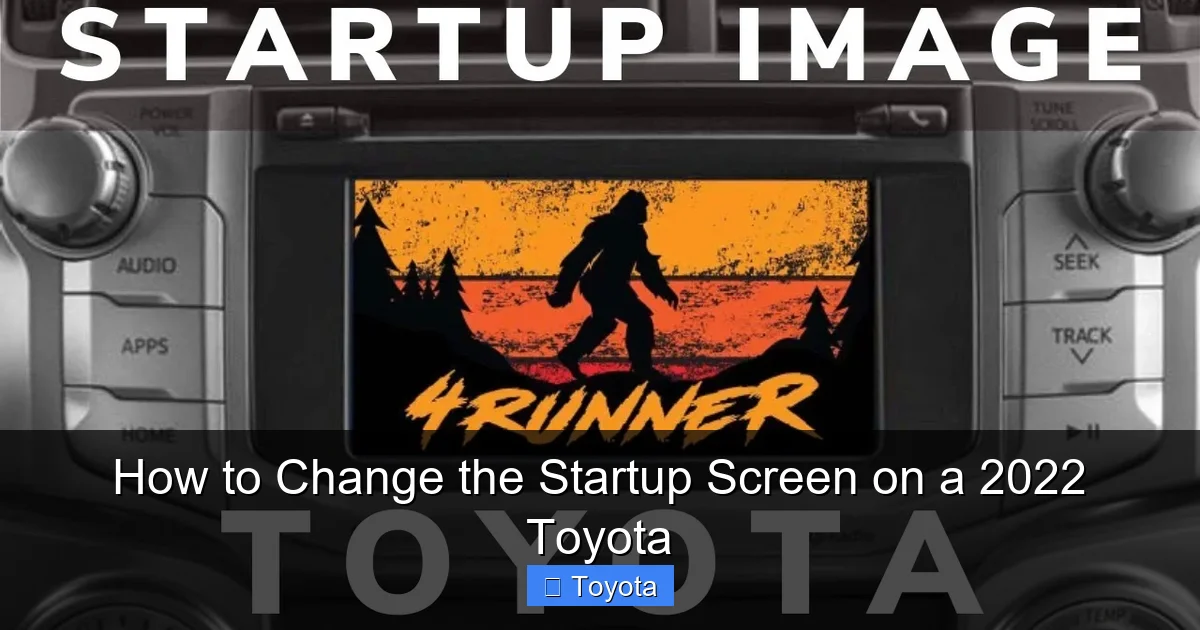
Changing the startup screen on a 2022 Toyota is simple and takes just a few minutes. You can personalize your infotainment display, making every drive feel more unique and enjoyable.
Changing the startup screen on a 2022 Toyota is a straightforward DIY task that lets you personalize the vehicle’s infotainment display. Whether you want a sleek corporate look, a vibrant scenic backdrop, or a favorite photo of your family, this guide walks you through the entire process. We’ll also touch on why the default screen matters, how to prepare your custom image, and what to do if something goes wrong. By the end of this article, you’ll feel confident tackling the customization yourself, saving time and money while making your ride uniquely yours.
Key Takeaways
- Point 1: The 2022 Toyota’s infotainment system uses a simple menu structure, making screen changes quick and hassle‑free.
- Point 2: You’ll need a compatible USB drive with the proper file format (usually PNG or JPEG) to upload a custom background.
- Point 3: Backing up your current settings before any changes protects you from accidental data loss.
- Point 4: The process can be completed without tools, using only the vehicle’s touchscreen and a simple file transfer.
- Point 5: After updating, a quick restart confirms the new startup screen appears as you expect.
- Point 6: Regularly refreshing your screen keeps the interior look fresh and matches your personal style.
📑 Table of Contents
Understanding the 2022 Toyota Infotainment System
The 2022 Toyota models, from the Camry to the RAV4, share a common infotainment platform called Toyota Entune™ 3.0 with Apple CarPlay and Android Auto. This system runs on a 9‑inch touchscreen that not only controls navigation, audio, and climate but also displays the startup screen you see when you turn the key or press the brake. The startup screen is essentially the first frame the system loads, showing the Toyota logo, time, and any custom background you’ve set.
Because the hardware is standardized across many 2022 Toyota vehicles, the steps to change the startup screen are largely the same. This uniformity means you can apply the same technique whether you drive a Camry, Corolla, or Highlander. Knowing how the system works helps you avoid common pitfalls and ensures a smooth customization experience.
How the Startup Screen Works
When you start the engine, the infotainment system runs a quick self‑check and then displays the startup screen. This screen is stored in the vehicle’s internal memory and can be overridden by a custom image file. The system reads the image from a USB drive that you connect to the vehicle’s USB port (usually located in the center console). The image must meet specific size and resolution requirements to prevent distortion.
Internally, the system uses a file named “background.jpg” to store the custom image. The file is loaded into the system’s graphics buffer during boot. If the file is missing or corrupted, the system falls back to the factory logo screen. Understanding this simple workflow makes it easier to troubleshoot any issues you might encounter.
Preparing for the Change
Before you dive into swapping the startup screen, a little preparation goes a long way. You’ll need a few items and a safe method to avoid data loss.
Visual guide about How to Change the Startup Screen on a 2022 Toyota
Image source: aautomotives.com
Gather Your Tools and Materials
- A compatible USB drive – 8 GB or larger, formatted as FAT32.
- A custom image file – PNG or JPEG, recommended resolution 1920 × 1080 px (Full HD) for crisp display.
- A computer with the image file ready to transfer to the USB drive.
- A soft cloth and mild cleaner for the touchscreen (optional, for a smudge‑free surface).
Make sure the USB drive is empty or you have backed up any existing data, as the process will erase it. You can use the car maintenance guide as a reminder to keep the USB port clean before insertion.
Check the Image Specifications
Toyota’s infotainment system prefers images that are 1920 × 1080 px, 24‑bit color depth, and under 5 MB for smooth loading. While larger files may still work, they can cause delays during boot. If you’re using a high‑resolution photo from a smartphone, you can quickly resize it using free software like GIMP or Windows Paint.
Also, ensure the image is oriented correctly. The system will stretch the image to fit the screen, so a landscape orientation works best. Avoid images with lots of text or fine detail that may become unreadable when enlarged.
Step‑by‑Step Guide to Changing the Startup Screen
Step 1: Backup Existing Settings (Optional but Recommended)
Although the startup screen change is unlikely to affect other settings, it’s wise to be safe. You can back up the vehicle’s configuration by using a diagnostic tool or simply by noting any personalized settings you have (like favorite radio stations). If you own a newer Toyota, you might also consider using the new car break‑in guide as a reference for maintaining the vehicle’s software health during customization.
Visual guide about How to Change the Startup Screen on a 2022 Toyota
Image source: di-sitebuilder-assets.s3.amazonaws.com
Step 2: Prepare the USB Drive
Plug the USB drive into your computer and format it as FAT32 if it isn’t already. Then, copy the custom image file onto the root directory of the USB drive. Rename the file to “background.jpg” (or “background.png” if the system accepts PNG). Ensure there are no other files on the drive, as the infotainment system may ignore the background if it detects extra data.
Step 3: Insert the USB Drive into the Vehicle
Locate the USB port in the center console (usually near the gear selector). Insert the drive fully; you’ll see a notification on the touchscreen indicating a new USB device has been detected. The system may prompt you to “Load Media” – select “OK” or “Accept”.
Step 4: Access the Display Settings
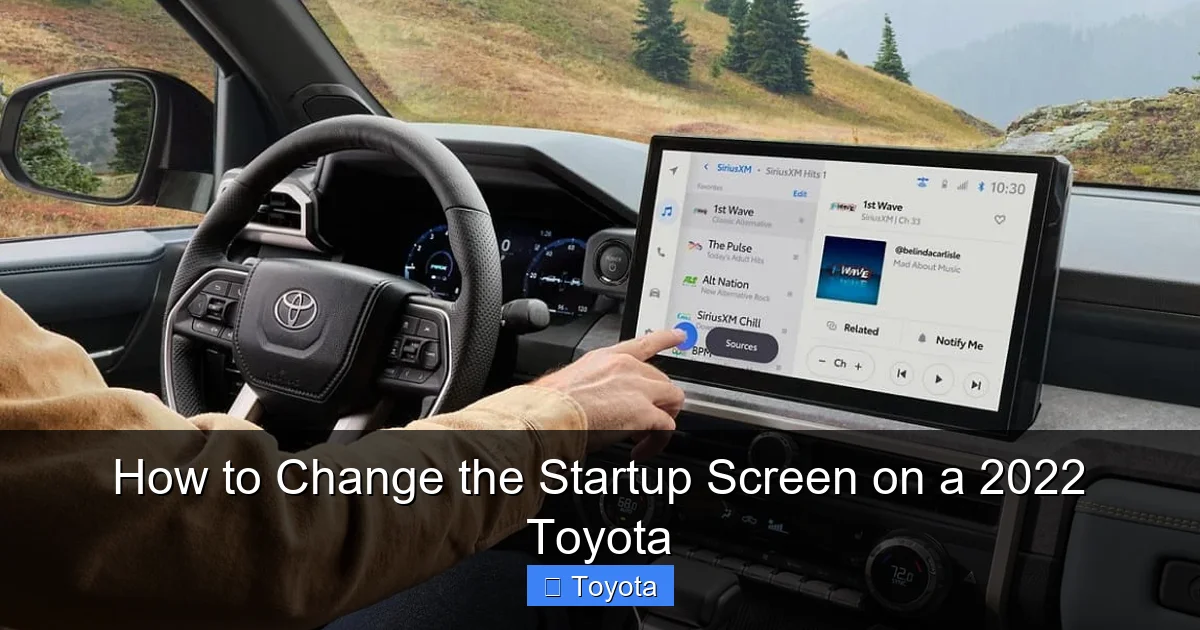
On the touchscreen, tap the “Menu” icon (the three horizontal lines). From the menu, select “Settings,” then scroll to “Display.” Here you’ll find the “Startup Screen” option. Tap it, and you’ll see two choices: “Default Logo” and “Custom Image.” Choose “Custom Image.”
Step 5: Confirm and Save
A preview of your selected image will appear on the screen. Use the touchscreen to ensure the image looks good from your driving position (the system will center the image). Once satisfied, press “Select” or “Save.” The system will copy the image to its internal memory and automatically restart the display.
Step 6: Verify the New Startup Screen
After the system reboots, the custom background should appear immediately when you start the engine or press the brake. If you don’t see the change, repeat the process, double‑checking that the USB drive is still inserted and the file name matches.
Troubleshooting Common Issues
Issue 1: The System Won’t Detect the USB Drive
First, ensure the USB drive is formatted as FAT32 and contains only the background file. Sometimes a corrupted drive can cause detection problems. Try using a different USB port (if available) or a new drive. If the issue persists, consult the GPS installation guide for general USB troubleshooting steps that apply to many Toyota infotainment systems.
Visual guide about How to Change the Startup Screen on a 2022 Toyota
Image source: motortrend.com
Issue 2: Image Appears Distorted
Distortion usually occurs when the image resolution doesn’t match the system’s expectations. Resize the image to 1920 × 1080 px and keep the file size under 5 MB. Also, ensure the aspect ratio is 16:9 to prevent stretching.
Issue 3: The Custom Screen Disappears After a Few Minutes
Some 2022 Toyota models have a power‑saving mode that reverts to the default logo after a short period if the USB drive is removed. Keep the USB drive inserted for at least 30 seconds after the first successful load, or consider installing a permanent custom background using a professional accessory kit (available from Toyota accessory dealers). For more on vehicle power management, see the article on maintaining a car battery in cold weather, which also covers power‑saving behaviors.
Keeping Your Infotainment Fresh
Regular Updates and New Themes
Even though the startup screen is static, you can refresh it periodically with new photos or artwork. Download high‑quality images from reputable sources, and always back up your previous background to a computer for easy restoration.
Consider Professional Installation
If you’re not comfortable performing the DIY steps, a Toyota dealership or certified shop can install a custom startup screen for you. Professional installation often includes a warranty and may involve using proprietary software that ensures the image meets Toyota’s exact specifications. This option is handy if you have limited technical experience or want to ensure the job is done without risking software glitches.
Link to Related Guides
For those who are interested in other infotainment customizations, such as adding a rear‑view camera display or integrating a GPS navigation system, check out the rearview camera installation guide. It complements your startup screen change by enhancing the overall driving experience.
Conclusion
Changing the startup screen on a 2022 Toyota is a quick, rewarding project that lets you inject personality into your daily commute. By following the simple steps—preparing a compatible USB drive, uploading the custom image, and confirming the new display—you’ll have a fresh look every time you start the engine. Remember to back up existing settings, troubleshoot any hiccups, and keep your screen updated to maintain a personalized feel.
Taking the time to customize your vehicle’s infotainment not only improves aesthetics but also reinforces a sense of ownership. Whether you opt for a sleek corporate logo or a vibrant landscape, the process empowers you to make your 2022 Toyota truly yours. Enjoy the fresh look, and happy driving!
Frequently Asked Questions
How do I know if my 2022 Toyota supports a custom startup screen?
All 2022 Toyota models equipped with the Entune™ 3.0 infotainment system support a custom startup screen via a USB drive. You can verify this by checking your vehicle’s touchscreen under Settings > Display > Startup Screen. If you see the “Custom Image” option, you’re good to go.
What file format works best for the custom background?
JPEG or PNG files work best. Aim for a resolution of 1920 × 1080 px and keep the file size under 5 MB to ensure smooth loading and crisp display on the 9‑inch touchscreen.
Do I need any special tools to change the screen?
No special tools are required. All you need is a compatible USB drive (formatted as FAT32) and the custom image file. The changes are made entirely through the vehicle’s touchscreen.
Will changing the startup screen affect other settings?
No. The startup screen change is isolated to the display boot image and does not modify audio presets, navigation history, or vehicle diagnostics. It’s a safe, reversible tweak.
Can I revert to the factory logo if I change my mind?
Absolutely. Simply repeat the steps above, select “Default Logo” in the Startup Screen menu, and the factory logo will reappear after the system restarts.
How often can I update the startup screen?
You can update it as often as you like—each time you have a new image, just repeat the process. Just remember to back up any favorite backgrounds you might want to restore later.