How to Add Pandora to Android Auto
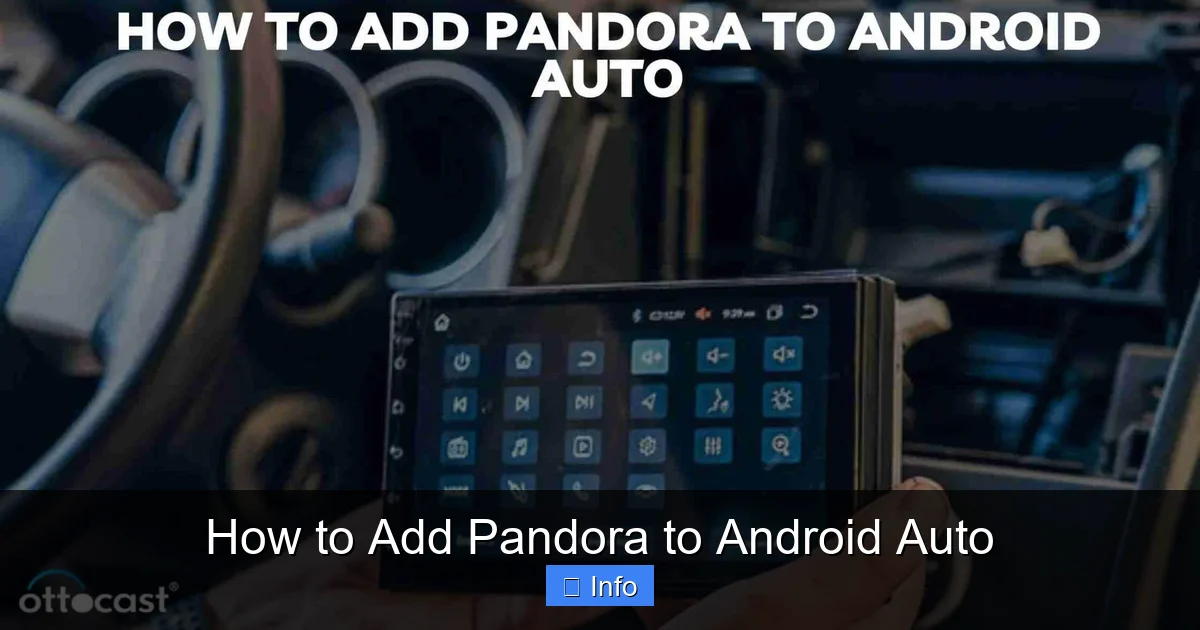
Adding Pandora to Android Auto is simple and unlocks your favorite stations on the road. This guide walks you through compatibility checks, installation, connection, and troubleshooting, so you can enjoy seamless music without distraction. Get up and running in minutes.
Key Takeaways
- Check compatibility: Verify your car’s Android Auto support, USB port, and Android version before you start.
- Update the Pandora app: Always use the latest version from the Google Play Store for optimal performance.
- Use a USB cable for the most reliable connection: Wireless Android Auto works, but a wired link reduces drop‑outs.
- Link your Pandora account: Sign in with your credentials and grant permission for Android Auto to access music.
- Troubleshoot common issues: Restart the phone, clear cache, or reset Android Auto settings if Pandora won’t load.
- Adjust audio settings: Use the car’s equalizer or external amp to fine‑tune sound quality.
- Keep software updated: Regularly update Android Auto and your vehicle’s infotainment firmware for new features.
📑 Table of Contents
Introduction: Why Pandora Belongs in Your Car
If you spend any time behind the wheel, you know that music can turn a mundane commute into a mini‑concert. Pandora offers personalized radio stations, podcasts, and playlists that adapt to your taste. Android Auto brings that experience to your dashboard, but many drivers still wonder how to add Pandora to Android Auto. The good news? It’s easier than you think, and once it’s set up, you’ll wonder how you ever drove without it.
In this guide we’ll walk you through every step, from confirming your car’s compatibility to fine‑tuning the sound. We’ll also sprinkle in a few practical tips that keep the process smooth, so you can focus on the road and the music you love.
1. Check Your Car’s Compatibility
Before you start fiddling with settings, make sure your vehicle can actually run Android Auto. Most 2015‑and‑newer models from major manufacturers support it, but there are a few boxes you need to tick.
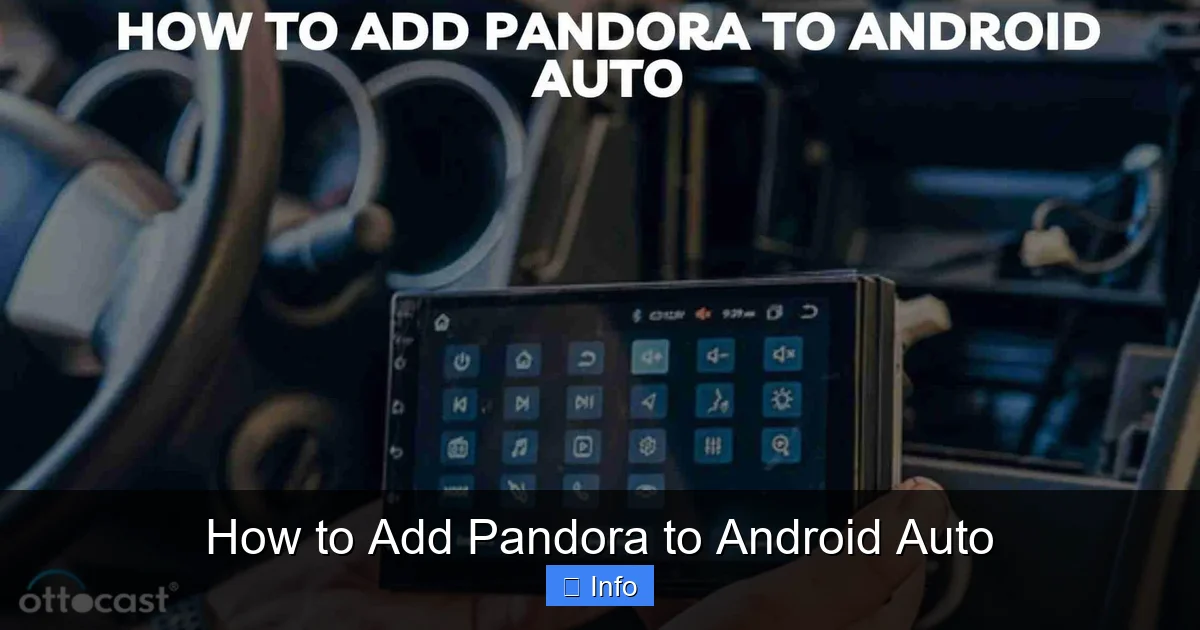
Visual guide about How to Add Pandora to Android Auto
Image source: ottocast.com
Supported Vehicles and Systems
Check your owner’s manual or the manufacturer’s website for a list of supported makes and models. If your car’s infotainment screen shows the Android Auto logo, you’re probably good to go.
Android Version Requirements
Android Auto needs Android 5.0 (Lollipop) or later. If your phone is running an older version, update it first. A quick check in Settings > About phone will tell you your OS version.
Wired vs. Wireless Connection
You can connect via USB cable or over Wi‑Fi if your car supports wireless Android Auto. Wired connections are generally more stable, especially for apps like Pandora that stream continuously.
If you’re unsure whether your car supports wireless Android Auto, look for a “Wireless” or “Wi‑Fi” option in the infotainment settings. Some newer models from Toyota, Honda, and Hyundai have this feature built‑in.
For those who want to squeeze out every bit of audio performance, you might also want to explore how to bypass factory amp in a Jeep Grand Cherokee. That guide shows you how to replace the stock amplifier for richer sound, which can make your Pandora streams sound even better.
2. Install the Pandora App on Your Phone
Even if you’ve used Pandora for years, the version that runs on Android Auto must be the latest one from the Google Play Store. Older versions sometimes lack the “Add to Android Auto” button.
Downloading the Latest Version
Open the Play Store, search for “Pandora,” and tap “Update” if an update is available. Once updated, open the app and sign in with your Pandora credentials.
Setting Up Your Account
After signing in, go to Settings > Connected Devices > Android Auto and toggle the “Show on Android Auto” switch. This tells Pandora to appear in the Android Auto launcher.
Granting Permissions
Android Auto will ask for permissions to access your location, contacts, and microphone. Accept these so you can use voice commands and see personalized recommendations.
If you’re planning a larger infotainment upgrade, such as adding a GPS unit, you might also want to read how to install a GPS system in your car. That article walks you through mounting and wiring a GPS device, which can complement your new music setup.
3. Connect Pandora to Android Auto
Now that your phone and car are ready, it’s time to make the connection. The process differs slightly between wired and wireless setups.
Visual guide about How to Add Pandora to Android Auto
Image source: blog.carplayhacks.com
Wired Connection Steps
1. Plug a high‑quality USB cable into your phone’s charging port.
2. Connect the other end to the USB port in your car’s console.
3. On the car screen, select “Android Auto” and follow the on‑screen prompts.
4. When the Android Auto interface appears, locate the Pandora icon and tap it.
If Pandora doesn’t show up, try a different USB port or cable. Some cars only support Android Auto on specific ports.
Wireless Connection Steps
1. Turn on Bluetooth and Wi‑Fi on your phone.
2. In your car’s infotainment system, locate the “Wireless Android Auto” option and select it.
3. Follow the pairing instructions on the screen.
4. Once paired, Android Auto will launch automatically, and you can open Pandora from the app drawer.
Wireless connections can be a bit finicky. If you experience drop‑outs, switch to a wired connection or move your phone closer to the car’s antenna.
For a deeper dive into audio quality, consider the tips in how to calibrate Uconnect navigation. While that guide focuses on Uconnect, the same principle of adjusting audio settings applies to any car’s infotainment system.
4. Troubleshooting Common Issues
Even after a successful setup, things can go wrong. Here are the most common hiccups and how to fix them.
Pandora Doesn’t Appear in Android Auto
First, double‑check that the “Show on Android Auto” toggle is enabled in the Pandora app settings. If it’s on and the app still doesn’t show, restart both your phone and the car’s infotainment system.
Audio Cutting Out
Audio interruptions are often caused by a weak USB cable or a dirty charging port. Try a different cable, and make sure the port isn’t obstructed by debris. If you’re using Bluetooth, ensure no other devices are connected.
Login Problems
Sometimes Pandora will ask you to log in again. This usually happens after a software update. Enter your credentials carefully, and if you’ve forgotten your password, use the “Forgot password?” link to reset it.
App Crashes or Freezes
Clear the cache of the Pandora app: Settings > Apps > Pandora > Storage > Clear Cache. If the problem persists, uninstall and reinstall the app.
Keeping your car’s firmware up to date can also prevent these glitches. Manufacturers often release patches that improve Android Auto stability.
5. Enhance Your Listening Experience
Now that Pandora is playing through Android Auto, you can take a few extra steps to make the sound pop.
Adjust Volume and Equalizer Settings
Most car stereos let you adjust bass, treble, and balance. Experiment with these settings to match your personal taste. If your vehicle has a premium sound system, you might want to fine‑tune it for the best clarity.
Use Voice Commands
Android Auto supports hands‑free voice commands. Say “Hey Google, play Pandora” or “Hey Google, skip this song” to keep your eyes on the road.
Integrate with Other Apps
You can also control other streaming services like Spotify or Google Play Music alongside Pandora. Switching between apps is as simple as tapping the app drawer.
If you’re adding new hardware, such as a rearview camera, you might wonder how to install a rearview camera in your car. That guide walks you through mounting a camera, which can be handy if you want to keep an eye on the road while you’re jamming to your favorite stations.
Conclusion: Enjoy Seamless Music Anywhere
Adding Pandora to Android Auto is a straightforward process that can transform your driving experience. By confirming compatibility, updating the app, choosing the right connection method, and troubleshooting any hiccups, you’ll have your favorite stations at your fingertips in no time. Remember to keep both your phone and car software updated, and don’t hesitate to explore related upgrades — whether it’s a better amp, a GPS unit, or a new camera — to keep your car’s tech stack fresh.
Now sit back, relax, and let Pandora provide the soundtrack to your next adventure. Safe travels!
Frequently Asked QuestionsCan I use Pandora on Android Auto without a USB cable?
Yes, if your car supports wireless Android Auto, you can connect via Bluetooth and Wi‑Fi. Just make sure both are enabled on your phone and follow the pairing steps.
Do I need a Pandora subscription for Android Auto?
A free Pandora account works with Android Auto, but a Premium subscription removes ads and allows offline listening, which can be handy on long trips.
Why isn’t my Pandora station playing through Android Auto?
Check that the “Show on Android Auto” toggle is enabled, restart the app, and ensure your phone has a stable internet connection.
Can I control Pandora with voice commands?
Absolutely. Use Google Assistant to say “Play Pandora,” “Skip this song,” or “Pause” without taking your hands off the wheel.
Is it safe to update my car’s infotainment software?
Yes, updates often improve compatibility and security. Follow the manufacturer’s instructions and back up any custom settings before updating.
Will adding Pandora affect my car’s battery life?
Streaming music uses modest power, but if you notice rapid drain, consider using a USB charger or reducing screen brightness on your phone.