How to Connect an Iphone to Toyota Highlander
Connecting your iPhone to a Toyota Highlander is simple once you know the right steps. This guide walks you through Bluetooth pairing, USB connections, and troubleshooting tips so you can enjoy your favorite playlists and navigation quickly. Whether you prefer wireless freedom or a wired setup, you’ll be up and running in minutes.
Key Takeaways
- Understand Connectivity Options: The Highlander supports Bluetooth, USB, and auxiliary inputs for iPhone integration.
- Prepare Your iPhone: Ensure iOS is up‑to‑date and note any required passcode or device names.
- Bluetooth Pairing: Use the car’s audio screen to search for devices, select your iPhone, and confirm the PIN.
- USB Connection: Plug a Lightning‑to‑USB cable into the iPhone and the car’s USB port for power and media control.
- Troubleshoot Easily: Restart both devices, check for software updates, and consult our step‑by‑step guide if issues arise.
- Enjoy Advanced Features: Use Apple CarPlay, voice commands, and integrated navigation for a seamless experience.
- Maintain Your System: Keep the car’s firmware current and clean connections for long‑term reliability.
📑 Table of Contents
Introduction
Picture this: you hop into your Toyota Highlander, slide into the driver’s seat, and instantly want your favorite iPhone playlist to blast through the speakers. Maybe you need turn‑by‑turn directions from Maps, or you’d rather use Siri to send a quick text without taking your eyes off the road. Whatever the reason, connecting an iPhone to a Toyota Highlander is a common goal for many drivers. In this guide we’ll break down the process into simple, friendly steps. We’ll cover Bluetooth pairing, wired USB connections, and even some pro tips to keep everything running smoothly.
Even if you’ve never paired an iPhone with a car before, don’t worry. The Highlander’s infotainment system is designed to be user‑friendly, and we’ll walk you through each screen you’ll see. Along the way, we’ll sprinkle in practical examples, quick troubleshooting tricks, and links to related articles that can help you deeper into car tech. So grab your iPhone, open the glove‑box (just kidding—grab your phone), and let’s get connected!
Understanding Your Highlander’s Connectivity Options
Bluetooth vs. USB vs. Auxiliary
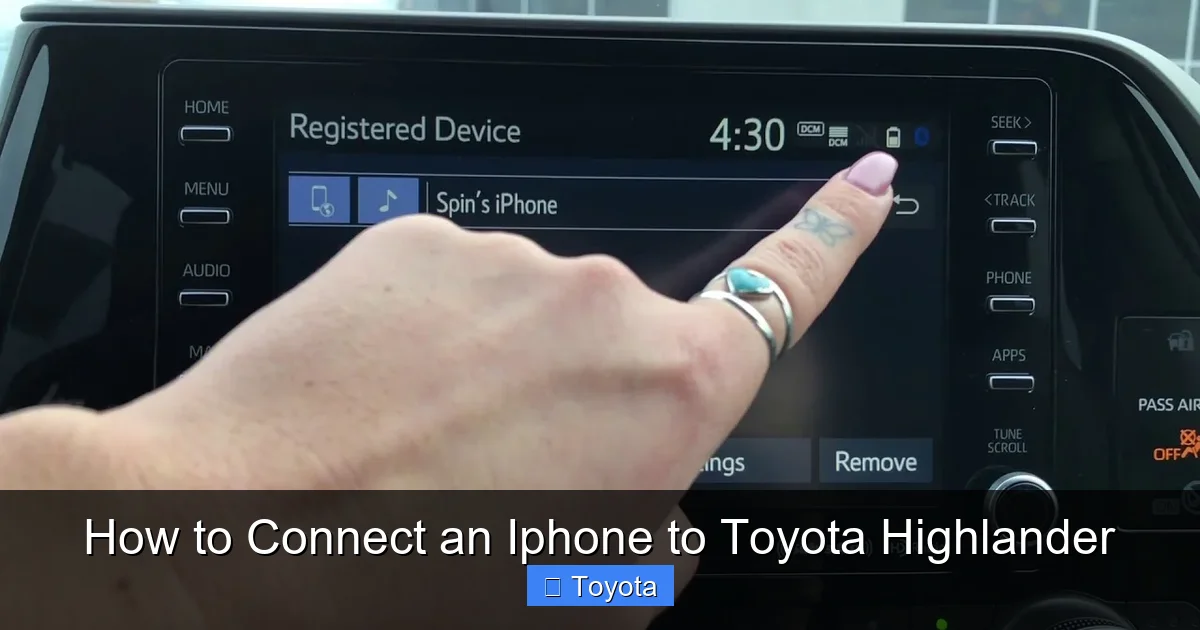
The Toyota Highlander offers three main ways to hook up an iPhone. Each has its own perks, and knowing the differences helps you pick the best method for your situation.
Visual guide about How to Connect an Iphone to Toyota Highlander
Image source: i.ytimg.com
- Bluetooth: Wireless freedom. Use Bluetooth to stream music, make hands‑free calls, and access Apple CarPlay without any cables. Perfect for daily commuting when you want a clean dashboard.
- USB (Lightning) Cable: Wired reliability. Plugging the iPhone into the USB port charges the device while giving you full control over playlists and navigation. It also works even if Bluetooth fails.
- Auxiliary (3.5 mm): Simple, old‑school audio only. Some older Highlanders have an aux input, but it won’t support CarPlay or charging.
Most modern Highlanders prioritize Bluetooth and USB, so we’ll focus on those two. If you ever need to diagnose engine codes, check out our guide on How To Set Up An OBD2 Scanner For Your Car. That article explains how to use a scanner that can also pair with your iPhone for advanced diagnostics.
Apple CarPlay Integration
Apple CarPlay is essentially an iPhone dashboard. It mirrors select apps—Maps, Music, Messages, and more—onto the Highlander’s 8‑inch touchscreen. CarPlay works via Bluetooth or a USB connection, so you’ll need to enable it in your phone’s settings and the car’s menu. Once active, you can speak “Hey Siri” or tap the icon to launch the interface.
If you’re curious about adding other streaming services to your car’s ecosystem, see How To Add Pandora To Android Auto. While that article focuses on Android, many of the same pairing principles apply to iOS.
Preparing Your iPhone Before Pairing
Check iOS Version
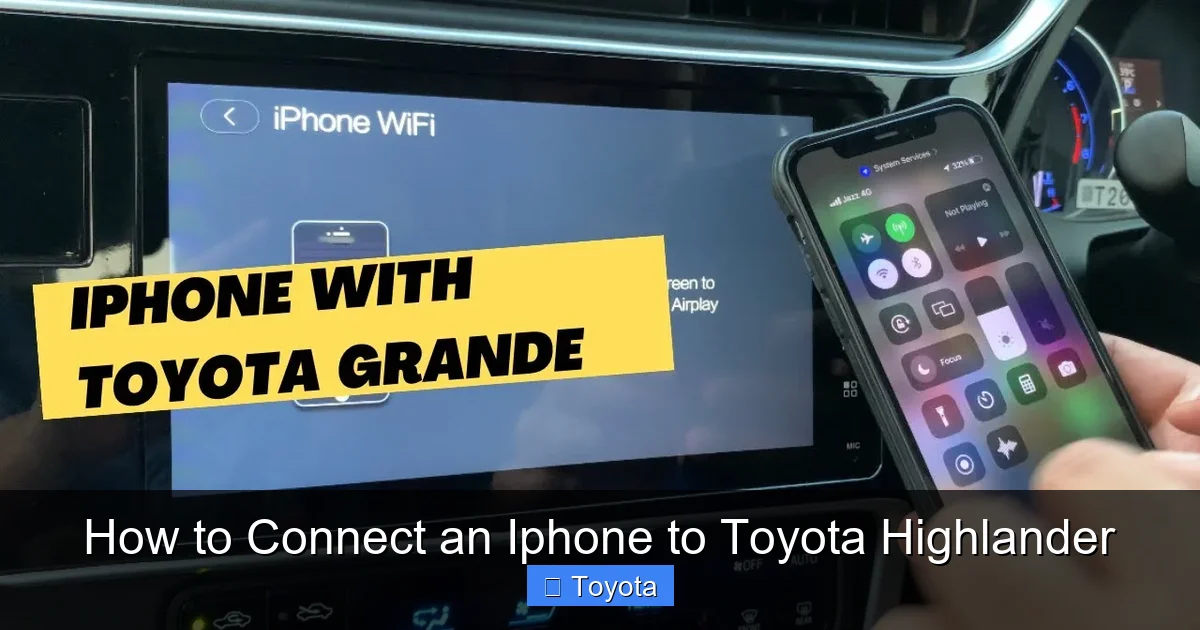
Apple releases updates that improve Bluetooth stability and CarPlay functionality. Make sure your iPhone runs iOS 14 or newer. Go to Settings → General → Software Update and install any available patches. A fresh iOS version can prevent “device not found” errors.
Visual guide about How to Connect an Iphone to Toyota Highlander
Image source: i.ytimg.com
Note Your Car’s Bluetooth Name
When you first turn on the Highlander, the infotainment screen will ask you to name your Bluetooth device. Write down the exact name (e.g., “TOYOTA_HIGHLANDER”) because you’ll need it when searching on your iPhone. If you forgot, you can find it later by navigating to the car’s Bluetooth settings menu.
Enable Location Services for Maps
Apple CarPlay relies on location data for navigation. Ensure Settings → Privacy → Location Services → Maps is set to “While Using App.” This allows your iPhone to feed real‑time traffic to the Highlander’s screen.
Step‑by‑Step Bluetooth Pairing
Turn On the Highlander’s Bluetooth
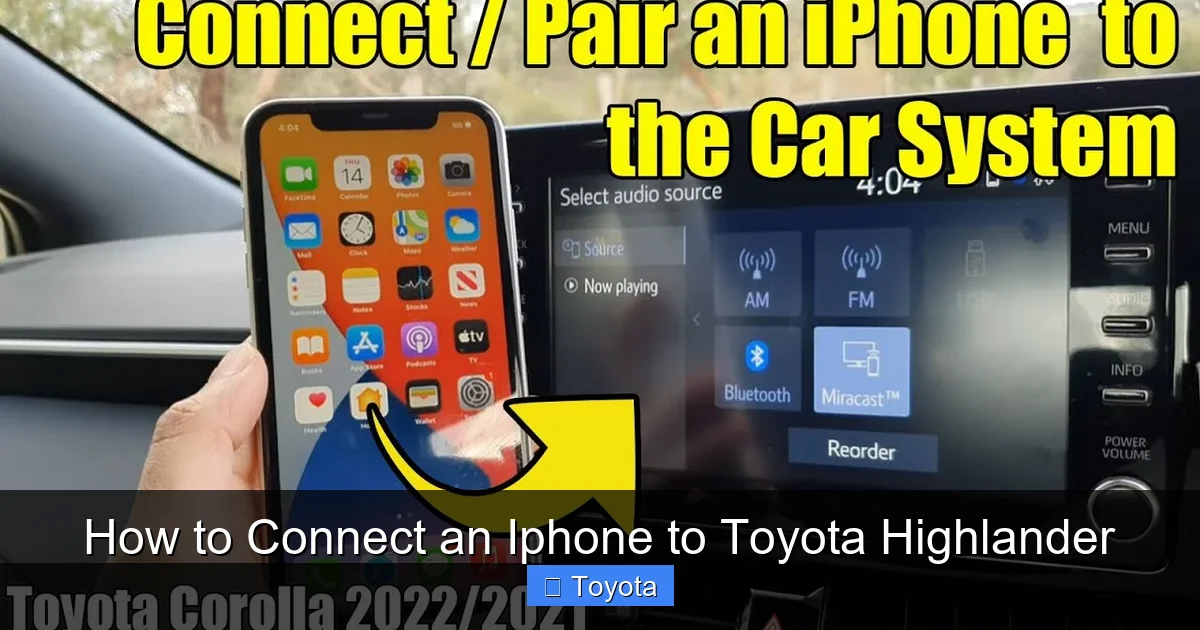
1. Press the “Menu” button on the steering wheel or touch the “Settings” icon on the touchscreen.
2. Select “Bluetooth.”
3. Choose “Pair New Device.” The screen will start scanning for available phones.
Visual guide about How to Connect an Iphone to Toyota Highlander
Image source: i.ytimg.com
Put Your iPhone in Discovery Mode
1. Open Settings → Bluetooth on your iPhone.
2. Toggle Bluetooth on (if not already).
3. Under “Other Devices,” tap “Enter Pairing Code” or simply let the phone appear in the list.
Confirm the Passcode
The Highlander will display a numeric code (e.g., “12345”). On your iPhone, confirm that code when prompted. Once confirmed, the pairing is successful.
Enable Apple CarPlay
Return to the car’s Bluetooth menu and select “Apple CarPlay.” Choose “Phone” or “Phone & Music” depending on what you want to use. On your iPhone, go to Settings → CarPlay and select “Enable CarPlay” or “Allow While Driving.” Your iPhone will now mirror its interface onto the Highlander’s screen.
Connecting via USB (Lightning Cable)
Gather Your Cable
You’ll need a standard Lightning‑to‑USB‑A cable (or a Lightning‑to‑USB‑C cable if your Highlander has a USB‑C port). Make sure the cable can handle data transfer, not just charging.
Plug In the iPhone
1. Insert the Lightning connector into your iPhone.
2. Connect the USB end to the Highlander’s USB port (usually located in the center console or dashboard).
3. The car’s screen should automatically detect the device. If not, press the “Media” button on the steering wheel.
Select Media Source
Choose “USB” or “iPhone” from the source list. You’ll see icons for music, podcasts, or audiobooks. Tap “Music” to start playing your library.
Charge While Using
The Highlander supports “USB Power Delivery,” so your iPhone will charge while you listen to music. If you notice the battery draining, try a different cable or port—sometimes the vehicle’s USB ports have limited power.
Troubleshooting Common Issues
Device Won’t Appear in the List
First, restart both the iPhone and the Highlander’s infotainment system. Hold the power button on the car’s screen (if available) or unplug the USB cable and wait 10 seconds. After a restart, repeat the pairing steps.
Intermittent Audio Dropouts
Bluetooth can be finicky. Keep the iPhone within 6‑8 feet of the car, avoid metal objects, and make sure no other Bluetooth devices are competing for the same frequency. If problems persist, reset Bluetooth on both devices: Settings → Bluetooth → “Forget This Device” on the iPhone, then repeat the pairing.
CarPlay Won’t Launch
Check that your iPhone’s CarPlay settings are correct. Go to Settings → CarPlay → [Your Highlander] and ensure “Allow While Driving” is toggled on. Also verify that the car’s Bluetooth connection is stable. If CarPlay still won’t appear, try a USB connection—CarPlay often works more reliably when wired.
USB Not Recognized
Inspect the cable and port for debris. Sometimes dust builds up in the USB port, preventing a proper connection. Use compressed air (if available) or a dry cloth to clean the port. If the issue continues, consider using a different cable or port.
Advanced Features & Pro Tips
Use Voice Commands
Both Siri and the Highlander’s steering wheel buttons let you control music, calls, and navigation without taking your hands off the wheel. For example, say “Hey Siri, play my rock playlist” and the system will launch Spotify or Apple Music directly.
Customize Your Home Screen
When CarPlay is active, you can rearrange icons by holding a finger on an app and dragging it to a new spot. This lets you prioritize Maps or Messages for quick access.
Update Your Highlander’s Firmware
Toyota occasionally releases infotainment updates that improve Bluetooth stability and add new features. Check the Toyota app or visit a dealership to ensure your Highlander’s software is current. A simple update can resolve pairing headaches.
Keep Connections Clean
Moisture and dirt can degrade Bluetooth performance. If you live in a humid climate, wipe the car’s USB ports with a dry microfiber cloth quarterly. This small habit can extend the life of your connections.
Conclusion
Connecting an iPhone to a Toyota Highlander may seem like a tech puzzle, but with the right steps it becomes second nature. Whether you choose the convenience of Bluetooth or the reliability of a USB cable, you now have a clear roadmap to pair your device, enable Apple CarPlay, and troubleshoot any hiccups that arise. Remember to keep your iPhone’s software updated, explore the advanced voice commands, and maintain clean ports for long‑term performance.
For more car‑tech tips, check out How To Break In A New Car Toyota. That article walks you through caring for your new Highlander so it stays in top shape for years to come.
Now go ahead—plug in, pair up, and enjoy the ride with all your favorite iPhone features right at your fingertips. Safe driving and happy listening!
Frequently Asked Questions
How do I pair my iPhone with my Toyota Highlander’s Bluetooth?
First, turn on the Highlander’s Bluetooth by navigating to Settings → Bluetooth → Pair New Device. On your iPhone, open Settings → Bluetooth and select your Highlander from the list of available devices. Confirm the passcode shown on the car’s screen, then enable Apple CarPlay if desired. After pairing, you can stream music, make calls, and use CarPlay just like a built‑in system.
What should I do if my iPhone doesn’t show up when I search for Bluetooth devices?
Restart both devices. On the iPhone, toggle Bluetooth off and on again, then enable “Discoverable” mode. In the Highlander, go back to the Bluetooth menu and select “Search Again.” If the issue persists, reset the car’s Bluetooth by unplugging the negative battery terminal for a few minutes, then repeat the pairing steps.
Can I use USB to connect my iPhone for both charging and music?
Yes. Use a Lightning‑to‑USB‑A cable and plug it into the Highlander’s USB port. The system will recognize the iPhone, allowing you to control music playback via the steering wheel buttons or touchscreen while the device charges simultaneously.
Why won’t Apple CarPlay appear on the Highlander’s screen?
Ensure CarPlay is enabled on both devices. On the iPhone, go to Settings → CarPlay and select your Highlander. In the car, choose Apple CarPlay from the Bluetooth menu. If it still doesn’t show, try a USB connection—CarPlay often works better when wired. Also verify that your iPhone’s iOS is up‑to‑date.
How can I improve Bluetooth stability in the Highlander?
Keep the iPhone within 8 feet of the car, avoid metal accessories near the antenna, and disconnect other Bluetooth devices that may cause interference. Periodically restart both the car’s infotainment system and the iPhone. If problems continue, reset the Bluetooth settings on both devices and re‑pair.
What is the best way to keep my USB ports clean?
Use a dry microfiber cloth to wipe the USB ports quarterly. For stubborn debris, a short burst of compressed air works well. Keeping the ports clean ensures reliable charging and data transfer for your iPhone.