How Do I Connect Google Maps to Toyota Navigation
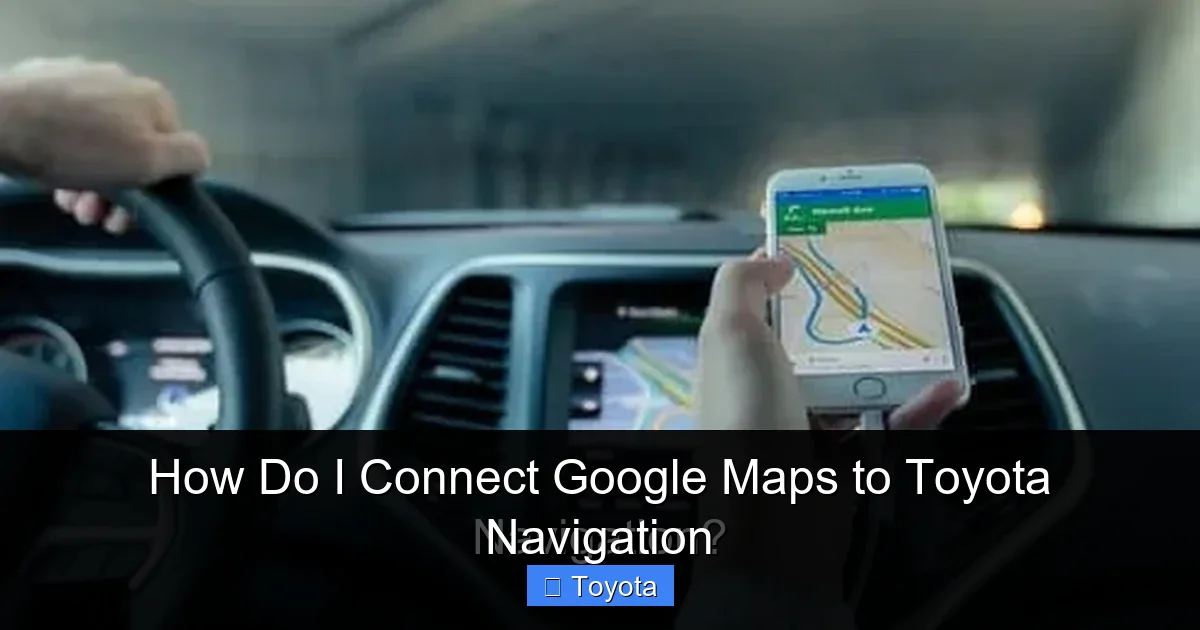
Connecting Google Maps to your Toyota navigation system is straightforward using Android Auto or Apple CarPlay. Most modern Toyota models support wireless or wired smartphone integration, letting you use Google Maps on your vehicle’s display. This guide covers every method step by step.
You just bought a Toyota. You love the car. But you hate the built-in navigation. It feels clunky. The maps look dated. The voice commands barely understand you. You just want Google Maps on that big dashboard screen. Good news. You can have it. Most Toyota models from the last several years support smartphone projection. That means Google Maps. Right on your factory display. No hacking. No aftermarket units. Just your phone and a few minutes of setup.
This guide walks you through every way to connect Google Maps to Toyota navigation. We cover wired and wireless Android Auto. We cover Apple CarPlay for iPhone users. We touch on Toyota’s own app ecosystem. And we give you troubleshooting tips for when things go sideways. By the end, you will have real-time traffic, lane guidance, and that familiar Google voice guiding you home.
Key Takeaways
- Android Auto and Apple CarPlay are the primary methods: These platforms mirror Google Maps from your phone to your Toyota’s infotainment screen.
- Wireless connection is available on newer models: Many 2020 and later Toyota vehicles support wireless Android Auto and CarPlay.
- USB cable provides the most reliable connection: A quality data cable ensures stable navigation without dropouts.
- Toyota’s native app suite offers an alternative: The Toyota app can send destinations to your car’s built-in navigation system.
- Voice commands work through both systems: Use “Hey Google” or “Hey Siri” for hands-free destination entry.
- Keep software updated for best performance: Update your phone, apps, and Toyota’s infotainment system regularly.
- Troubleshooting is usually simple: Most connection issues resolve with a cable swap, phone restart, or cache clear.
📑 Table of Contents
Understanding Your Toyota’s Infotainment System
Which Toyota Models Support Smartphone Projection
Toyota rolled out Android Auto and Apple CarPlay support starting with the 2019 model year. The 2019 Avalon was the first. The 2020 Camry, Corolla, RAV4, and Highlander followed quickly. By 2021, nearly every Toyota sold in North America included support. If you drive a 2018 or older model, you likely lack native support. Some 2018 models received a software update. Check with your dealer. The head unit hardware must support it.
Audio Multimedia vs. Entune vs. Toyota Audio
Toyota uses different names for its infotainment suites. Entune 3.0 runs on many 2018 to 2020 models. Audio Multimedia powers 2021 and newer vehicles. The older Entune 2.0 does not support Android Auto or CarPlay. You can identify your system in the Settings menu under System Info. The version number matters. Audio Multimedia 12.3 and later supports wireless projection. Earlier versions need a cable.
Screen Sizes and Capabilities
Toyota offers 7-inch, 8-inch, 9-inch, and 12.3-inch displays. Larger screens show more map detail. They also support split-screen views. You can see Google Maps on one side and music controls on the other. The 12.3-inch unit in the Tundra, Sequoia, and Crown splits beautifully. Smaller screens work fine too. They just show less context at once.
Connecting Google Maps via Android Auto
Wired Android Auto Setup
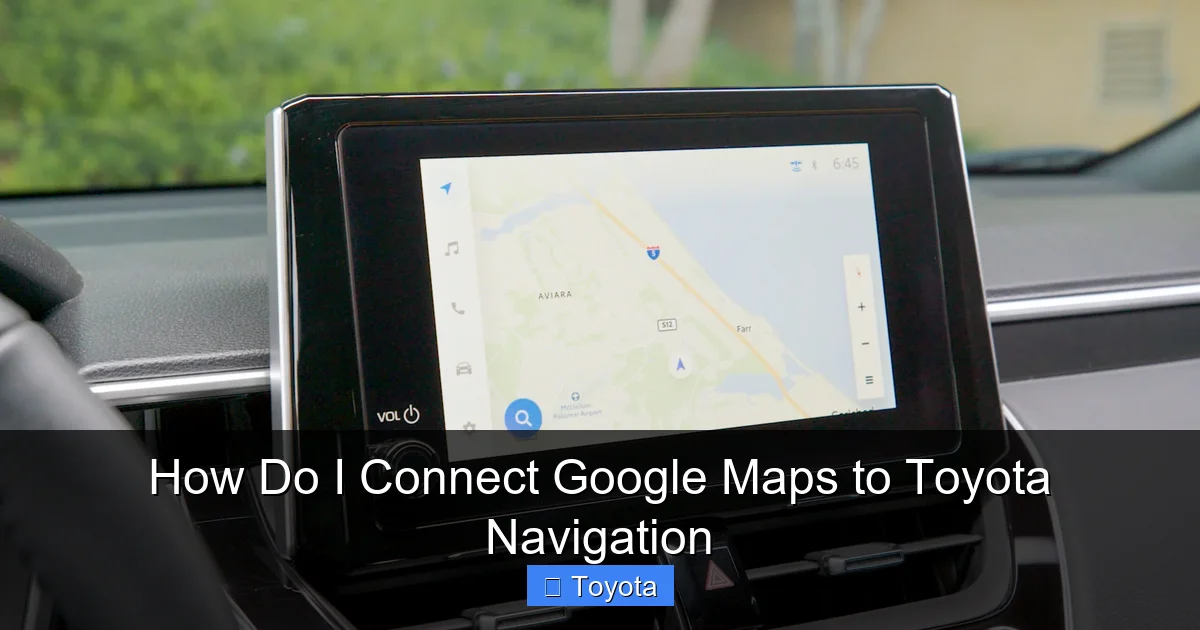
Wired connection remains the most reliable method. You need a USB data cable. Not a charging-only cable. The cable that came with your phone works best. Plug the USB end into your Toyota’s data port. This port usually sits in the center console or under the armrest. It often has a smartphone icon next to it. The other end goes into your Android phone.
Visual guide about How Do I Connect Google Maps to Toyota Navigation
Image source: motortrend.com
Your phone will prompt you to allow Android Auto. Tap Allow. If this is your first time, the Android Auto app will open. Follow the on-screen setup. Grant permissions for contacts, messages, and location. Your Toyota screen will switch to the Android Auto interface. Tap the Maps icon. Google Maps launches. Enter your destination. Drive.
Wireless Android Auto Setup
Wireless Android Auto requires a compatible Toyota and a compatible phone. Most 2021 and newer Toyotas with Audio Multimedia support it. Your phone needs Android 11 or later. Pixel and Samsung Galaxy phones work best. Other brands vary. Start by pairing your phone via Bluetooth. Go to Settings on your Toyota screen. Select Bluetooth. Add new device. Choose your phone. Confirm the PIN.
Once paired, the system may prompt you to enable wireless Android Auto. Accept. If not prompted, go to the Android Auto app on your phone. Tap the three-line menu. Select Settings. Turn on Wireless Android Auto. Your Toyota screen should now launch Android Auto automatically when you start the car. No cables needed. Keep in mind wireless uses more phone battery. A wireless charging pad helps.
Using Google Maps Inside Android Auto
Google Maps in Android Auto looks familiar. The interface is simplified for driving. Large buttons. Clear text. Tap the search bar. Speak or type your destination. Recent places appear first. Saved places like Home and Work show up. Tap Go. Navigation starts. Voice guidance plays through your car speakers. You can mute it from the map screen. You can also ask Google Assistant. Say “Hey Google, navigate to the nearest coffee shop.” It works.
Connecting Google Maps via Apple CarPlay
Wired CarPlay Setup for iPhone
iPhone users connect through Apple CarPlay. The process mirrors Android Auto. Use a Lightning to USB cable. Apple cables work best. Third-party cables often fail data transfer. Plug into the same data port. Your iPhone will ask if you want to allow CarPlay. Tap Allow. If CarPlay doesn’t launch automatically, press the Home button on your Toyota screen. The CarPlay icon looks like a steering wheel with apps. Tap it.
Wireless CarPlay Setup
Wireless CarPlay works on 2021 and newer Toyotas with Audio Multimedia. Your iPhone needs iOS 15 or later. iPhone 8 and newer support it. Pair via Bluetooth first. Same process as Android. Settings. Bluetooth. Add Device. Once paired, go to Settings on your iPhone. General. CarPlay. Select your Toyota. Enable Wireless CarPlay. Next time you enter the vehicle, CarPlay launches automatically. Your iPhone stays in your pocket or bag.
Google Maps on CarPlay
Google Maps on CarPlay feels like the iPhone app. But optimized for the car screen. Tap the search field. Use the on-screen keyboard or Siri. Say “Hey Siri, open Google Maps and navigate to Target.” Siri handles it. The map renders beautifully on Toyota’s high-resolution displays. Lane guidance appears at the top. Speed limits show in the corner. Real-time traffic colors the route. Red means slow. Green means go.
Using Toyota’s Native App Ecosystem
The Toyota App and Remote Connect
Toyota offers its own app. It’s called simply “Toyota.” Download it from the App Store or Google Play. Create an account. Link your vehicle using the VIN. You get Remote Connect features. Remote start. Lock and unlock. Vehicle health reports. And destination send-to-car. This works with the factory navigation system. Not Google Maps. But it’s useful if you prefer the built-in maps.
Sending Destinations from Phone to Car
Open the Toyota app. Tap Destination. Search for an address or point of interest. Tap Send to Vehicle. The destination appears on your car’s navigation screen. Accept it. The factory system calculates the route. This is handy when you plan trips at your desk. You send them before you walk to the car. No typing on the dashboard keyboard.
Toyota Cloud Navigation
Newer Toyotas with Audio Multimedia use cloud-based navigation. The maps update over the air. No SD cards. No dealer visits. Points of interest stay current. Gas prices show in real time. Parking availability appears for some locations. This system integrates with the Toyota app. It also works with voice commands through the Toyota Intelligent Assistant. Say “Hey Toyota, find a charger.” It works for EVs and plug-in hybrids.
Troubleshooting Common Connection Issues
Android Auto Won’t Launch
First, check your cable. Swap it. Use the original cable. Try a different USB port. Some Toyotas have charge-only ports. They won’t pass data. Look for the smartphone icon. Restart your phone. Restart the infotainment system. Hold the audio power knob for ten seconds. The screen reboots. Clear Android Auto cache. Phone Settings. Apps. Android Auto. Storage. Clear Cache. Clear Data. Reconnect.
Wireless Connection Drops
Wireless projection can be finicky. Interference kills it. Other Bluetooth devices compete. Turn off unused Bluetooth accessories. Keep your phone cool. Overheating throttles Wi-Fi. Remove thick cases. Metal cases block signals. Forget the Bluetooth pairing on both ends. Re-pair fresh. Update your phone OS. Update the Android Auto app. Update your Toyota software. Dealers can flash the latest firmware.
Google Maps Audio Issues
No voice guidance? Check volume levels. Three separate volumes exist. Media volume. Navigation volume. Phone call volume. Adjust while guidance speaks. Tap the speaker icon on the map. Ensure it’s not muted. Check Bluetooth audio settings. Some phones route navigation audio to “Phone Audio” instead of “Media Audio.” Change it in Bluetooth device settings. On iPhone, tap the info icon next to your Toyota in Bluetooth settings. Enable Media Audio.
Map Freezes or Lags
Close background apps on your phone. They steal RAM. Android Auto and CarPlay need resources. Restart the phone weekly. Clear Google Maps cache. App Info. Storage. Clear Cache. Don’t clear data unless necessary. You’ll lose offline maps. Ensure your phone has free storage. At least 2 GB. Low storage kills performance.
Advanced Tips for the Best Experience
Optimize Your Home Screen Layout
Both Android Auto and CarPlay let you customize the app order. Put Google Maps first. You’ll reach it fastest. On Android Auto, open the app drawer. Long-press Maps. Drag to top. On CarPlay, go to iPhone Settings. General. CarPlay. Select your car. Customize. Drag Google Maps to the first page. First position.
Use Voice Commands Exclusively
Touchscreens distract. Voice keeps eyes forward. “Hey Google, navigate to 123 Main Street.” “Hey Siri, give me directions to the airport.” “Hey Toyota, find the nearest Supercharger.” Practice the wake words. Train your voice model. Google Assistant learns your accent. Siri adapts too. The more you use voice, the better it gets.
Download Offline Maps as Backup
Cell service dies in mountains. Deserts. Tunnels. Google Maps lets you download areas. Open Google Maps on your phone. Tap your profile. Offline Maps. Select Your Own Map. Download the region. These work in Android Auto and CarPlay. The car screen shows the offline map. Routing still works. Traffic won’t update. But you won’t get lost.
Split Screen for Multitasking
On 9-inch and 12.3-inch displays, use split screen. Android Auto supports it natively. Swipe from the edge. Choose a second app. Music. Messages. Calendar. CarPlay added split screen in iOS 13. It shows Maps on one side. Controls on the other. No more switching back and forth. Glance at the next turn while changing playlists.
Keep Everything Updated
Update your phone OS monthly. Update Google Maps weekly. Update Android Auto or CarPlay when prompted. Visit your dealer annually for infotainment updates. Or check Toyota’s owner portal. Some updates install over Wi-Fi. Park at home. Connect to your home Wi-Fi in Vehicle Settings. The car downloads updates overnight.
Conclusion
Connecting Google Maps to Toyota navigation is not rocket science. It’s a few taps. A cable. Or a Bluetooth pair. Android Auto brings the full Google Maps experience to your dashboard. Apple CarPlay does the same for iPhone users. Toyota’s own app adds destination sending for the factory system. You have options. Pick the one that fits your phone and your habits.
Start with a wired connection. It’s bulletproof. Move to wireless when you trust it. Keep your software current. Use voice commands. Download offline maps for adventures. And enjoy the ride. You now have the world’s best navigation in your Toyota. Real-time traffic. Accurate ETAs. Lane guidance that actually works. No more missed exits. No more outdated maps. Just drive.
Frequently Asked Questions
Can I use Google Maps on my Toyota without a smartphone?
No, Google Maps requires a smartphone connection through Android Auto or Apple CarPlay. The factory Toyota navigation system runs its own mapping software and cannot run Google Maps natively without phone projection.
Does wireless Android Auto work on all Toyota models?
Wireless Android Auto works on most 2021 and newer Toyota models equipped with the Audio Multimedia system. Older models with Entune 3.0 typically require a USB cable connection for Android Auto.
Why does Google Maps not show on my Toyota screen after connecting?
Ensure you have granted all permissions to Android Auto or CarPlay, selected the correct USB data port, and tapped the Maps icon on the projected interface. Restart both your phone and the infotainment system if the issue persists.
Can I use Google Maps and Toyota’s built-in navigation at the same time?
You cannot run both simultaneously on the main display. However, you can run Google Maps via Android Auto or CarPlay while the factory navigation runs in the background for hybrid system data or sends guidance to the head-up display if equipped.
Does using Google Maps through Android Auto use my phone’s data?
Yes, Google Maps streams map data and traffic information through your phone’s cellular connection. Downloading offline maps on your phone beforehand can reduce data usage during navigation.
How do I update the maps on my Toyota’s factory navigation system?
Toyota’s cloud-based navigation on Audio Multimedia systems updates automatically over Wi-Fi. For older Entune systems, map updates may require a dealer visit or SD card update purchased through Toyota’s website.