How to Remove a Contact from the Toyota Home Screen
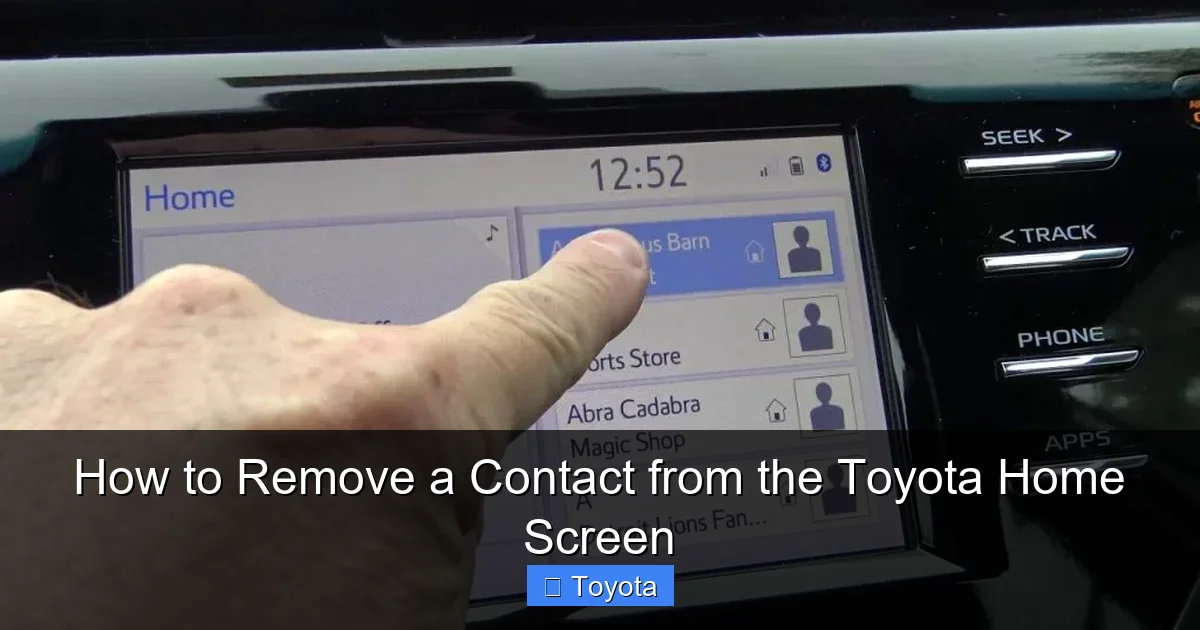
Removing a contact from the Toyota home screen is simple. You can do it from the car’s touchscreen or your paired phone. This guide shows easy steps to keep your Toyota infotainment clean and safe.
How to Remove a Contact from the Toyota Home Screen
Do you have too many names on your car’s display? It can feel messy and confusing. Many Toyota owners ask how to remove a contact from the Toyota home screen. This guide will help you do it fast and without stress.
If you just got a new ride, you may also like our tips on how to break in a new car Toyota. That keeps your engine happy for years. But today we focus on cleaning up your screen so you can drive with peace of mind.
Your Toyota is more than a car. It is a small computer on wheels. The home screen is the face of that computer. Let us learn to tidy it up together.
Key Takeaways
- Easy Process: You can remove a contact from the Toyota home screen in under two minutes using the touch panel.
- Phone Option: Bluetooth settings on your iPhone or Android can hide contacts without touching the car.
- Privacy Win: Clearing old names keeps your private life hidden from passengers and strangers.
- Safety Boost: Fewer icons mean less distraction and more eyes on the road.
- Model Variety: Steps are similar across Corolla, Tundra, and RAV4 but menus may vary by year.
- Regular Care: A monthly cleanup prevents clutter from building up again.
📑 Table of Contents
What Is the Toyota Home Screen?
The Toyota home screen is the main page of your infotainment system. It shows apps, maps, and quick contacts. You see it when you start the car and it stays visible while you drive.
The Basics of the Display
Toyota uses different systems across its lineup. Older cars have Entune. Newer ones have Audio Multimedia. Both let you pin contacts for quick calls with one tap.
Pinned contacts appear as small icons or tiles. They make calling easy and safe. But they can pile up over time as you add new friends and family.
The screen is a touch panel. It reacts to your finger. Some models also have physical buttons near the shift lever. These can help you navigate menus too.
Where Contacts Come From
Your car syncs with your phone through Bluetooth. It pulls favorites or recent calls from the device. This helps you stay hands-free and follow the law.
Some Toyotas also link to your address book via the Toyota app. This creates a bridge between your pocket and your dashboard. It is smart but can cause clutter.
Why Toyota Shows Contacts
The feature exists for convenience. You can call without looking at your phone. Just tap the name on the screen. It is a great safety tool when used right.
Still, you may want to clean the list. That is where our steps come in. Knowing the source helps you remove items the right way.
Why You Might Want to Remove a Contact
There are many good reasons to clear old names. Maybe a friend moved away. Maybe an ex is still pinned. Or maybe you just want less clutter on the small screen.
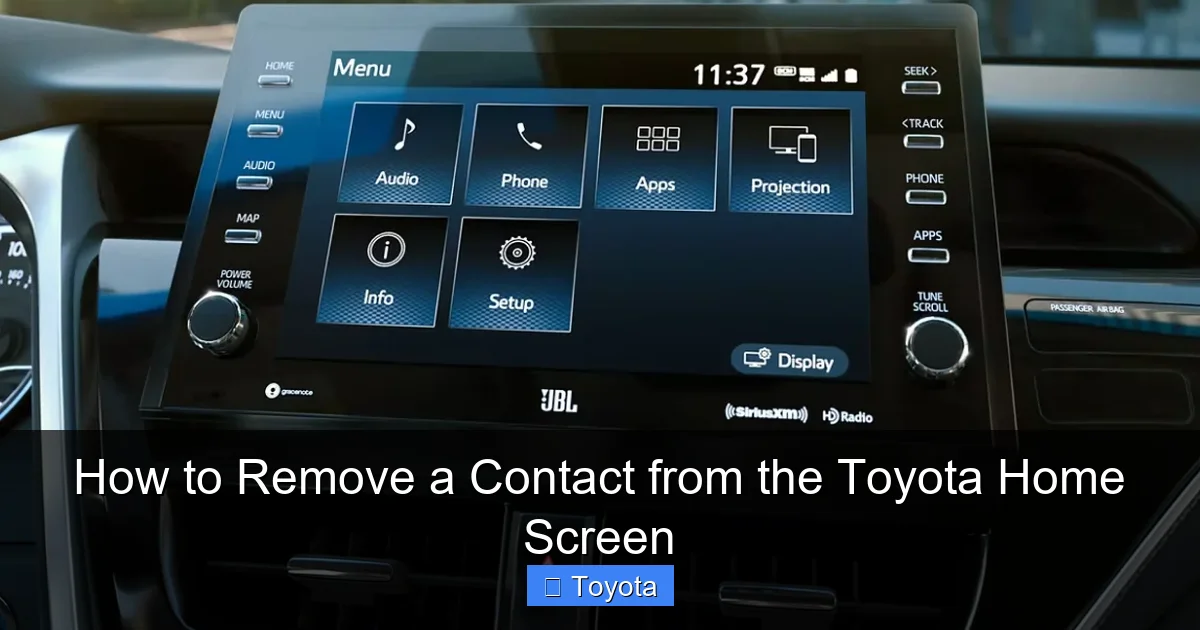
Visual guide about How to Remove a Contact from the Toyota Home Screen
Image source: di-enrollment-api.s3.amazonaws.com
Privacy Concerns
Anyone in your car sees the home screen. You may not want certain names shown to coworkers or kids. Removing them protects your private life.
Think about a ride-share scenario. A stranger gets in your Toyota. They glance at the screen. Do you want them to see your doctor or lawyer? Probably not.
Less Distraction
Fewer icons mean less eye time on the dashboard. You can focus on the road ahead. This is a safe choice for new drivers and old pros alike.
Studies show that every second looking away matters. A clean screen helps you keep your eyes up. That is a win for everyone.
Free Up Space
The screen has limited slots for favorites. Removing old contacts lets you add new ones. It keeps your quick-dial list relevant and useful.
If you sell the car, a clean screen is a nice touch. The new owner starts fresh. They will thank you for the tidy setup.
How to Remove a Contact from the Toyota Home Screen Using the Touchscreen
This is the most direct method. You use the car’s own controls. Follow these steps carefully and you will succeed in minutes. This is exactly how to remove a contact from the Toyota home screen with the built-in panel.
Visual guide about How to Remove a Contact from the Toyota Home Screen
Image source: thecarhow.com
Step 1: Turn On the System
Start your Toyota and wait for the home screen to load. Make sure the car is in park for safety. The system may block edits while moving.
Step 2: Open the Phone Menu
Tap the phone icon. It looks like a small handset. Then select “Contacts” or “Speed Dial” from the list that appears on the left.
Step 3: Find the Contact
Scroll the list with your finger. Or use the search bar at the top. Tap the name you want to remove to open its detail card.
Step 4: Delete or Unpin
Look for a trash can icon or a “Remove” button. On some models, press and hold the icon until a menu pops up. Then choose “Remove from Home”.
Confirm your choice when the prompt appears. The contact vanishes from the home screen. That is exactly how to remove a contact from the Toyota home screen with the touchscreen.
Step 5: Check the Result
Go back to the main page. The icon should be gone. If it remains, repeat the steps or restart the system.
Step 6: Example Scenario
Imagine your old boss “Sam” is pinned. You no longer work there. You tap phone, find Sam, hold icon, hit remove. Boom, Sam is gone. You feel relief.
Step 7: Repeat as Needed
Do this for each name you dislike. The process is the same every time. Soon your screen will show only people you love.
How to Remove a Contact via Paired Smartphone
You can also manage contacts from your phone. This is handy if you prefer your device. The car updates automatically after you save.
Using Bluetooth Settings on iPhone
Open your iPhone settings. Tap Bluetooth. Find your Toyota connection in the list. Tap the info “i” icon and choose “Sync Contacts” to adjust.
Turn off the contact you don’t want by editing favorites. The car will refresh on next start. This is a silent and easy fix.
Using Android Bluetooth
On Android, open Settings then Connected Devices. Tap your Toyota entry. Look for “Contact Sharing”. Uncheck the problem name or group.
Android gives more granular control. You can share only selected favorites. That limits what the Toyota home screen ever sees.
Using the Toyota App
Some models work with the Toyota app. Open it and go to “Vehicle” then “Multimedia”. Edit your pinned list there with a few taps.
This method is great for remote fixes. You can do it while sitting on your couch. Then walk to the car and enjoy the clean screen.
When to Use This Method
If the touchscreen is frozen, use your phone. It is a solid backup plan. Always keep your phone software updated for best results.
Tips for Managing Contacts on Toyota Entune and Audio Multimedia
Good habits save time. Here are easy tips to keep your screen neat and your drives happy.
Sync Only Favorites
Do not sync all contacts. Choose favorites only in your phone settings. This limits what shows on the home screen and speeds up pairing.
Regular Cleanup
Once a month, review the list. Remove names you no longer need. It takes two minutes and prevents build-up of old data.
Use Voice Commands
Instead of pinning, use “Hey Toyota” to call. This avoids clutter entirely. It is a smart trick for modern drivers.
Label Contacts Clearly
Use first names only on the car. “Mom” is clearer than “Margaret Smith”. Short labels fit the small tiles better.
Consider a Bigger Upgrade
If you want more features, our guide on how to install a GPS system in your car can help. A new unit may manage contacts better and add maps.
Troubleshooting Common Issues
Sometimes things go wrong. Here is how to fix typical problems without a trip to the dealer.
The Contact Won’t Delete
Restart the car by turning it off and opening the door. Then start again. A soft reset clears small bugs that block edits.
The Screen Is Unresponsive
Check for dirt or fingerprints. Wipe with a soft microfiber cloth. If still stuck, hold the power button for ten seconds.
Sync Not Working
Forget the Bluetooth pair in both phone and car. Re-pair from scratch. This often solves missing updates or ghost contacts.
Model Differences
Steps vary by year and trim. For example, the Corolla (see how much is a new Toyota Corolla for model info) may differ from a Tundra. Always check your owner manual for exact menus.
Factory Reset as Last Resort
If nothing works, back up your settings. Then do a factory reset in the system menu. This wipes all contacts and starts fresh.
Conclusion
Now you know how to remove a contact from the Toyota home screen. It is a quick task that pays off every day. You can use the touchscreen or your phone with equal success.
Keep your list short for safety and peace of mind. Enjoy a cleaner drive and fewer distractions. Your Toyota will feel new again and you will smile.
We hope this guide helped you. Share it with a friend who owns a Toyota. Together we can keep roads safe and screens tidy.
Frequently Asked Questions
Can I remove multiple contacts at once?
Most Toyota systems delete one at a time. You must repeat the steps for each name. Some phone apps allow bulk edits before sync.
Will removing a contact from the home screen delete it from my phone?
No, it only removes the shortcut on the car. Your phone book stays intact. You can re-add later if you wish.
My Toyota is older. Do these steps work?
Older Entune systems use similar menus. The wording may differ slightly. Check your manual for exact button names.
Why does the contact keep coming back?
Your phone may re-sync favorites automatically. Turn off contact sync for that name. Then the car will not reload it.
Is there a way to hide the whole home screen?
You can switch to minimal mode in settings. This hides contacts while driving. It is a good safety option for some drivers.
Do I need a dealer to remove contacts?
No, you can do it yourself in minutes. A dealer visit is only needed for deep software faults. Most owners manage fine at home.