How to Play Dvd in Toyota Sienna Without Remote
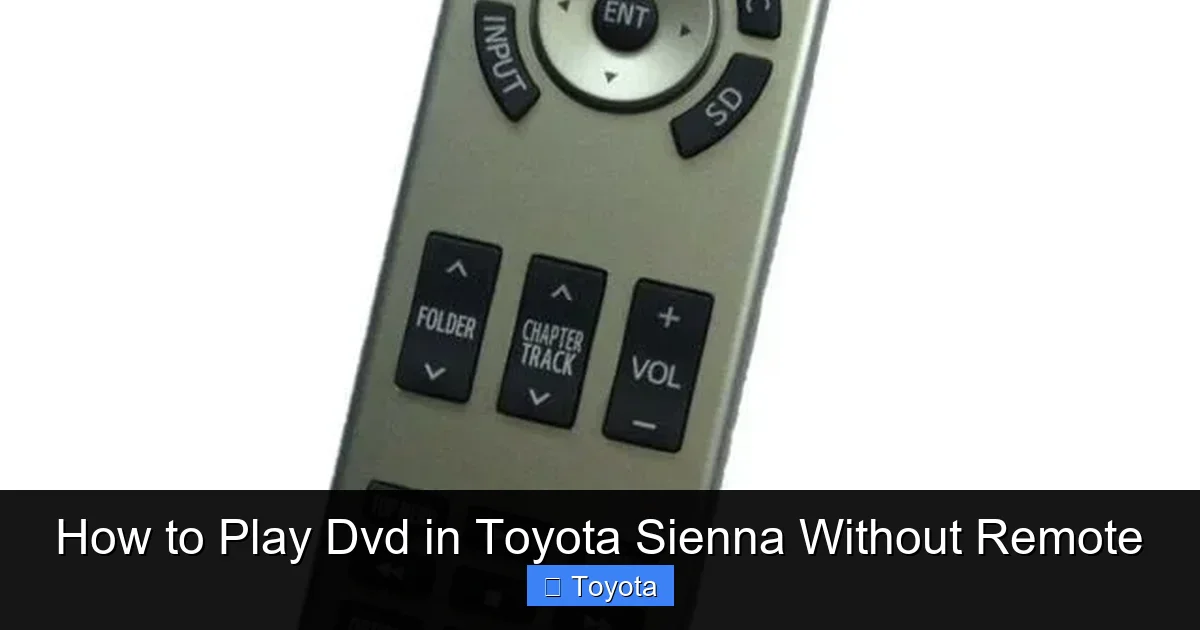
Playing DVDs in your Toyota Sienna without a remote is easier than you think! This guide walks you through manual controls, dashboard buttons, and alternative methods to enjoy your entertainment system. From basic troubleshooting to advanced solutions, we’ve got you covered for seamless movie time on the road.
There’s nothing quite like hitting the open road with your family, ready for a long drive filled with movies and entertainment. The Toyota Sienna has been a favorite among families for years, largely thanks to its impressive entertainment system. But what happens when that trusty remote control goes missing or stops working? Don’t panic! Learning how to play DVD in Toyota Sienna without remote is absolutely possible, and this guide will show you exactly how to do it.
We’ve all been there – you’re packed and ready for your road trip adventure, kids buckled in the back with their favorite movies, and suddenly realize the remote is nowhere to be found. Maybe it fell under the seats during the last vacation, or perhaps the battery died at the worst possible moment. Whatever the reason, being unable to operate your DVD system can quickly turn a fun family outing into a frustrating experience. The good news is that Toyota designed these vehicles with multiple ways to control the entertainment system, ensuring you’re never completely stuck.
Key Takeaways
- Dashboard Controls: Most Toyota Sienna models have physical buttons on the center console that can control DVD playback functions.
- Touchscreen Navigation: Newer models feature touchscreen displays where you can directly select and play DVDs through the infotainment menu.
- Steering Wheel Buttons: Many Siennas include audio controls on the steering wheel that work with the DVD system for basic functions.
- Manual Override Methods: There are several ways to bypass the need for a remote, including using your smartphone as a replacement.
- Troubleshooting Steps: Check DVD compatibility, clean discs, and verify system settings before attempting complex solutions.
- Professional Solutions: When DIY methods fail, replacement remotes or system upgrades offer reliable long-term fixes.
📑 Table of Contents
Understanding Your Toyota Sienna DVD System
System Overview and Components
Before diving into how to play DVD in Toyota Sienna without remote, it helps to understand what you’re working with. The Sienna’s entertainment system typically consists of a DVD player located in the center console or overhead console, a display screen, and multiple control interfaces. Depending on your model year, you might have a touchscreen display, physical buttons, or both.
The system is designed with redundancy in mind. Toyota knows that remotes can be lost, batteries can die, and families need reliable entertainment options. That’s why most models include at least three different ways to control DVD playback: the remote control, dashboard controls, and sometimes steering wheel buttons. This thoughtful design means you have backup options when your primary method fails.
Common Model Variations
Toyota Sienna entertainment systems have evolved over the years, so identifying your specific setup is crucial. Models from 2011-2019 often feature a combination of physical buttons and touchscreen controls. The 2020 and newer models typically rely more heavily on touchscreen interfaces. Some higher trim levels include additional features like wireless headphones and dual screens.
Take a moment to familiarize yourself with your specific model’s layout. Look for any buttons labeled with play, pause, stop, or skip symbols near your DVD player. These might be on the center console, the dashboard, or even integrated into the steering wheel controls. Understanding your system’s capabilities will make the process much smoother.
Using Dashboard Controls for DVD Operation
Locating Physical Control Buttons
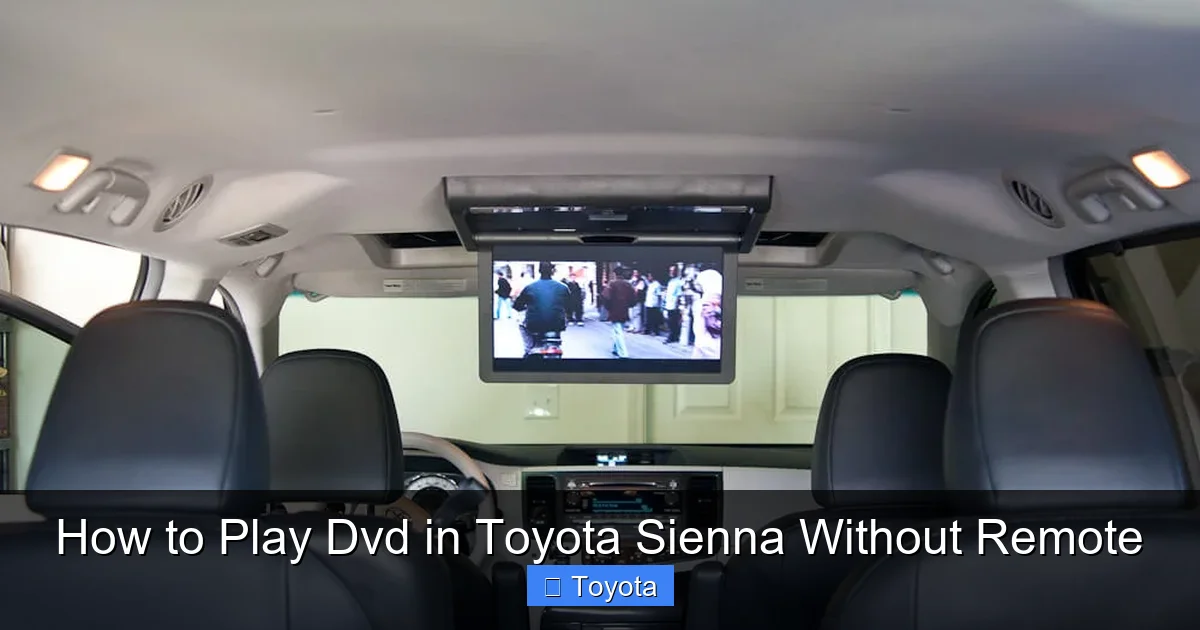
The most straightforward method for how to play DVD in Toyota Sienna without remote involves using the physical buttons built into your vehicle. Start by examining the center console area around your DVD player. You’ll often find a small control panel with essential playback buttons. These typically include power, play/pause, stop, fast forward, rewind, and eject functions.
Visual guide about How to Play Dvd in Toyota Sienna Without Remote
Image source: automotiveex.com
Look for buttons with universal symbols – a triangle for play, two rectangles for pause, and square for stop. Some models place these controls on the dashboard itself, usually within easy reach of the driver’s seat. If you’re having trouble locating them, consult your owner’s manual or look for any labels that might indicate entertainment system controls.
Step-by-Step Button Operation
Once you’ve found the physical controls, operating your DVD system becomes quite simple. Begin by pressing the power button to turn on the entertainment system. Next, insert your DVD and wait for the system to recognize the disc. You should see information appear on your display screen if everything is working correctly.
To start playback, press the play button. If you need to navigate through menus, use the arrow or skip buttons to move between options. The enter or select button usually confirms your choices. Remember that these physical controls might feel less intuitive than using a remote, but they provide the same core functionality you need for basic DVD operation.
Accessing the Entertainment Menu
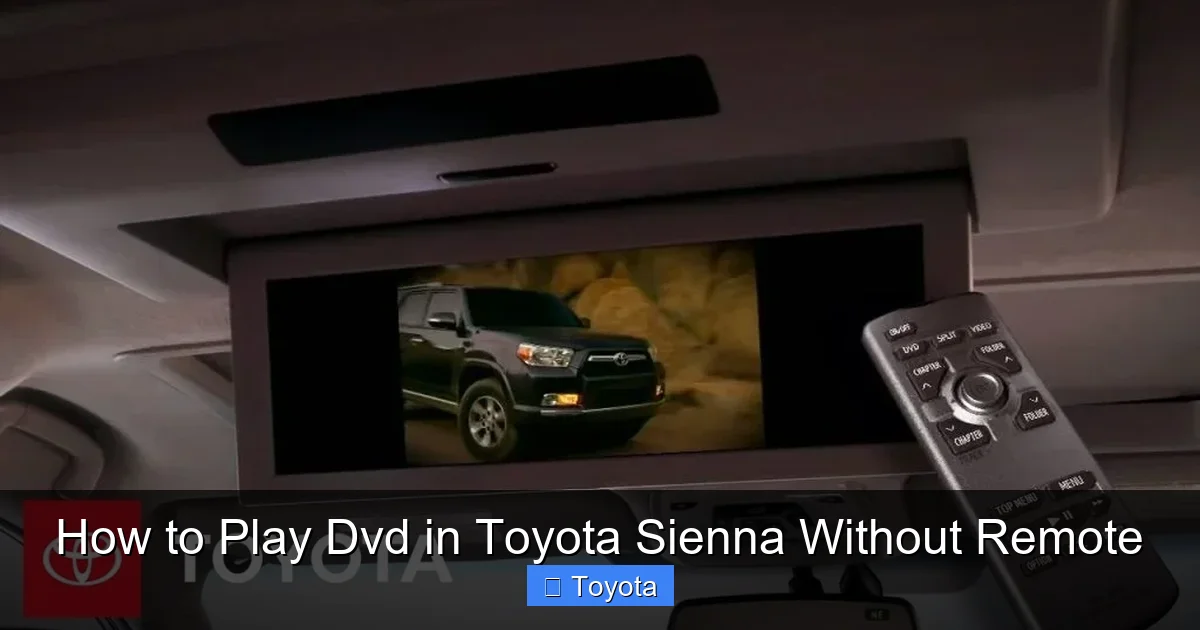
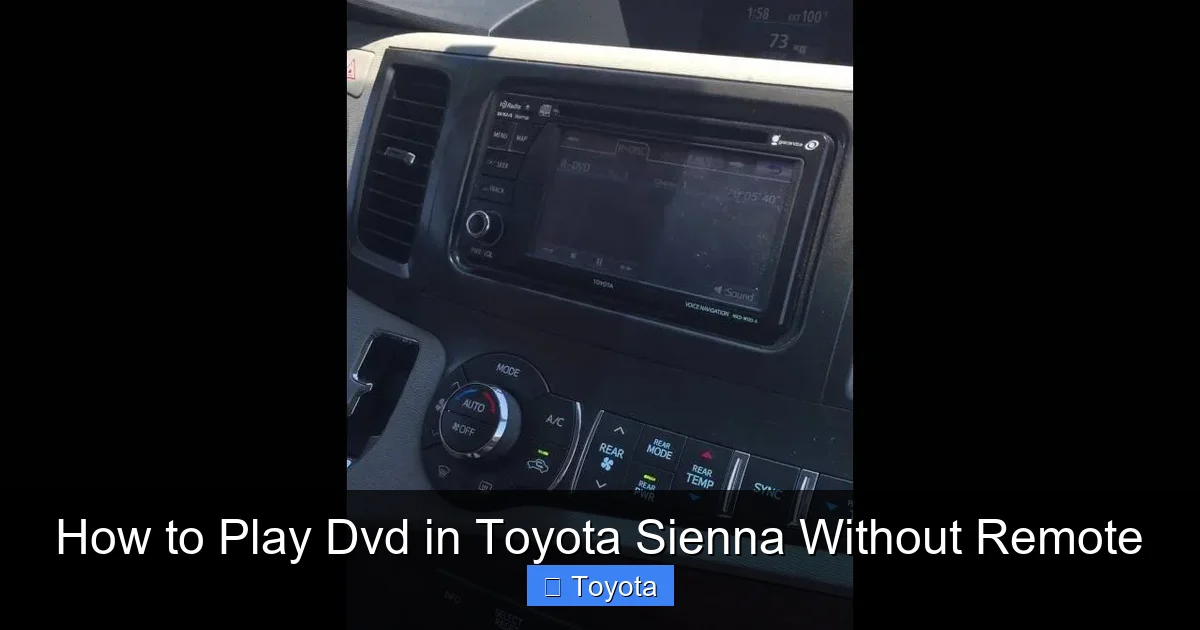
Newer Toyota Sienna models feature sophisticated touchscreen displays that make learning how to play DVD in Toyota Sienna without remote almost effortless. To access your DVD controls, start by turning on the ignition and powering up the infotainment system. Look for an “Entertainment” or “Media” icon on the main screen – this might appear as a film strip symbol, music note, or generic media player icon.
Visual guide about How to Play Dvd in Toyota Sienna Without Remote
Image source: automotivian.com
Tap the entertainment icon to open the media menu. Here you’ll see options for different input sources, including DVD, USB, AUX, and sometimes streaming services. Select the DVD option to activate the player. If a disc is already loaded, you should immediately see playback controls appear on screen.
Touchscreen Playback Functions
The beauty of touchscreen controls lies in their visual feedback and intuitive design. Once you’re in the DVD menu, you’ll see large, clearly labeled buttons for all major functions. The play/pause button is typically prominent in the center, with skip forward and backward arrows on either side.
Use the on-screen controls to manage your viewing experience. Adjust volume using the slider or dedicated volume buttons. Access DVD menu options by tapping the appropriate on-screen button – this lets you navigate chapter selection, audio settings, and subtitle preferences. The touchscreen essentially replaces your remote with a more interactive interface.
Steering Wheel Audio Controls
Identifying Compatible Buttons
Many Toyota Sienna models include audio controls integrated into the steering wheel, which can be incredibly helpful when figuring out how to play DVD in Toyota Sienna without remote. Look for buttons on the back of your steering wheel, typically on the right side within easy thumb reach. These controls often include volume up/down, next track/previous track, and sometimes a source selection button.
Visual guide about How to Play Dvd in Toyota Sienna Without Remote
Image source: thecarhow.com
Not all steering wheel controls work with every entertainment function, but most handle basic playback commands. Test these buttons while a DVD is playing to see which ones respond. The volume controls almost always work, while track navigation buttons might control DVD chapters or menu selections depending on your system’s programming.
Maximizing Steering Wheel Functionality
Once you identify which steering wheel buttons work with your DVD system, you can control basic playback without taking your hands off the wheel. This is especially valuable for maintaining safety while driving. The volume controls let you adjust audio levels easily, while next/previous buttons can skip through chapters or menu items.
Some advanced systems allow you to customize steering wheel button functions through the infotainment settings menu. If you find that certain buttons aren’t responding as expected, check your system preferences for customization options. This feature varies by model year and trim level, so consult your owner’s manual for specific instructions.
Alternative Solutions and Workarounds
Smartphone Integration Options
In today’s connected world, there are several clever ways to address how to play DVD in Toyota Sienna without remote. Many newer smartphones can serve as remote controls through manufacturer apps or universal remote applications. Check if Toyota offers a smartphone app that pairs with your vehicle’s entertainment system.
If an official app isn’t available, universal remote apps might work with your system. These apps use your phone’s infrared blaster or connect via Bluetooth to control compatible devices. While not all apps work perfectly with automotive entertainment systems, many users report success with popular universal remote applications available in app stores.
Replacement and Universal Remotes
When DIY solutions aren’t cutting it, consider investing in a replacement remote or universal remote control. Toyota dealerships can often provide genuine replacement remotes for your specific model year. These typically cost between $50-100 but offer perfect compatibility and reliability.
Universal remotes present a more budget-friendly option. Look for automotive-specific universal remotes that can learn commands from your existing system. You’ll need to program them using the original remote initially, but once set up, they can provide years of reliable service. Just make sure any universal remote you choose is compatible with automotive DVD systems.
Troubleshooting Common Issues
Disc Recognition Problems
Sometimes the challenge isn’t how to play DVD in Toyota Sienna without remote, but rather getting the system to recognize discs at all. Start by checking if your DVD is compatible with your system. Most automotive DVD players handle standard commercial discs well, but might struggle with recordable media or region-coded discs.
Inspect your disc for scratches, fingerprints, or damage that might prevent proper reading. Clean the disc gently with a soft, lint-free cloth, wiping from center outward. If problems persist, try a different DVD to determine whether the issue lies with the disc or the player itself. Sometimes simply ejecting and reinserting the disc can resolve recognition issues.
Audio and Display Troubleshooting
If you can get your DVD playing but encounter audio or display problems, several solutions exist. First, check your volume settings – both the main system volume and any DVD-specific audio controls. Make sure you haven’t accidentally muted the entertainment system or set it to an incorrect audio source.
For display issues, verify that your screen brightness and contrast settings are appropriate for daytime viewing. Some systems allow you to adjust these settings through the touchscreen menu or physical buttons. If the screen remains blank despite proper DVD operation, you might need to check fuses related to the entertainment system or consult a professional technician.
Maintaining Your Entertainment System
Regular Cleaning and Care
Prevention is always better than cure when it comes to automotive electronics. Regular maintenance can help ensure your DVD system remains functional and responsive. Keep the DVD player area clean and free from dust buildup that might interfere with button operation or disc reading.
Consider keeping a small cleaning kit in your vehicle specifically for your entertainment system. Soft brushes, cleaning cloths, and compressed air can help maintain optimal performance. For those interested in broader vehicle care, you might also want to learn how to protect car interior from scratches to maintain your Sienna’s overall condition.
Professional Maintenance Tips
While many aspects of how to play DVD in Toyota Sienna without remote can be handled DIY-style, some maintenance tasks are best left to professionals. If you experience persistent issues with your entertainment system, a qualified technician can diagnose problems that aren’t immediately obvious.
Regular check-ups during routine service visits can help identify potential issues before they become major problems. Technicians can clean internal components, update software, and ensure all connections remain secure. This proactive approach can save you money and frustration in the long run, keeping your family’s entertainment system running smoothly for years to come.
Remember that technology evolves rapidly, and automotive entertainment systems are no exception. Staying informed about your vehicle’s capabilities and maintaining regular care ensures you’ll always be ready for whatever adventures await your family on the open road.
Frequently Asked Questions
What should I do if none of the physical buttons work?
If physical buttons aren’t responding, check your vehicle’s fuse box for blown fuses related to the entertainment system. You can also try disconnecting the battery for a few minutes to reset the system. If problems persist, there may be an internal hardware issue requiring professional attention.
Can I use a universal remote with my Toyota Sienna DVD system?
Yes, many universal remotes work with Toyota Sienna entertainment systems. Look for automotive-specific universal remotes that can learn commands from compatible devices. You’ll need to program them initially, but they offer a cost-effective alternative to dealer replacements.
How do I access DVD menu options without a remote?
Use your touchscreen controls or arrow buttons to navigate menu options. On-screen buttons will let you select chapters, adjust audio settings, and change subtitle preferences. The enter or select button confirms your choices, just like clicking with a mouse on a computer.
Why won’t my DVD load properly?
DVD loading issues often stem from dirty discs, incorrect disc orientation, or mechanical problems. Clean your disc thoroughly, ensure it’s inserted correctly label-side up, and check for any visible obstructions in the player. If problems continue, the loading mechanism may need professional servicing.
Is there a way to control volume without the remote?
Absolutely! Most Toyota Sienna models offer volume control through steering wheel buttons, dashboard knobs, and touchscreen sliders. Look for the volume icon on your display screen or try the plus and minus buttons on your steering wheel for quick adjustments while driving.
What if my touchscreen isn’t responding?
Clean the screen gently with appropriate cleaning materials to remove fingerprints or debris. Restart your vehicle’s infotainment system by turning off the engine and waiting a few minutes before restarting. If the touchscreen remains unresponsive, it may require professional repair or replacement.