Can You Change the Voice on Toyota Navigation?
Yes, you can change the voice on Toyota navigation. This guide shows you exactly how to adjust the voice settings, customize speed, and troubleshoot common issues. Follow the steps to personalize your driving experience.
Many Toyota owners wonder if they can change the voice on Toyota navigation. The answer is yes. The navigation system uses a synthetic voice that can be customized. You can pick a different gender, adjust the speed, and even change the language. This guide will show you how to do it step by step. We will also share tips to avoid common mistakes.
Key Takeaways
- You can change the voice on Toyota navigation. The settings are built into the infotainment system.
- Access the Voice menu through Settings. Look for Audio or Sound, then Voice.
- Choose a different voice pack. Preview each option before selecting.
- Adjust the speed slider. Make the voice faster or slower to suit your ears.
- Save your changes. Press OK to confirm the new voice.
- Test the voice while parked. Ensure it sounds clear before you drive.
📑 Table of Contents
Toyota uses the Entune or Toyota Audio Multimedia system for navigation. The voice you hear is generated by a text‑to‑speech engine. By default it uses a female voice in the United States. You can switch to a male voice if you prefer. You can also choose a different accent or language. The system supports Spanish, French, and a few other languages.
Why does the voice matter? The voice is more than just sound. It affects how clearly you hear directions. A clear voice reduces distraction. It also helps you stay focused on the road. That is why many drivers want to fine‑tune it.
Why the Voice Matters
When you hear a familiar voice, you react faster. A calm voice can reduce stress during long drives. Some people prefer a deeper male voice. Others like a bright female voice. The choice is personal. But the system lets you test each option before you decide.
How to Access Voice Settings in Your Toyota
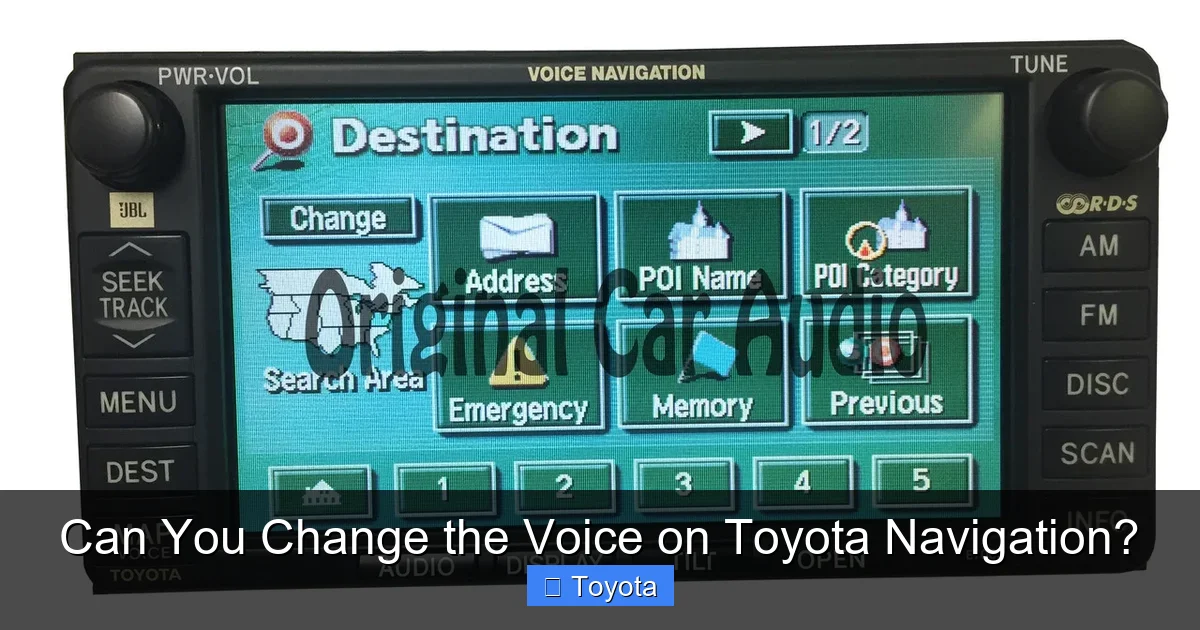
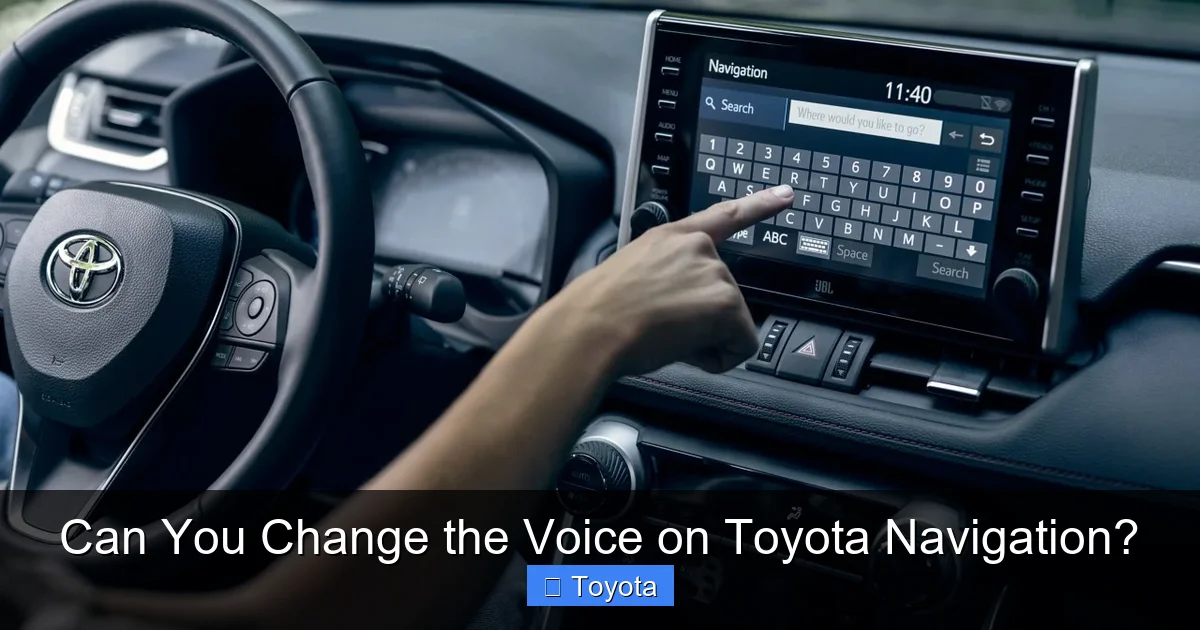
First, turn on the infotainment screen. Then go to the menu button. Look for the “Settings” option. Inside Settings you will find “Audio” or “Sound”. Click on that.
Visual guide about Can You Change the Voice on Toyota Navigation?
Image source: m.media-amazon.com
Next, scroll down until you see “Voice”. Select it. Here you will see options for “Voice Prompt”. This is where you can change the voice.
If you want the system to respond more accurately, you might want to calibrate Uconnect navigation first. Calibration can improve the timing of voice prompts.
After you open Voice settings, you will see a list of voice packs. Choose the one you like. You can preview each voice by pressing the play button. This helps you decide which one sounds best.
Accessing Hidden Settings
Some Toyota models hide advanced voice options. To reveal them, go to “System” and then “Language”. Change the language to English (US) if it is set to something else. This often unlocks extra voice choices.
Different Toyota models may have slightly different menu names. For example, some 2022 models label the option as “Voice Prompt” while older models call it “Audio Prompt”. Knowing the exact name helps you find it quickly.
Changing the Voice Prompt Step by Step
Now that you know where the settings live, let’s change the voice. Follow these steps carefully.
Visual guide about Can You Change the Voice on Toyota Navigation?
Image source: i.ytimg.com
- Open the Voice menu. This is the same place you saw in the previous section.
- Select a voice pack. Choose the voice you want to use.
- Adjust the speed. Use the slider to make the voice faster or slower.
- Save your changes. Press the “OK” button to confirm.
After you complete these steps, the new voice will be used for all future navigation prompts. You can always go back and switch again.
If you encounter any issues, try restarting the infotainment system. Sometimes a simple reboot clears glitches.
Using Voice Commands
You can also use voice commands to control the navigation. Say “Hey Toyota” followed by a command. The system will respond with the same voice you selected. This feature works even if you are listening to music.
For example, you can say “Navigate to the nearest gas station”. The system will speak the directions in the voice you chose. This hands‑free control keeps your eyes on the road.
Customizing Voice Speed and Language
Speed and language are the two main customization options. Let’s explore each.
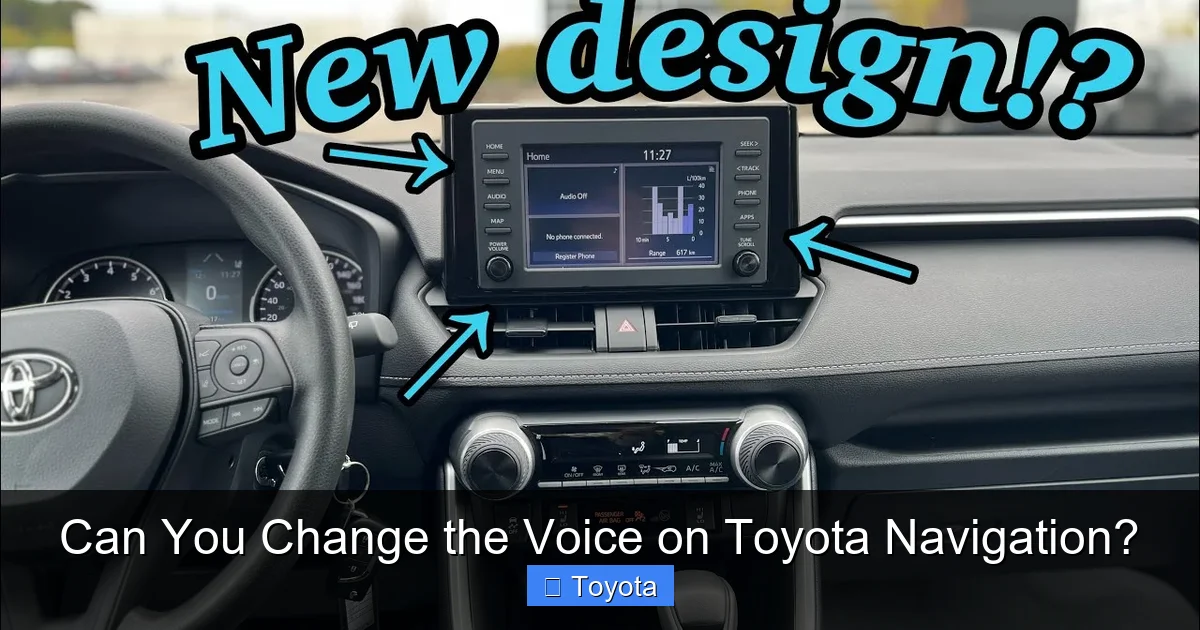
Visual guide about Can You Change the Voice on Toyota Navigation?
Image source: toyota.co.uk
Adjusting Speed
Locate the “Speed” slider in the Voice settings. Move it left for a slower pace. Move it right for a faster pace. Most drivers find a moderate speed easiest to understand.
Tip: Test the speed while parked. Listen to a short direction. Adjust until it feels natural.
Switching Languages
If you prefer a different language, go to the “Language” drop‑down. Choose the language you want. The system will download the appropriate voice pack.
Note: Changing the language may also change the tone of the voice. Some languages use a different accent. This can affect how natural the voice sounds.
Troubleshooting Common Issues
Sometimes the voice does not change as expected. Here are a few common problems and how to fix them.
Voice Not Changing
Check that you saved the changes. If you forgot to press “OK”, the old voice will remain. Also, make sure the infotainment system is not in a “Demo” mode.
Sometimes the system locks the settings after a software update. In that case, repeat the steps after the update finishes.
Voice Sounds Distorted
Distortion can happen if the system is low on memory. Try clearing the cache. Go to Settings, then “System”, then “Clear Cache”. After that, repeat the voice change steps.
If distortion persists, check the speaker connections. Loose wires can cause audio problems.
No Voice Output
If you hear no voice at all, check the volume. Also, verify that the “Mute” button is not engaged. Finally, ensure that the audio output is set to the correct speaker.
Sometimes the system defaults to a silent mode after a reset. Re‑enter the Voice settings and test again.
Here are some extra tips to get the most out of your Toyota navigation voice.
- Test before you drive. Listen to a direction while parked.
- Keep the system updated. Software updates often improve voice quality.
- Use a clear accent. Choose a voice that matches your listening preference.
- Consider the “tow a car with emergency brake” scenario. If you ever need to tow a vehicle, you might also be adjusting settings on the go.
- Use voice commands for other functions. You can ask the system to make calls, play music, or set the climate.
- Check the speaker balance. Adjust left/right balance if you prefer sound from one side.
These small habits can make a big difference. They help you stay focused on the road.
Conclusion
Yes, you can change the voice on Toyota navigation. It only takes a few steps. Follow the guide we provided. You will be able to pick a voice that suits your style. Remember to test the voice while parked. Keep the system calibrated for the best performance. If you ever need to tow a vehicle, you might also want to check the emergency brake settings. For more tips on Toyota features, check out our other articles.
Frequently Asked Questions
Can you change the voice on Toyota navigation?
Yes, you can change the voice on Toyota navigation through the infotainment settings. The process is simple and does not require a dealer visit.
Does changing the voice affect navigation accuracy?
No, changing the voice only alters the sound, not the accuracy of the directions. The system still provides the same turn‑by‑turn instructions.
Do I need a dealer visit to change the voice?
No, you can change the voice yourself from the Settings menu. No special tools or dealer assistance are required.
Can I revert to the original voice if I don’t like the new one?
Yes, you can switch back to the original voice at any time by returning to the Voice settings and selecting the default option.
Does the voice change work with Bluetooth audio?
Yes, the new voice plays through any connected audio output, including Bluetooth headphones or speakers.
Is there a limit to how many voice packs I can install?
Toyota usually provides a few built‑in voice packs. Additional packs may require a subscription or a special promotion, but the basic options are free.