Can You Change the Voice on Toyota Navigation
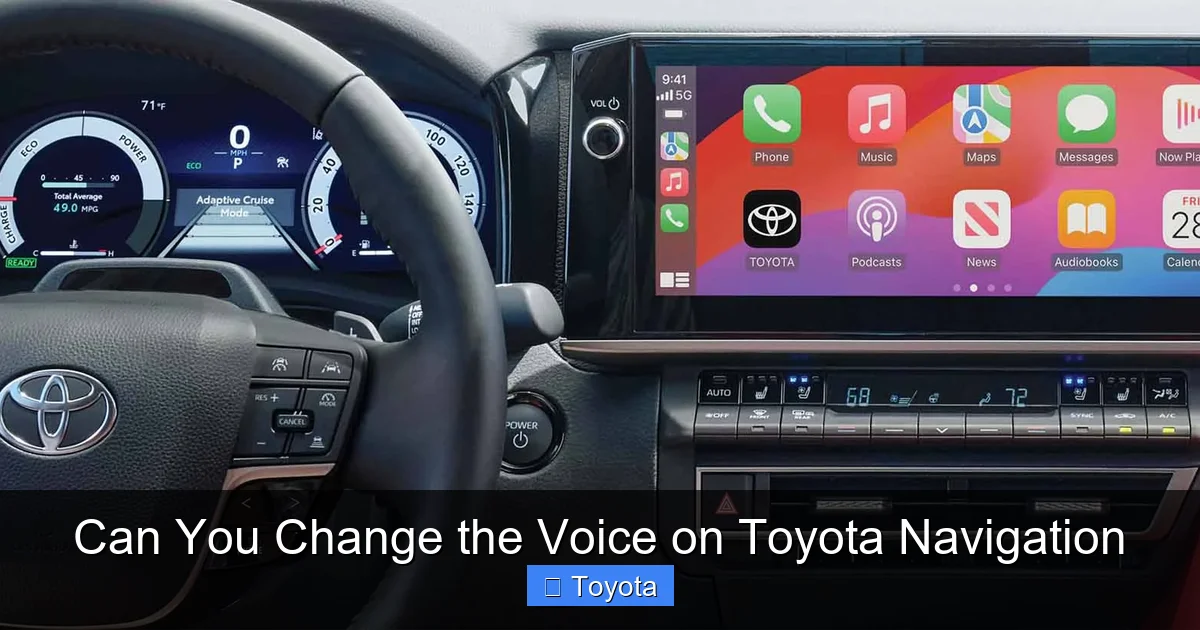
Changing the voice on Toyota navigation is easier than you think. This guide walks you through voice options, language settings, and voice‑tone tweaks, so you can ഓഫൺ clear, personalized directions. Whether you’re new to U‑Connect or a seasoned driver, Regex navigation will sound just the way you want.
Key Takeaways
- Voice Options: Toyota’s U‑Connect lets you choose between male and female voices, different accents, and even a “quiet” mode.
- Language Settings: You can add or remove languages, but only one primary voice is active at a time.
- Sound Tweaks: Adjust speech speed, volume, and clarity from the audio menu.
- Firmware Updates: New voice packs often come bundled with software updates, so keep your system current.
- Troubleshooting: If the voice isn’t changing, reset the system or reinstall the latest firmware.
📑 Table of Contents
- Introduction: Why Voice Matters in Your Toyota
- 1. Getting Started: Accessing the Voice Settings
- 2. Selecting Your Voice: Male, Female, Accent, and More
- 3. Fine‑Tuning Voice Settings for Comfort
- 4. Firmware Updates: The Key to New Voices
- 5. Integr되는 Navigation with Other Features
- Conclusion: Your Voice, Your Navigation, Your Drive
Introduction: Why Voice Matters in Your Toyota
Picture this: you’re on a long road trip, the GPS is buzzing, and you want a voice that feels like a co‑pilot, not a robot. Toyota’s U‑Connect navigation provides a range of voice options, but many drivers don’t know how to switch or fine‑tune them. Whether you prefer a calm male voice, a friendly female Wies, or a regional accent, the right voice can reduce driver fatigue and improve safety.
In this guide, we’ll break down every step you need to change the voice on Toyota navigation, from selecting a new accent to troubleshooting common hiccups. We’ll also touch on how voice settings interact with other U‑Connect features.
1. Getting Started: Accessing the Voice Settings
Locate the Settings Menu
First, press the Home button on your U‑Connect display. From the main screen, tap the Settings icon—usually a gear symbol. This opens a menu with a variety of options.
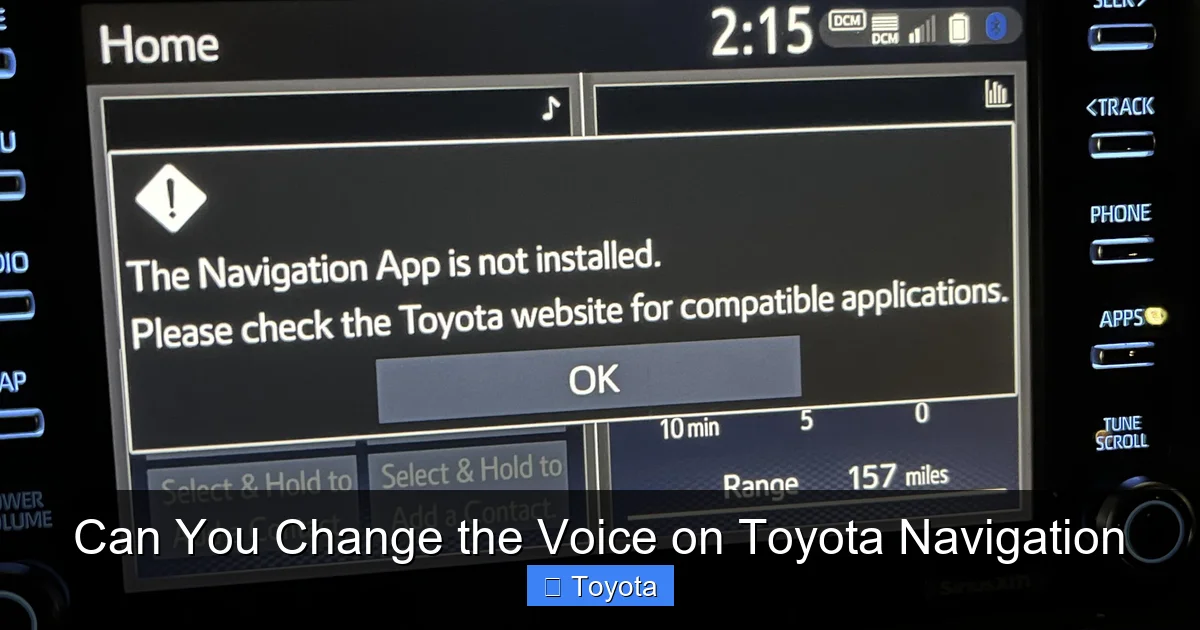
Visual guide about Can You Change the Voice on Toyota Navigation
Image source: i.redd.it
Navigating to the Audio Section
Scroll down until you see Audio or Voice. Tap it to bring up all audio‑related settings. Here you’ll find options for voice, volume, and speech speed.
Understanding the Interface
On newer models, the interface may show a list of available voices with a preview button. Older vehicles use a simple toggle between male/female. Make sure your vehicle’s software is up to date; a quick check can be done via the Software Update menu.
2. Selecting Your Voice: Male, Female, Accent, and More
Choosing Gender
Most Toyota models offer a male or female voice. Simply tap the desired option, and a short sample will play. If you don’t hear a difference, your vehicle may only support a single voice, but newer releases often include multiple.
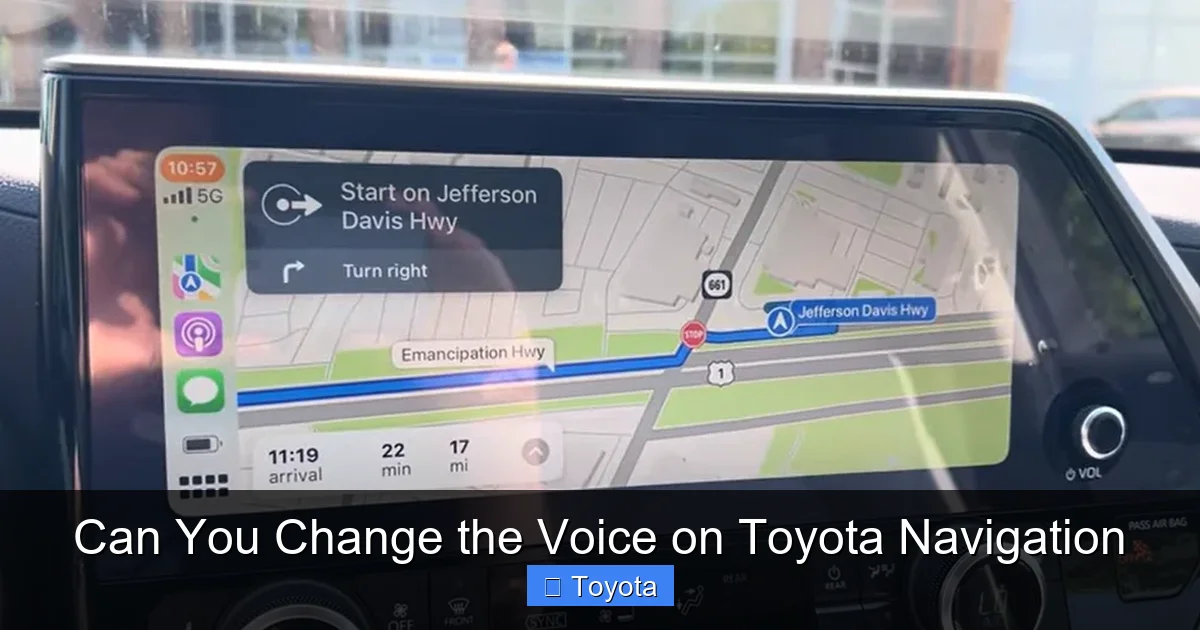
Visual guide about Can You Change the Voice on Toyota Navigation
Image source: adventurejeep.com
Adding or Removing Accents
Some U‑Connect systems let you choose between accents—American, British, Australian, or Canadian. Tap Voice Accent and select the one you prefer. A preview will confirm your choice.
Language Packs
To hear directions in another language, go to Languages within the Audio menu. Add a new language if it’s not already installed. Note that each language comes with its own voice; you’ll need to switch to that language to hear the corresponding voice.
cards to enhance voice selection
On some newer models, you’ll find an option called Voice Quality Settings. Here you can adjust the voice’s pitch or add a “soft” mode, which lowers the volume slightly for a more natural feel.
3. Fine‑Tuning Voice Settings for Comfort
Adjusting Speech Speed
If the voice feels rushed, tap Speech Speed and set it to Slow or Fast as you prefer. A slower speed can be helpful if you have hearing sensitivity or if you’re in a noisy environment.

Visual guide about Can You Change the Voice on Toyota Navigation
Image source: toyota.co.uk
Setting Voice Volume
Use the Voice Volume slider to raise or lower the voice relative to your infotainment system’s music. You can also set a default volume that will apply to all future voice prompts.
Toggle “Quiet” Mode
For those who want minimal interruption, enable Quiet Mode. This reduces the voice volume during certain scenarios, like when you’re in a heavy traffic jam. The system still alerts you with kuz the navigation directions, but in a softer tone.
Incorporating Audio Balance
If you notice the voice is too loud compared to the rest of the audio, go to.espresso Audio Balance and adjust the center channel. This ensures the voice sits nicely in the middle of your audio mix.
4. Firmware Updates: The Key to New Voices
Why Updates Matter
New voice packs often arrive bundled with software updates. If you’re missing an echar voice-Level or accent, check Software Update first.
Downloading Updates
Connect your U‑Connect to a Wi‑Fi network, then navigate to Software Update and follow the prompts. The system will download and install the latest firmware, which may include new voice options.
Checking for Additional Voice Packs
After an update, revisit the Voice menu. New voices or accents should appear in the list. If you still don’t see an expected voice, you may need to reset the system or contact Toyota support.
Software Troubleshooting
When the voice isn’t changing, a simple System Reset often does the trick. From the Settings menu, select Reset → All Settings and follow the on‑screen instructions. Your navigation will revert to factory defaults, allowing you to re‑apply your voice choices from scratch.
Voice Commands vs. Voice Navigation
Toyota’s U‑Connect also supports voice commands for phone calls, music, and more. These commands use a separate voice engine. If you want the same voice for both navigation and commands, ensure you’re using the latest firmware.
Combining Navigation with On‑Screen Guidance
Some drivers prefer visual arrows, while others rely on audio cues. Under Display Settings, you can toggle Visual Guidance on or off to complement your chosen voice.
Personalizing with U‑Connect Profiles
If you share your vehicle with family, each driver can create a profile. A profile stores voice preferences, so when you log in, the system automatically selects your voice and other settings.
Linking to External Resources
For advanced calibration, see how to calibrate U‑Connect Navigation here: How To Calibrate Uconnect Navigation. If you’re planning to tow your Toyota and want your navigation voice to stay clear, remember that towing with the emergency brake on can affect audio quality. Check out Can You Tow A Car With Emergency Brake On for more safety tips. For off‑road adventures, the voice can remain your steady guide—just make sure your tires are ready; read about Best All Terrain Tires For Toyota 4Runner Reviews to keep the ride smooth.
Changing the voice on Toyota navigation is a quick, rewarding tweak that can transform your driving experience. By exploring the voice options, fine‑tuning speed and volume, staying updated with firmware, and integrating with other U‑Connect features, you’ll have a navigation system that feels personalized and intuitive.
Remember, the best voice is one that keeps you alert without overwhelming your senses. Take the time to experiment—your future self will thank you for a smoother, safer drive.
Frequently Asked Questions
Can I change the voice on Toyota navigation while driving?
No, for safety you should adjust voice settings only when the vehicle is parked and the engine is off.
Do all Toyota models support multiple voice options?
Most newer U‑Connect vehicles offer at least male and female voices, but older models may be limited to a single voice.
How do I update the navigation firmware?
Connect to Wi‑Fi, go to Settings → Software Update, and follow the prompts to download and install the latest firmware.
What if the voice doesn’t change after I select a new option?
Try resetting the system or reinstalling the firmware. If the problem persists, contact Toyota support.
Can I use a different language for navigation voice?
Yes, add the desired language in Settings → Audio → Languages, then select it for your route instructions.
Will turning on “Quiet” mode affect other audio outputs?
Quiet mode lowers only the navigation voice; music and other audio sources remain at their set volumes.