How to Connect an Iphone to a Toyota Highlander
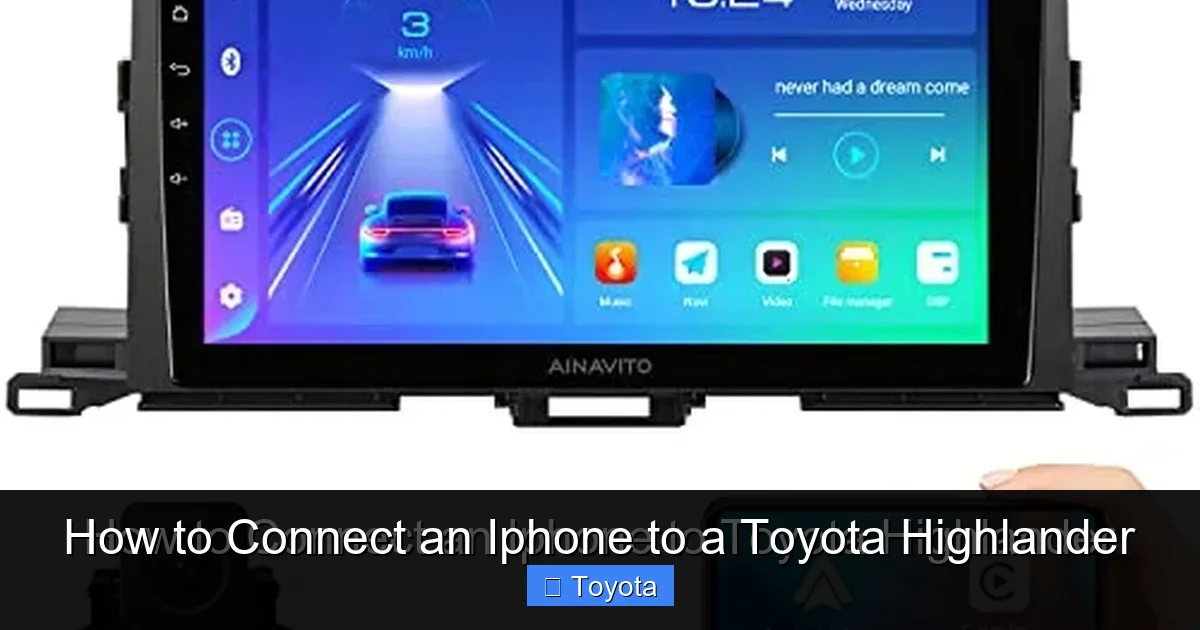
Connecting your iPhone to a Toyota Highlander is simple and lets you enjoy music, navigation, and hands‑free calls directly from your dashboard. Follow these easy steps to link via Bluetooth, USB, or Apple CarPlay for a fully integrated experience.
- Choose the right method: Bluetooth for wireless freedom, USB for reliability, or CarPlay for full integration.
- Update both devices: Ensure your iPhone and Highlander infotainment system have the latest software.
- Check battery health: A strong car battery prevents connection drops, especially when using USB.
- Use the correct cable: A genuine or certified USB cable ensures stable wired connections.
- Enable CarPlay for full features: CarPlay gives you maps, messages, and voice control in one place.
- Troubleshoot quickly: Reset pairings, try a different cable, or restart the infotainment system if issues arise.
📑 Table of Contents
Understanding the Connection Options
Wireless Bluetooth
If you’re wondering how to connect an iPhone to a Toyota Highlander wirelessly, the steps are simple. This method is a key part of how to connect an iPhone to a Toyota Highlander, allowing you to stream music and take calls without a cable. Many drivers ask how to connect an iPhone to a Toyota Highlander without a cable, and Bluetooth provides the answer. To begin, turn on Bluetooth on your iPhone and make sure the car’s infotainment system is discoverable.
Wired USB
For those who prefer a wired connection, learning how to connect an iPhone to a Toyota Highlander via USB is essential. A USB cable provides reliable charging and data transfer, and it also enables Apple CarPlay on compatible trims. Plug the cable into the USB port located in the center console, then connect the other end to your iPhone. Once detected, the car will prompt you to choose between charging only or full data mode, which is a crucial step in how to connect an iPhone to a Toyota Highlander.
Apple CarPlay
Using CarPlay is the fastest way to see how to connect an iPhone to a Toyota Highlander for a seamless experience. If your Highlander supports CarPlay, simply connect via USB or enable wireless CarPlay (if available). CarPlay mirrors your iPhone’s interface, giving you maps, music, messages, and voice control at a glance, making it easy to learn how to connect an iPhone to a Toyota Highlander. Understanding how to connect an iPhone to a Toyota Highlander helps you avoid costly dealer visits.
Preparing Your iPhone and Highlander
Check Compatibility
If you’re wondering how to connect an iPhone to a Toyota Highlander, first verify that your model supports the chosen method. Most 2018‑2024 trims have Bluetooth and USB, while newer ones include CarPlay. If you’re unsure, consult your owner’s manual or check the manufacturer’s website.
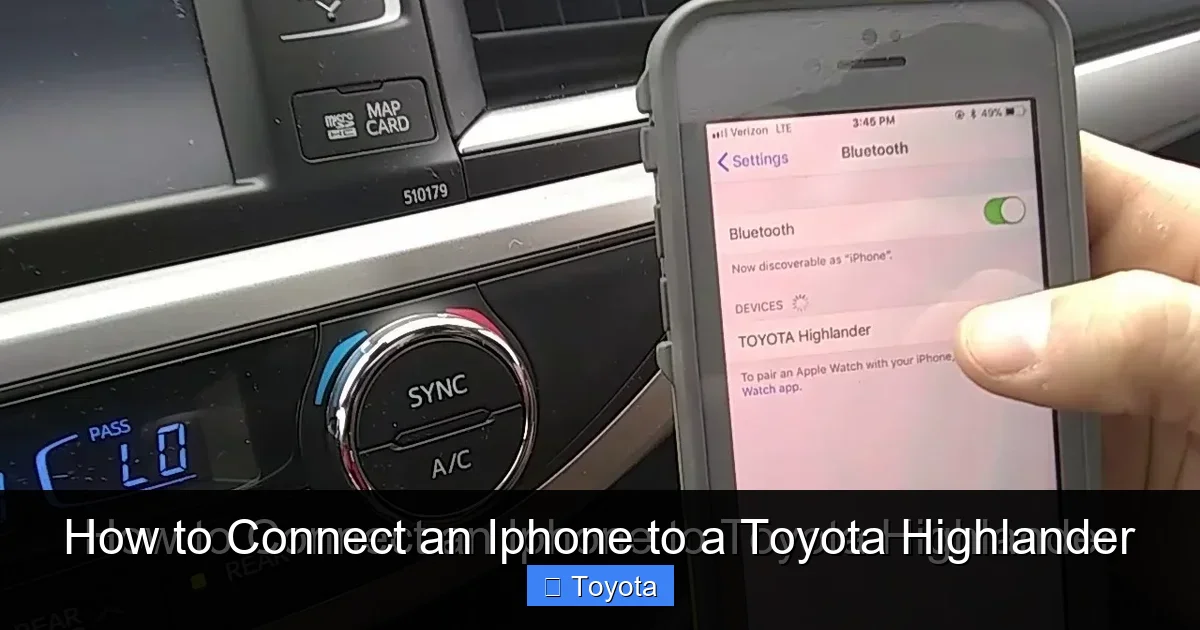
Visual guide about How to Connect an Iphone to a Toyota Highlander
Image source: aautomotives.com
Update Software
Keeping your iPhone updated is a key part of learning how to connect an iPhone to a Toyota Highlander smoothly. Go to Settings > General > Software Update on your iPhone. For the car, visit the Toyota dealer or use the Toyota app if available to ensure the infotainment firmware is current.
Power and Battery
A strong battery helps you understand how to connect an iPhone to a Toyota Highlander without interruptions. A weak battery can cause intermittent Bluetooth or USB issues. Check the battery health and, if needed, refer to How To Maintain A Car Battery In Cold Weather for tips on keeping it strong.
Using Bluetooth for Wireless Connectivity
Enable Bluetooth on Your iPhone
To see how to connect an iPhone to a Toyota Highlander via Bluetooth, start by turning on Bluetooth on your iPhone. Open Settings, tap Bluetooth, and toggle it on. Make sure your device is discoverable so the car can find it.
Pair with the Highlander
When you pair, you’ll discover how to connect an iPhone to a Toyota Highlander in just a few taps. Inside the car, go to the infotainment screen, select “Phone” or “Bluetooth,” and choose “Add New Device.” Your iPhone should appear in the list; tap it to initiate pairing. Follow any on‑screen prompts to complete the connection.
Configure Audio and Calls
Once paired, you’ll know exactly how to connect an iPhone to a Toyota Highlander for audio streaming. Set the audio output to “Phone Audio” for calls and music, and enable contact syncing so your contacts appear on the car’s display. You can also use Siri voice commands for hands‑free operation.
GPS Integration Tip
If you’re looking for tips on how to connect an iPhone to a Toyota Highlander with GPS, see the linked article. Learn more in How To Install A Gps System In Your Car to ensure seamless routing through CarPlay or native maps.
Connecting via USB for Wired Integration
Gather the Right Cable
Choosing the correct cable is the first step in learning how to connect an iPhone to a Toyota Highlander via USB. Use a genuine Apple Lightning‑to‑USB cable or a certified third‑party version. Avoid cheap cables that can cause intermittent charging or data loss.
Visual guide about How to Connect an Iphone to a Toyota Highlander
Image source: i.ytimg.com
Plug Into the Car
Plugging in the cable shows you how to connect an iPhone to a Toyota Highlander using a wired link. Locate the USB port, usually found in the center console or near the gear shifter. Insert the cable, then connect your iPhone. The car should detect the device and display a prompt.
Enable USB Mode
Following these steps will teach you how to connect an iPhone to a Toyota Highlander through USB without hassle. On your iPhone, you may see a “Trust This Computer” message; tap Trust and enter your passcode. The vehicle will then enable USB audio or CarPlay, depending on your settings.
Troubleshooting Tip
If you encounter issues, you can reset the system using the method described in How To Set Up An Obd2 Scanner For Your Car. This often clears stale Bluetooth pairings and restores proper USB communication.
Leveraging Apple CarPlay for Full Smartphone Integration
What Is CarPlay?
CarPlay is the fastest way to see how to connect an iPhone to a Toyota Highlander for a full infotainment experience. It mirrors your iPhone’s most important apps onto the Highlander’s touchscreen, offering Maps, Music, Messages, and Phone in a driver‑friendly layout.
Activate CarPlay
If you want to know how to connect an iPhone to a Toyota Highlander using CarPlay, simply plug in via USB or enable wireless CarPlay (if your model supports it). Then select the CarPlay icon on the infotainment screen. The system will launch and display your iPhone’s interface.
Customize Your Experience
Customizing apps after you learn how to connect an iPhone to a Toyota Highlander makes the system truly yours. Arrange icons, set navigation preferences, and enable voice commands with “Hey Siri.” This creates a personalized cockpit that feels natural while driving.
Voice Commands and Siri Integration
After you master how to connect an iPhone to a Toyota Highlander, you can use Siri to control music, maps, and calls without taking your eyes off the road. Say “Hey Siri, play my playlist” or “Hey Siri, navigate to work” and the system will respond, enhancing safety and convenience.
Troubleshooting Common Issues
Bluetooth Won’t Pair
If you’re stuck on how to connect an iPhone to a Toyota Highlander via Bluetooth, start by resetting the pairing. On the iPhone, go to Settings > Bluetooth > tap the “i” next to the Highlander and select “Forget This Device.” Then restart both devices and begin the pairing process again. This often resolves connectivity glitches.
USB Not Recognized
When USB isn’t recognized, you’ll need to revisit how to connect an iPhone to a Toyota Highlander via cable. Try a different cable or port. Ensure the car is set to “USB mode” in the settings menu. If the issue persists, reset the infotainment system by disconnecting the battery for a minute (refer to How To Maintain A Car Battery In Cold Weather for battery reset steps).
CarPlay Not Launching
If CarPlay won’t start, double‑check how to connect an iPhone to a Toyota Highlander for CarPlay compatibility. Verify that your iPhone is unlocked, the USB cable is firmly connected, and CarPlay is enabled in the vehicle’s settings. If needed, reinstall the latest iOS version or visit a Toyota dealer for a software update.
Audio Quality Issues
Sometimes you may notice poor audio quality after you learn how to connect an iPhone to a Toyota Highlander. Check that the volume is balanced, the Bluetooth connection is stable, and that no other devices are interfering. If problems continue, try disconnecting and reconnecting the cable or restarting the car’s infotainment system.
Conclusion
Connecting your iPhone to a Toyota Highlander is simple once you know which method works best for you. Whether you choose Bluetooth for wireless freedom, USB for reliability, or CarPlay for full integration, each option gives you easy access to music, navigation, and hands‑free calls. Follow the steps above, keep your software updated, and enjoy a smarter, safer driving experience. If you run into any hiccups, the troubleshooting tips will get you back on track quickly. Remember, mastering how to connect an iPhone to a Toyota Highlander enhances both convenience and safety on every journey.
FAQs
Does my Highlander support CarPlay?
Most 2018‑2024 Toyota Highlander trims come with Apple CarPlay built‑in. If your model year is earlier, you may need a firmware update or a dealership upgrade to enable it. Check your owner’s manual or the Toyota website for confirmation.
Can I charge my iPhone while using CarPlay?
Yes, when you connect your iPhone via USB for CarPlay, it charges automatically. The USB cable provides power, so you can drive longer without worrying about battery drain. Just make sure the cable is firmly plugged in.
What should I do if Bluetooth won’t connect?
First, ensure Bluetooth is enabled on both the iPhone and the car. Then, go to the iPhone’s Bluetooth settings, forget the Highlander, and start the pairing process again. Restarting the car’s infotainment system can also help resolve temporary glitches.
Is a USB cable required for Apple CarPlay?
For a wired CarPlay connection, a USB cable is required. Wireless CarPlay, if supported, uses Bluetooth and Wi‑Fi, so no cable is needed in that case. Check your Highlander’s specifications to see which option is available.
How can I reset the infotainment system if it’s frozen?
To reset the system, disconnect the car battery for about one minute, then reconnect it. This power cycle often clears temporary glitches. If the problem persists, a visit to the dealership for a software update may be necessary.
Do I need a special cable for USB connection?
Using a genuine Apple Lightning‑to‑USB cable or a certified third‑party cable is recommended. Cheap or damaged cables can cause intermittent charging or data loss, which interferes with how to connect an iPhone to a Toyota Highlander via USB.
Frequently Asked Questions
What is How to Connect an iPhone to a Toyota Highlander?
How to Connect an iPhone to a Toyota Highlander is an important topic with many practical applications.