How to Change the Startup Screen on a 2022 Toyota
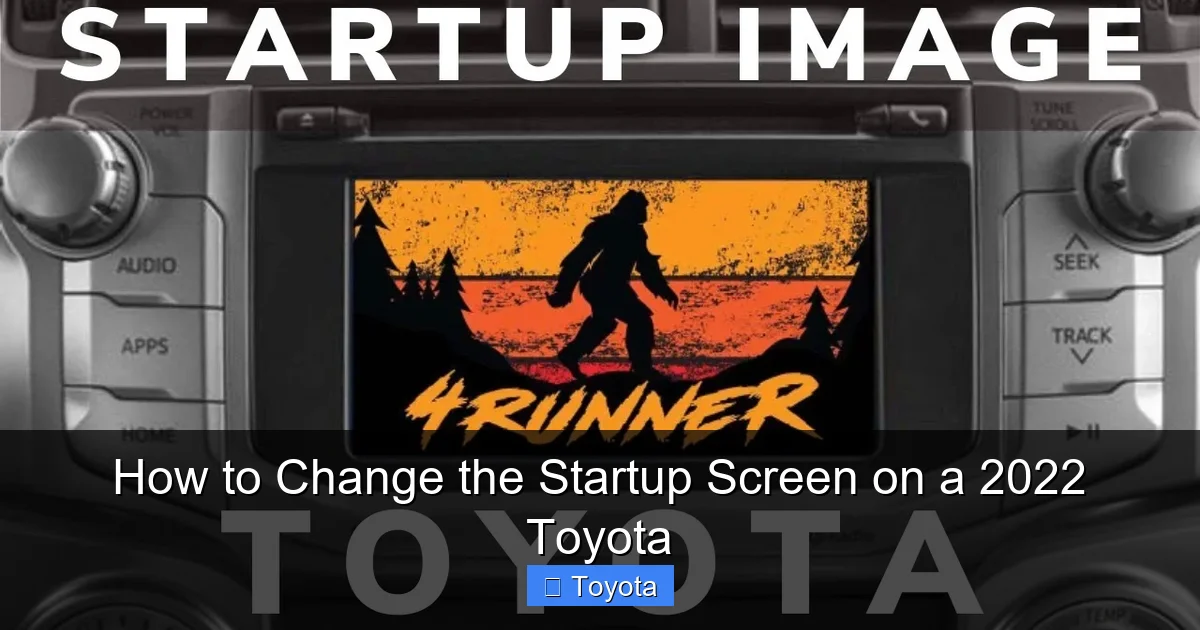
Changing the startup screen on a 2022 Toyota is simple and can be done in minutes with the right tools. This guide walks you through every step, from preparation to troubleshooting, so you can personalize your vehicle’s welcome image without dealer help.
Welcome! If you’ve ever looked at the default Toyota startup screen and thought, “I wish it looked a little more like me,” you’re not alone. Many Toyota owners love the idea of personalizing that first splash of color that appears when they turn the key or press the start button. In this article we’ll show you exactly how to change the startup screen on a 2022 Toyota, step by step, using tools you probably already have at home.
Key Takeaways
- Point 1: The startup screen is controlled through the infotainment system’s settings and can be swapped with a custom image.
- Point 2: You only need a USB drive, a compatible image file, and basic navigation skills.
- Point 3: Updating the image does not affect vehicle performance or warranty.
- Point 4: Always back up the original screen file before making changes.
- Point 5: If the screen does not update, check file format, size, and USB formatting.
- Point 6: For deeper customization, consider adding a rear‑view camera or GPS navigation as described in our related guides.
- Point 7: Regularly clean the infotainment screen and its filter to keep the display crisp.
📑 Table of Contents
Why the Startup Screen Matters
The startup screen is more than just a logo; it’s the first digital handshake between you and your vehicle. A customized image can reflect your personality, showcase a favorite photo, or even add a subtle branding element for a business fleet. While Toyota designs the stock screen to be clean and professional, the system actually allows a user‑replaceable image file. Understanding why you might want to change it helps you decide what kind of picture to use and how much effort you’re willing to invest.
Personal Expression
Whether it’s a family photo, a favorite travel destination, or a simple graphic, the startup screen becomes a tiny canvas for self‑expression. Because the image appears every time you start the car, it’s a pleasant, repeated reminder of something you love.
Branding for Business Use
If you run a small business and use a Toyota as a company vehicle, swapping in a logo or tagline can reinforce brand identity each time the vehicle is turned on. It’s a low‑cost way to make a professional impression without wrapping the car.
Prerequisites and Tools
Before you dive into the process, gather a few items. Luckily, you don’t need any specialized dealership equipment.
Visual guide about How to Change the Startup Screen on a 2022 Toyota
Image source: aautomotives.com
What You’ll Need
First, a USB flash drive formatted to FAT32. Most modern Toyota infotainment units only read this format. Next, a high‑resolution image (usually 1920 × 1080 pixels) saved as a JPEG or PNG. The image should be under 2 MB to avoid loading delays. Finally, a computer or smartphone to copy the file onto the USB drive.
Optional Extras
If you want to go beyond the basics, consider installing a rear‑view camera or a GPS navigation unit. Both upgrades can be found in our guide on how to install a rear‑view camera and install a GPS system. These additions often involve updating the infotainment firmware, which can affect how custom images are displayed.
Step‑by‑Step Guide to Changing the Startup Screen
Now that you’re equipped, let’s walk through the actual process. Follow each step carefully to avoid any hiccups.
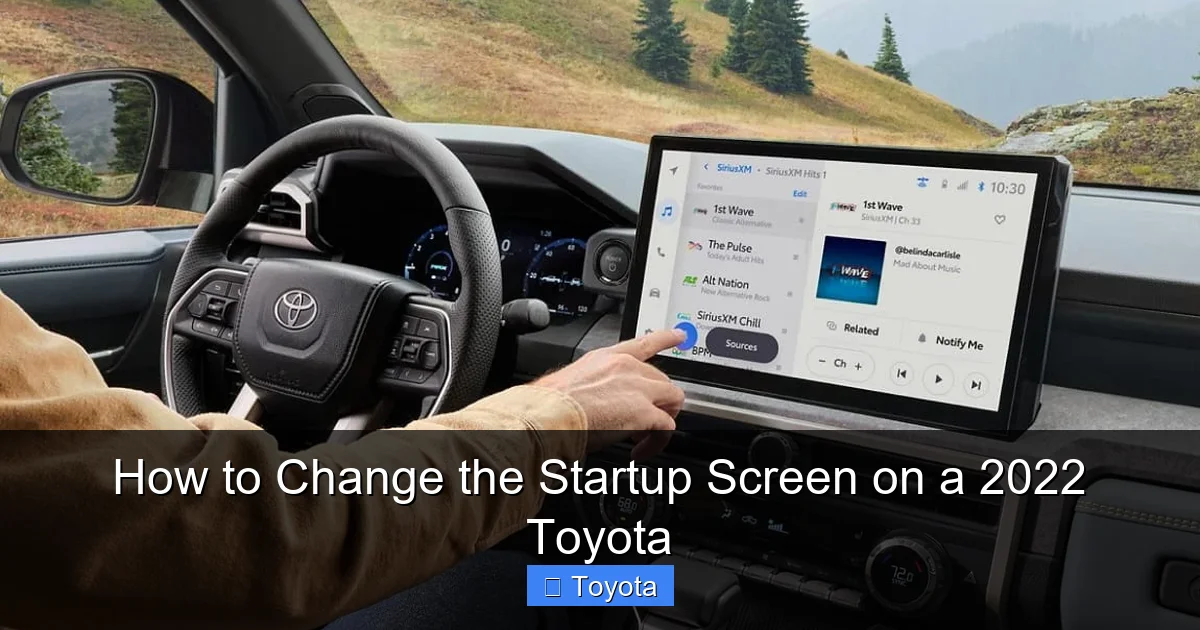
Visual guide about How to Change the Startup Screen on a 2022 Toyota
Image source: di-sitebuilder-assets.s3.amazonaws.com
Step 1: Back Up the Original Screen File
Some Toyota models store the startup image in the vehicle’s internal memory. Using a diagnostic tool or a dealership app, you can export the current image to a USB drive. Backing up ensures you can restore the original if you ever want to.
Step 2: Prepare Your Custom Image
Open your favorite photo in an image editor. Resize it to 1920 × 1080 pixels, keep the file size under 2 MB, and save it as a JPEG. Make sure the image is saved in the root folder of the USB drive; subfolders are not recognized by the infotainment system.
Step 3: Copy the Image to the USB Drive
Insert the USB drive into your computer, copy the JPEG file, and safely eject the drive. Double‑check that the file name does not contain any special characters — use something simple like “toyota_startup.jpg”.
Step 4: Insert the USB Drive into the Vehicle
Turn the vehicle off. Locate the USB port, usually found in the center console or near the gear shifter. Plug the drive in, then turn the ignition to the “ON” position without starting the engine. The infotainment screen should detect the drive and display a menu option like “Settings → Startup Image”.
Step 5: Select and Apply the New Image
Navigate to the startup image menu, select “Add New Image”, and choose the file you just copied. Confirm the selection, and the system will replace the old logo with your new picture. Turn the vehicle off and back on to verify the change.
Step 6: Troubleshooting Common Issues
If the new image doesn’t appear, check these common pitfalls:
- The USB drive is not formatted as FAT32.
- The image resolution is too high or the file size exceeds 2 MB.
- The file name contains spaces or special characters.
- The infotainment system needs a restart to recognize the change.
When in doubt, consult the vehicle’s owner manual or refer to our guide on cleaning a car air conditioner filter to keep the display area dust‑free, which can sometimes interfere with sensor readings.
Customizing the Image for Best Results
Now that you know the mechanics, let’s talk about making the image look its best.
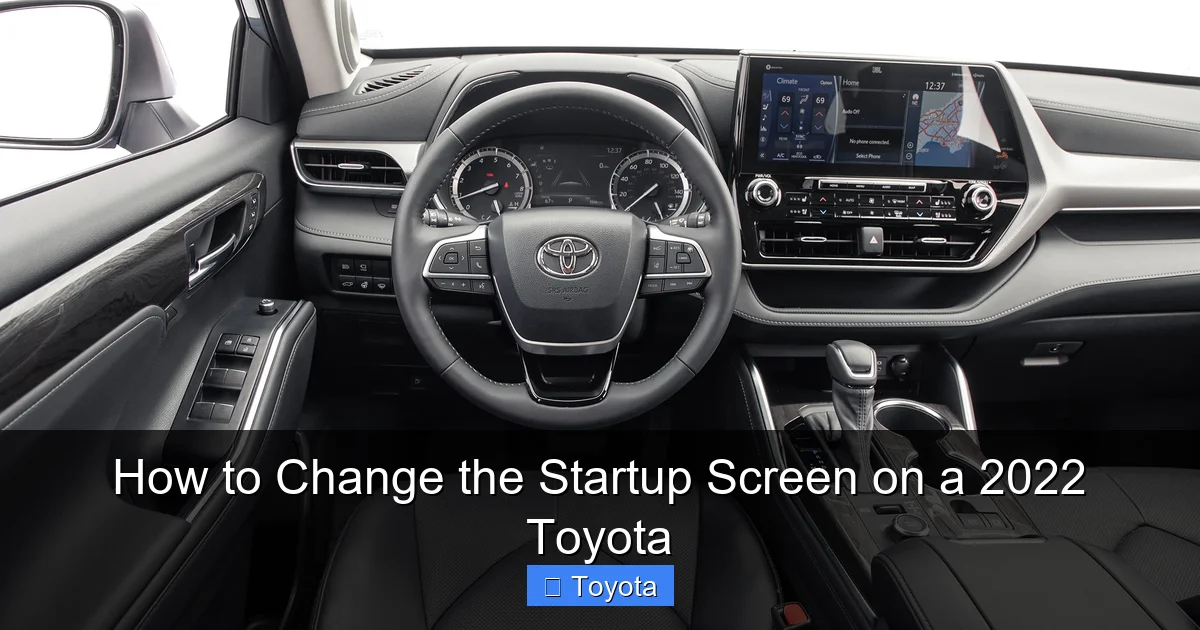
Visual guide about How to Change the Startup Screen on a 2022 Toyota
Image source: motortrend.com
Choosing the Right Photo
Pick a picture with high contrast and simple elements. Busy scenes can become indistinct on the relatively small screen. Logos, silhouettes, or solid‑color gradients work well.
Adding a Personal Touch
Some owners like to overlay a small logo or text. Keep it subtle — too much text can be unreadable at startup. Use a thin, white font and place it in a corner.
Testing Before Finalizing
Before copying the file to the USB drive, view the image on your computer at the same resolution the car will display. This helps you catch any pixelation or distortion early.
Maintaining Your New Startup Screen
Once the new image is live, treat it like any other part of your vehicle’s interior. Keep the screen clean and avoid exposing it to extreme temperatures for prolonged periods.
Regular Cleaning
Use a microfiber cloth to wipe away fingerprints. For a deeper clean, lightly dampen the cloth with a mixture of water and a few drops of mild soap. Avoid abrasive cleaners that could scratch the glass.
Monitoring Performance
If you notice any lag when the screen appears, it might be time to check the USB drive’s health. A slow drive can cause delays. Replacing it with a high‑quality FAT32‑formatted drive often resolves the issue.
Frequently Asked Questions
Can I revert to the original Toyota startup screen?
Yes. Simply copy the backed‑up original image back onto the USB drive and follow the same menu steps to replace the custom image with the saved file.
Will changing the startup screen void my warranty?
No. The process only modifies a user‑replaceable image file and does not affect any mechanical or safety systems. However, if you alter the infotainment firmware, that could void certain warranty components.
Do I need a dealership to change the startup screen?
Not at all. The entire procedure can be completed at home with a USB drive, a computer, and the steps outlined above.
What image format does the 2022 Toyota infotainment system accept?
JPEG and PNG are both supported, but JPEG is preferred because it tends to be smaller in file size while maintaining good quality.
Can I use a video as a startup screen?
Currently, the system only supports static images. If you want a moving background, you would need a hardware upgrade or a custom firmware solution, which is beyond the scope of standard ownership.
Is there a limit to how many custom images I can store on the USB drive?
The system only reads the first image it finds in the root folder. If you want to switch between multiple images, you’ll need to replace the file each time or use a dedicated app that cycles through images.
Will the new startup screen affect fuel efficiency?
Absolutely not. The startup screen is a purely visual element and does not impact engine performance, fuel consumption, or emissions.
Frequently Asked Questions
What is How to Change the Startup Screen on a 2022 Toyota?
How to Change the Startup Screen on a 2022 Toyota is an important topic with many practical applications.