How to Stop Application Download Error on Toyota
Stop the frustration of the Application Download Error on Toyota with our step‑by‑step guide. Learn the common causes, simple fixes, and preventive measures to keep your in‑car apps glitch‑free.
Key Takeaways
- Know the common triggers: poor connectivity, software bugs, and outdated firmware can all cause the Application Download Error on Toyota.
- Simple resets work: a quick power cycle of the infotainment system often clears the error.
- Keep firmware updated: installing the latest OTA patch removes known bugs that lead to download failures.
- Check your network: a strong Wi‑Fi or cellular signal is essential for smooth app downloads on Toyota.
- Clear cache & data: freeing up storage and resetting app settings eliminates corrupt files that trigger the error.
- Use official sources: only download apps from Toyota’s official store to avoid incompatible versions.
- Preventive maintenance: regular system checksUi and vehicle software updates keep the Application Download Error on Toyota at bay.
[FEATURED_IMAGE_PLACEHOLDER]
📑 Table of Contents
- Why Does the Application Download Error on Toyota Keep Hitting You?
- Common Causes of the Application Download Error on Toyota
- Step‑by‑Step Fixes for the Application Download Error on Toyota
- Preventive Measures: Keep the Application Download Error on Toyota From Returning
- Real‑World Example: Fixing a Persistent Download Error on a 2022 Toyota Camry
- When to Seek Professional Help
- Conclusion
Why Does the Application Download Error on Toyota Keep Hitting You?
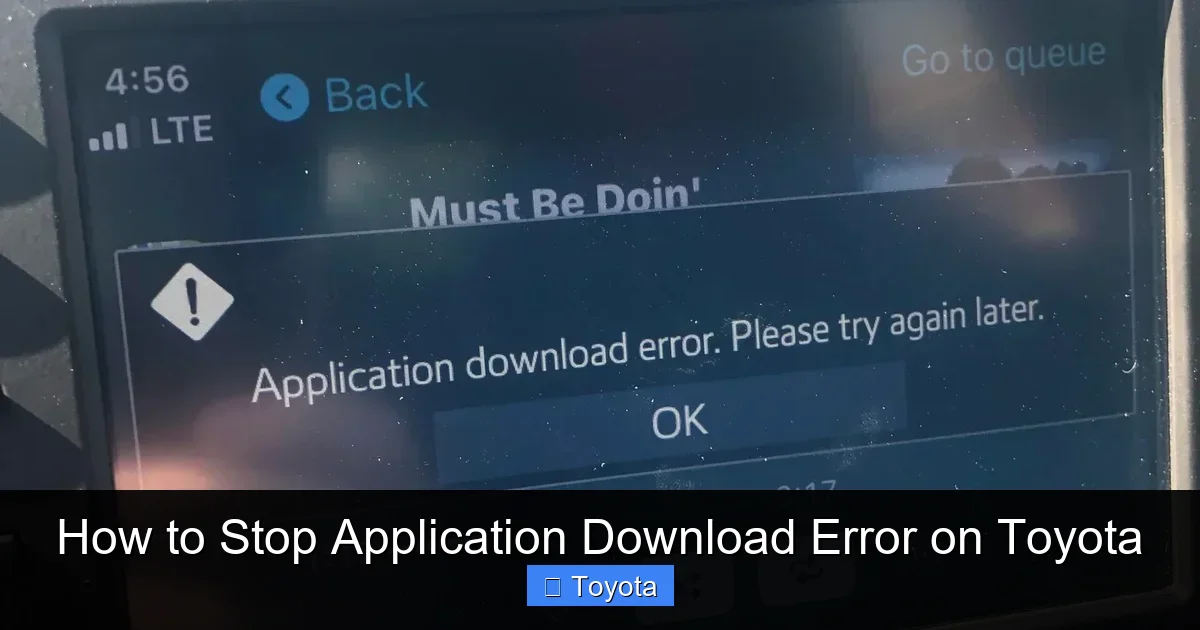
Picture this: you’re cruising down the highway, the sun is shining, and you’re ready to stream your favorite playlist. You tap the “Download” button on your car’s infotainment screen, but instead you see a blinking red X and a cryptic error message. It’s the dreaded Application Download Error on Toyota, and it can feel like a roadblock in an otherwise smooth journey.
In this post, we’ll break down the most common reasons behind the error, walk through practical fixes, and give you tips to keep your car’s software running like a well‑tuned engine. Think of it as your quick‑ref guide to staying connected on the road.
Common Causes of the Application Download Error on Toyota
1. Weak or Intermittent Network Connection
Just like a car needs a good fuel supply, your infotainment system requires a stable internet connection to pull app data. If your Wi‑Fi signal is weak or your cellular data drops, the download will stall and trigger the error. On Toyota, the error often appears as “Connection failed” or “Network error.”
Visual guide about How to Stop Application Download Error on Toyota
Image source: aautomotives.com
2. Outdated Firmware or Software
Toyota’s infotainment system receives OTA (over‑the‑air) updates that patch bugs and improve performance. If you’re running an older firmware version, the system may not recognize newer app binaries, leading to the Application Download Error on Toyota. The error may show up as “Version mismatch” or “Update required.”
3. Insufficient Storage Space
Every app needs room in the system’s internal memory. If your Toyota’s storage is almost full, the download can’t complete. The error message might read “Insufficient space” or simply fail silently, leaving you wondering why the app isn’t installing.
4. Corrupted Cache or App Data
Over time, the cache that stores temporary files can become corrupted. This corruption can interfere with the download process, causing the Application Download Error on Toyota. The most common symptom is a repeated “Download failed” message that doesn’t resolve after a simple restart.
5. App Compatibility Issues
Some apps are still being updated for newer platforms or require specific SDK versions. If you try to install an app that’s not compatible with your Toyota’s system, the error will pop up almost immediately. The message may say “Unsupported app version” or “Incompatible with current system.”
Step‑by‑Step Fixes for the Application Download Error on Toyota
1. Restart Your Infotainment System
Most modern Toyota models allow you to perform a soft reset without pulling the key. Navigate to Settings > System > Reset and select “Restart.” This clears temporary glitches that oftenسر cause the Application Download Error on Toyota. If your model doesn’t support a soft reset, a full power cycle (turn the car off, wait 30 seconds, then restart) can do the trick.
2. Verify and Strengthen Your Internet Connection
- Check Wi‑Fi: Ensure your vehicle is within range of a strong router. Move closer if you notice a weak signal.
- Use Cellular Data: If your Toyota has a built‑in 4G/5G module, enable it in
Settings > Network. A stable cellular connection often outperforms spotty Wi‑Fi. - Toggle Airplane Mode: On some models, enabling airplane mode for a few seconds and then turning it off resets the network stack, clearing the error.
3. Update Firmware and Software
Go to Settings > Vehicle > Software Update and check for the latest OTA package. If an update is available, download and install it. Updating often resolves underlying bugs that cause the Application Download Error on Toyota.
4. Free Up Storage Space
Navigate to Settings > Storage and review which apps consume the most space. Uninstall unused apps or move media files to an SD card if supported. Clearing up at least 50 MB can prevent the error from resurfacing.
5. Clear Cache and Reset App Settings
In the app store section, tap the “…” icon next to the problematic app and select “Clear Cache” or “Reset App.” This removes corrupted data that can interfere(_(“Application Download Error on Toyota”)_). After clearing, try downloading the app again.
6. Re‑install the App from the Official Toyota Store
To avoid compatibility issues, always download apps from Toyota’s official store. If the app still fails, wait 24 hours for any pending updates, then retry the installation. Occasionally, the developer releases a patch that fixes the error.
Preventive Measures: Keep the Application Download Error on Toyota From Returning
1. Schedule Regular Software Updates
Set a reminder to check for firmware updates every month. OTA releases often include bug fixes that directly address download issues.
Visual guide about How to Stop Application Download Error on Toyota
Image source: aautomotives.com
2. Maintain Optimal Storage
Keep at least 200 MB free on your Toyota’s internal memory. Use the storage management tool to delete old media or unused apps.
3. Use a Reliable Internet Source
Always connect to a trusted Wi‑Fi network or enable the built‑in cellular module. Avoid public hotspots that might be unstable.
4. Keep Your Apps टैग Updated
When an app updates in the Toyota store, install it promptly. Developers often patch bugs that could cause the Application Download Error on Toyota.
5. Perform Periodic System Resets
Every 6 months, perform a soft reset of the infotainment system. This clears the cache and ensures the system runs smoothly.
Real‑World Example: Fixing a Persistent Download Error on a 2022 Toyota Camry
Jamie, a frequent road‑tripper, noticed that her 2022 Toyota Camry wouldn’t download the latest navigation update. After a quick restart, the error persisted. She checked her Wi‑Fi signal at home and found it weak, so she moved the router closer. Still no luck. She then navigated to Settings > Vehicle > Software Update and installed the latest OTA patch. Finally, she cleared the cache for the navigation app. The next attempt succeeded, and the error vanished.
When to Seek Professional Help
If you’ve tried all the above steps and the Application Download Error on Toyota remains, it may be a deeper hardware issue or a problem with the vehicle’s network module. Contact a Toyota dealer or a certified technician for diagnostics. They can run a full system scan and replace faulty components if necessary.
Conclusion
The Application Download Error on Toyota doesn’t have to be a permanent roadblock. By understanding its root causes—weak connectivity, outdated firmware, storage limits, corrupted cache, and app compatibility—you can apply quick fixes and long‑term preventive strategies. Keep your infotainment system updated ಕೂಡ, maintain a clean storage space, and use reliable internet connections. With these steps, you’ll spend less time troubleshooting and more time enjoying your drive.
Remember: the key to a smooth in‑car experience is proactive maintenance. Treat your Toyota’s software like you would its engine—regularly check, update, and tune. Happy driving!
Frequently Asked Questions
What causes the Application Download Error on Toyota?
Common causes include weak internet connection, outdated firmware, insufficient storage, corrupted cache, and app compatibility issues.
Can I fix the Application Download Error on Toyota without going to a dealer?
Yes. A soft reset, network check, firmware update, clearing cache, and ensuring you download from the official Toyota store usually resolve the issue.
Does updating the vehicle’s firmware always fix download errors?
Most of the time it does, especially if the error is due to software bugs. However, if the problem is storage or network related, an update alone won’t solve it.
How much storage should I keep free to avoid download errors?
It’s best to keep at least 200 MB of free space. This buffer helps the system install new apps without running into space constraints.
Is the Application Download Error on Toyota related to my phone’s connection?
Only if you’re using a USB‑connected phone to transfer apps. For wireless downloads, the car’s internal network is what matters.
What should I do if the error persists after all troubleshooting steps?
Contact a Toyota dealer or certified technician. They can run diagnostics and determine if a hardware component, like the network module, needs repair or replacement.