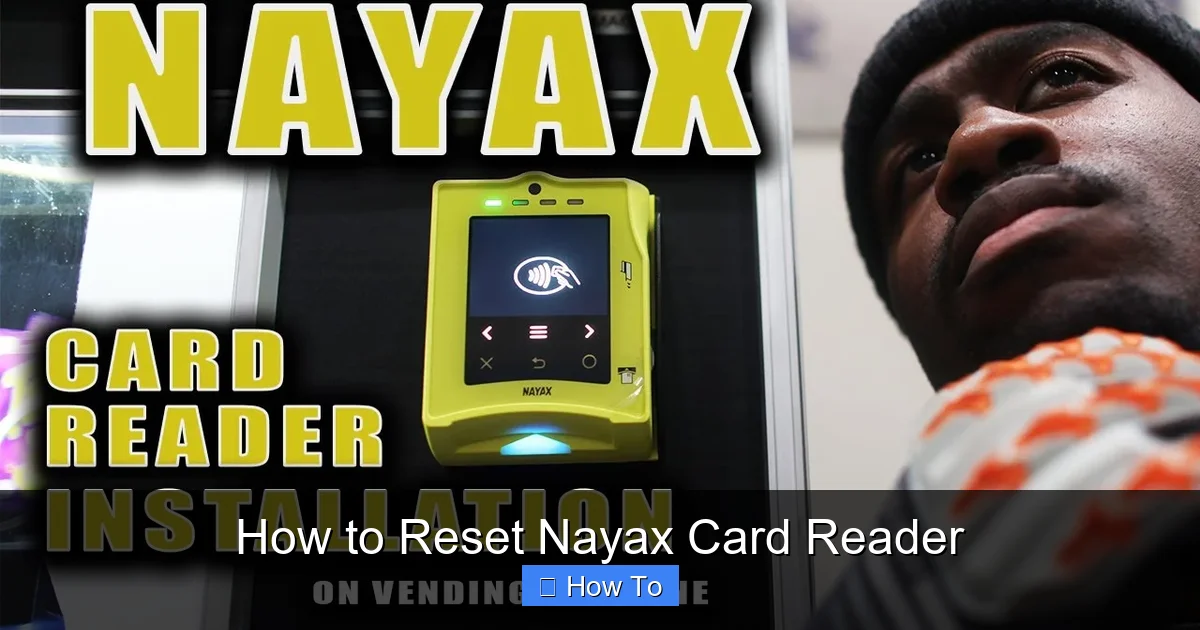
How to Reset Nayax Card Reader
Quick Summary
This guide shows you how to reset your Nayax card reader when it gets stuck or unresponsive. Follow these simple steps to restore normal operation quickly. Whether you’re using it for payments, identification, or other purposes, you’ll find clear instructions here. Most problems can be fixed without any technical expertise.
A Nayax card reader has become an essential tool for businesses, offices, and individuals who rely on contactless payment systems, document verification, and access control. These small but powerful devices handle sensitive data every day, which means they’re prone to unexpected failures. From sudden communication breakdowns to persistent read errors, users can feel frustrated when the device stops working as expected. That’s where knowing how to reset your Nayax card reader comes in handy—you don’t need specialized equipment or deep technical knowledge to get your system back online quickly.
Over time, electronic components wear down, and minor hardware conflicts can accumulate. Without regular attention, these small issues pile up and eventually cause noticeable problems. A single reset can clear away years of accumulated stress and bring back seamless operation. Whether you’re managing a retail store, a service provider, or a home office, maintaining your Nayax card reader health ensures smooth transactions and reliable performance. This guide walks you through everything you need to know to tackle reset situations with confidence, so you never have to wait long for your device to function properly again.
Key Takeaways
- Power cycling often resolves the issue by clearing temporary glitches.
- The device may enter an invalid state requiring a full factory reset.
- Check physical connections before attempting software solutions.
- Firmware updates can prevent future reset needs and improve reliability.
- Contact support promptly if self-reset fails repeatedly.
- Regular maintenance prevents escalating problems over time.
📑 Table of Contents
What Is a Nayax Card Reader and Why Resets Are Necessary
Understanding the basics of your Nayax card reader helps you recognize when something goes wrong and what kind of solution to apply. At its core, a Nayax card reader is a compact scanner designed to detect, verify, and process embedded data from various card types including credit cards, ID badges, and employee credentials. These devices communicate wirelessly or via Bluetooth with nearby terminals, printers, or security systems. When everything works correctly, you see quick scan confirmations and accurate transaction data flowing through your system.
However, even the best-designed electronics can encounter hiccups. The Nayax technology we use today relies on consistent power delivery, stable signal transmission, and clean internal circuitry. Over months of daily use, dust accumulation, loose connectors, or subtle hardware degradation can disrupt these processes. When a reset occurs, you’re essentially telling the device to forget old states, discard corrupted memory, and start fresh. This isn’t just a routine task—it’s a critical maintenance step that keeps your business operations running smoothly. Ignoring repeated resets could lead to permanent damage, so understanding the “why” behind each reset makes you more prepared when problems arise.
Common Signs That Your Nayax Card Reader Needs Resetting
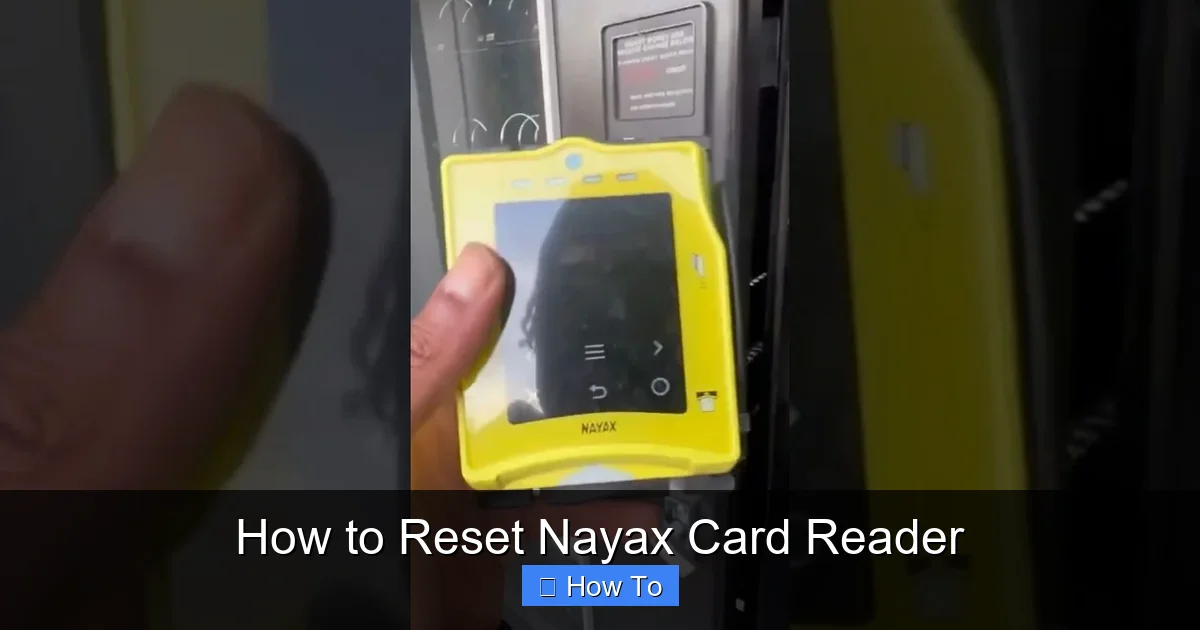
Visual guide about How to Reset Nayax Card Reader
Image source: i.ytimg.com
Before diving into the actual reset procedures, let’s identify the warning signs that tell you it’s time to intervene. One of the most frequent indicators is unresponsive readings. If you insert a valid card and nothing happens on the display, or if the device stays silent while other scanners on your site function perfectly, you likely have a problem that requires attention. Another common symptom involves intermittent connection issues—instances where the reader briefly recognizes a card before failing completely, then suddenly gives up. Users report seeing flickering lights, missing confirmation codes, or erratic behavior during peak usage hours. Finally, erratic data transmission manifests as incorrect transaction amounts, duplicate entries, or mismatched account information appearing on downstream systems. Spotting these patterns early saves you frustration later and ensures your records stay accurate.
Step-by-Step Guide to Reset Your Nayax Card Reader
Visual guide about How to Reset Nayax Card Reader
Image source: i.ytimg.com
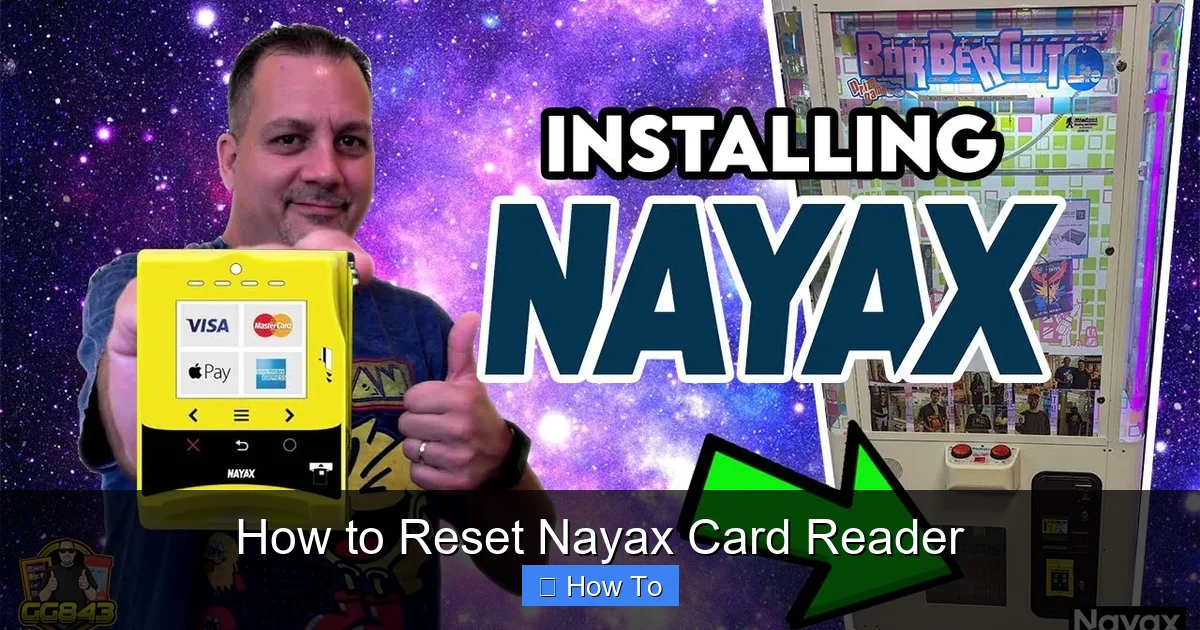
Resetting your Nayax card reader doesn’t have to be complicated. There are three main approaches you can try, ranging from simple power cycles to more involved hardware interventions. Each method addresses different levels of the device’s architecture, so choosing the right one depends on how frequently you’ve encountered issues and how comfortable you are with disassembly.
Method 1: The Power Cycle Approach (Most Accessible)
The simplest way to refresh your Nayax device is to perform a hard power cycle. This method forces all internal circuits to reboot and clears stored errors without needing any special tools. Here’s how to do it:
1. Locate the power connector on the back of your Nayax card reader unit. Ensure the cable is securely plugged in.
2. Press and hold the power button for five seconds. This disconnects the device from any active system connections.
3. Immediately release the button and reconnect the power cable.
4. Wait thirty seconds before attempting another scan with a test card. The device should come online and acknowledge recognition normally.
This approach works well for temporary software glitches, residual memory corruption, or simple communication drops. Many users find that a single power cycle solves the problem instantly, especially if the device was left on for extended periods. Since this method requires no disassembly or special parts, it’s recommended for anyone unfamiliar with internal component handling.
Method 2: Hardware Forced Reset (For More Experienced Users)
When the standard power cycle doesn’t resolve the issue, you might need a forced hardware reset. This technique physically disrupts the device’s power supply chain, compelling it to initialize from scratch. Follow these steps carefully:
1. Remove the external power adapter from the unit entirely.
2. Locate the main battery compartment—if your Nayax model supports it—and extract the backup power cell. Some units also feature a secondary battery that powers low-power components independently; swapping both eliminates background standby modes.
3. Hold the reset or factory button for ten seconds. On certain Nayax variants, pressing and holding the reset pinhole while simultaneously applying voltage through a multimeter confirms the action.
4. Reinstall the battery or power adapter, ensure all connections are secure, and allow the device to boot up.
Note that this method carries a slightly higher risk of damaging seals or causing water ingress if there’s moisture inside the housing. Always inspect the device exterior for cracks or corrosion before proceeding.
Method 3: Software/Firmware Reset (Advanced Solution)
Modern Nayax cards often ship with firmware that manages sensor calibration, communication protocols, and security checks. Sometimes, software malfunctions instead of hardware failure. To address this, visit the official Nayax support portal and download the latest firmware update for your specific model. Once installed and verified, restart the device and observe whether the reset takes effect. If the firmware update resolves recurrent issues, you’ve successfully eliminated a root cause rather than merely masking symptoms. Remember that updated firmware should always come from authorized sources to avoid malware injection or compatibility problems.
Troubleshooting Tips When Basic Resets Don’t Work
Visual guide about How to Reset Nayax Card Reader
Image source: cdn.shopify.com
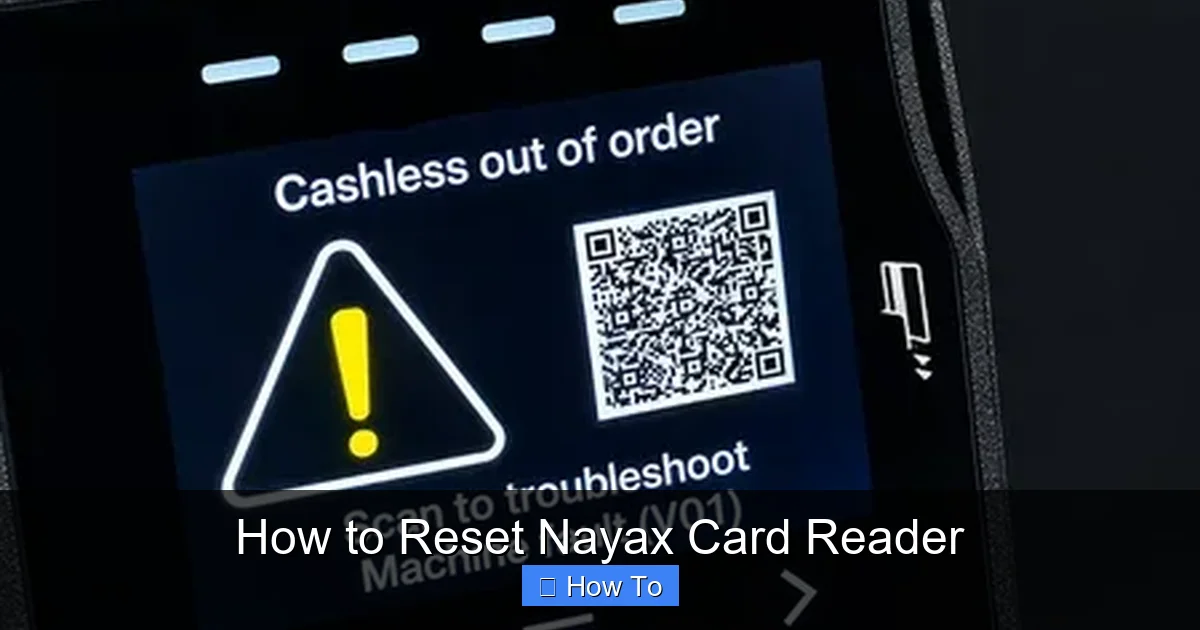
Even after exhaustive power cycling and firmware updates, stubborn Nayax card reader problems persist. Before considering professional assistance, run through these diagnostic steps to rule out environmental or setup factors.
Check for Physical Damage First
Start by examining the device’s exterior and interior for obvious signs of trouble. Look for cracked plastic casings, bent pins on the USB port, or corroded contacts around the card slot. Dust accumulation can block optical sensors, so gently cleaning the lens with compressed air or a soft brush often restores functionality. If you notice visible damage, limiting the reset frequency won’t help—the underlying hardware fault must be addressed. However, if the device appears pristine despite repeated failures, move on to the next step.
Verify Device Compatibility Across Systems
Not all Nayax models are interchangeable across different terminal types or network configurations. Ensure you haven’t accidentally paired your reader with incompatible hardware. Some retailers sell third-party adapters that claim to expand Nayax capabilities; however, these can introduce instability. Test your reader with a known-good terminal to determine whether the issue lies with your current setup or the device itself. If the problem persists across multiple systems, you may be dealing with a defective unit that requires professional servicing.
Update Drivers and Software Regularly
If your Nayax reader connects via Bluetooth or Wi-Fi, outdated drivers can cause communication breakdowns. Visit the manufacturer’s website and install the most recent driver version compatible with your operating system. After updating, reboot your computer and reconfigure the reader according to the original setup wizard. This preventive measure reduces the likelihood of future reset scenarios and improves overall stability.
Frequently Asked Questions
Question?
What is the difference between a Nayax card reader and a standard magnetic stripe reader?
Answer: While both types use similar card formats, Nayax readers typically offer faster processing speeds, larger capacity storage, and built-in encryption features that enhance security for sensitive transactions.
Question?
Can I reset my Nayax reader without charging batteries or opening the device?
Answer: Yes. The power cycle method requires no battery removal or physical opening—simply unplugging and replugging the power connector usually suffices to clear temporary faults.
Question?
How often should I perform a reset on my Nayax card reader?
Answer: Performing a brief power cycle once a week or every few weeks is sufficient for most environments, reducing the chance of accumulated errors reaching a problematic threshold.
Question?
Will resetting my Nayax reader void any warranty coverage?
Answer: Typically, resetting an electronic device is considered a normal maintenance activity and does not affect warranty terms. However, contacting the manufacturer directly can confirm the policy for your specific purchase.
Question?
Are there any safety precautions I should follow during a hardware reset?
Answer: When removing backup batteries or handling internal components, avoid exposing them to moisture, sharp edges, or extreme temperatures. Working in a static-free environment minimizes the risk of electronics interference.
Question?
Should I consult a technician immediately if resets fail repeatedly?
Answer: Frequent resets that don’t resolve the issue suggest underlying hardware defects. In such cases, seeking professional support is advisable to prevent further damage and ensure safe restoration of your Nayax reader.