How to Remove Contact from Toyota Home Screen
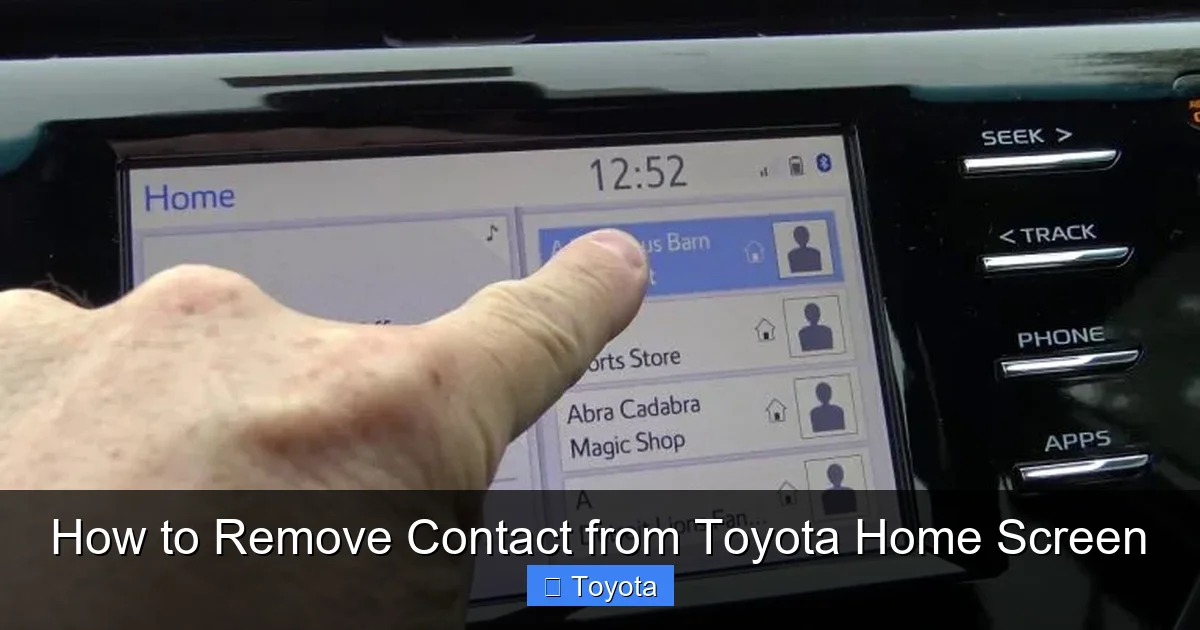
Removing unwanted contacts from your Toyota home screen is simple and fast. Follow this clear, step‑by‑step guide to clean up your display, avoid distractions, and keep your drive smooth.
Key Takeaways
- Check your Toyota model and software version first. Compatibility ensures the steps work correctly.
- Back up important data before deleting. Prevent accidental loss of useful entries.
- Use the navigation system’s contact list to delete entries. This is the most reliable method.
- If a contact won’t delete, try restarting the infotainment system. A quick reboot often fixes glitches.
- Regularly review and prune contacts. Keep the list short for faster access.
- Use “Favorites” for frequently called numbers. Reduces clutter on the home screen.
- Seek professional help for persistent issues. Toyota support can resolve deeper software problems.
Key Takeaways
- Understanding How to Remove Contact From Toyota Home Screen: Provides essential knowledge
📑 Table of Contents
Understanding the Toyota Home Screen Interface
The Toyota home screen is the main dashboard display you see when you turn on the car. It shows shortcuts to navigation, phone, audio, and sometimes contacts. Many drivers notice that old or unused contacts linger there, making the screen look messy. This section explains what the home screen does and why contacts appear.
What is the Home Screen?
The home screen is a customizable hub that provides quick access to the most used functions. Toyota designs it to be intuitive, but it can also store contact entries that sync from your phone.
Why Contacts Appear on the Home Screen
When you pair your phone via Bluetooth or USB, the system often imports contacts automatically. Over time, these entries can accumulate, especially if you change phones or sync multiple devices. The result is a cluttered home screen that can be confusing while driving.
Preparing to Remove a Contact
Before you start deleting, a little preparation helps avoid mistakes and ensures a smooth process.
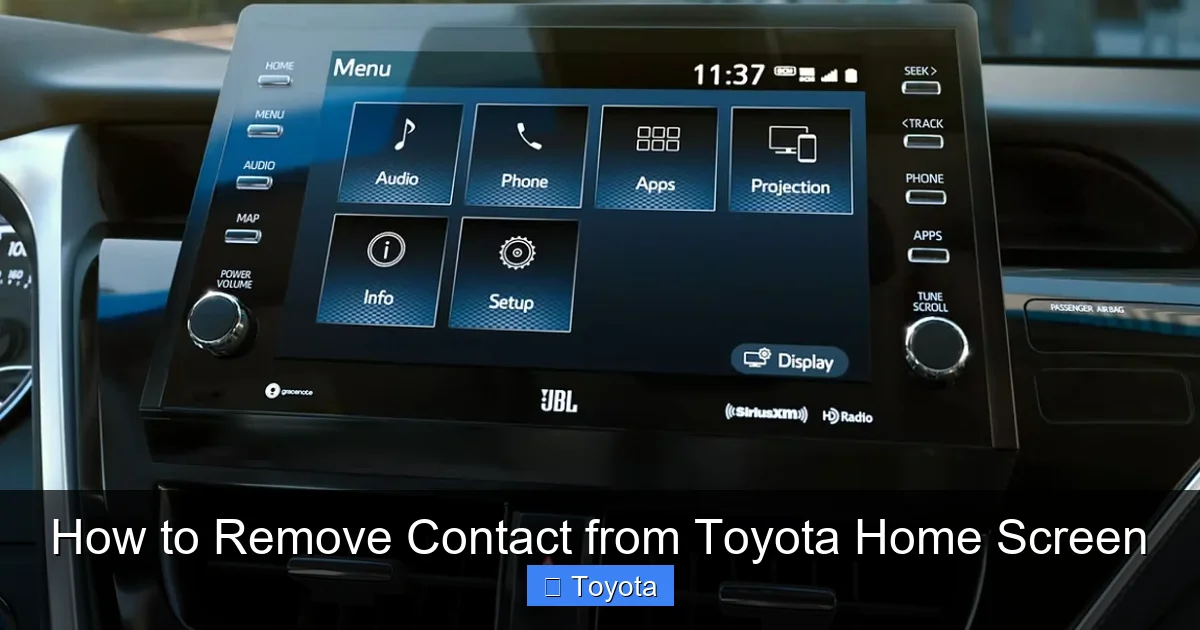
Visual guide about How to Remove Contact from Toyota Home Screen
Image source: di-enrollment-api.s3.amazonaws.com
Check Your Toyota Model and Software Version
Different Toyota models (Corolla, Camry, RAV4, etc.) may have slightly different interfaces. Locate your owner’s manual or the settings menu to see your software version. Newer versions often have a “Delete” option directly on the contact entry.
Backup Your Data (Optional)
If you are worried about losing a contact by accident, you can export the contact list to a CSV file using a computer or a smartphone app. This backup is optional but recommended for peace of mind.
Step-by-Step Guide to Remove a Contact
Now let’s walk through the actual steps. Follow each sub‑heading carefully.
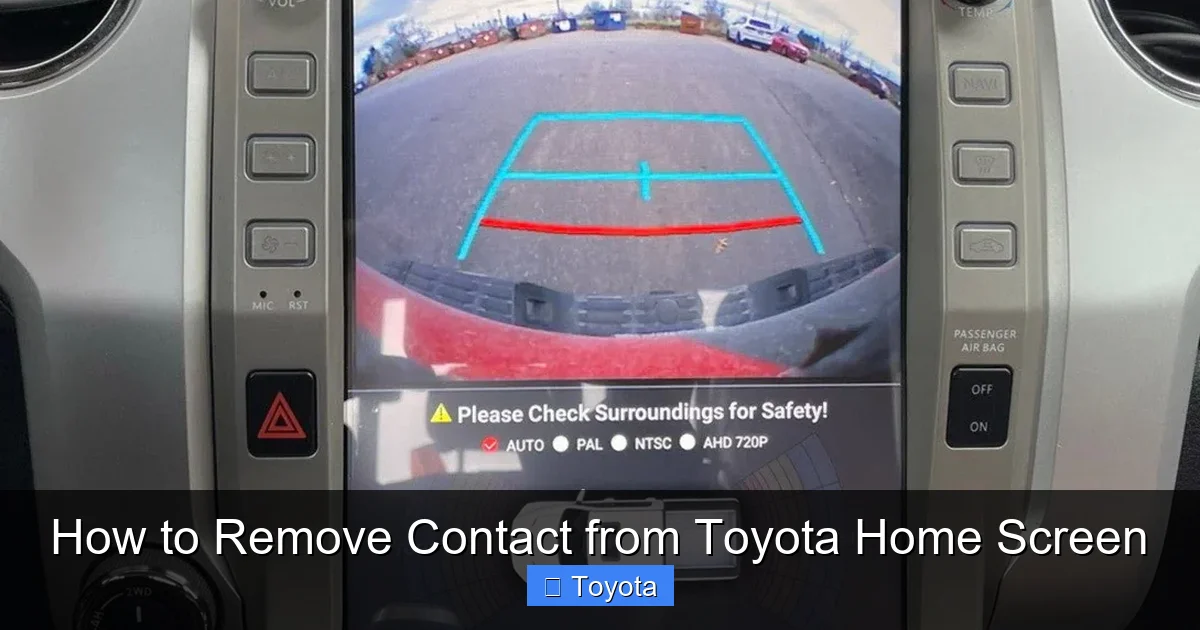
Visual guide about How to Remove Contact from Toyota Home Screen
Image source: mergescreens.com
Access the Navigation System
Most Toyota vehicles place the contact list inside the navigation (NAV) system. Press the “NAV” button on the touchscreen or use the physical knob to open the map view. From there, look for a menu icon that says “Phone” or “Contacts”.
Locate the Contact List
Once inside the phone menu, select “Contacts”. A list of all saved entries will appear, usually sorted alphabetically. Scroll through the list to find the contact you want to remove.
Select and Delete the Contact
Tap the contact name to open its details. Look for a “Delete” or “Remove” option—often represented by a trash can icon. Confirm the deletion when prompted. The contact disappears from both the phone book and the home screen shortcuts.
Common Issues and Troubleshooting
Sometimes the deletion process doesn’t go as planned. Here are the most frequent problems and how to solve them.
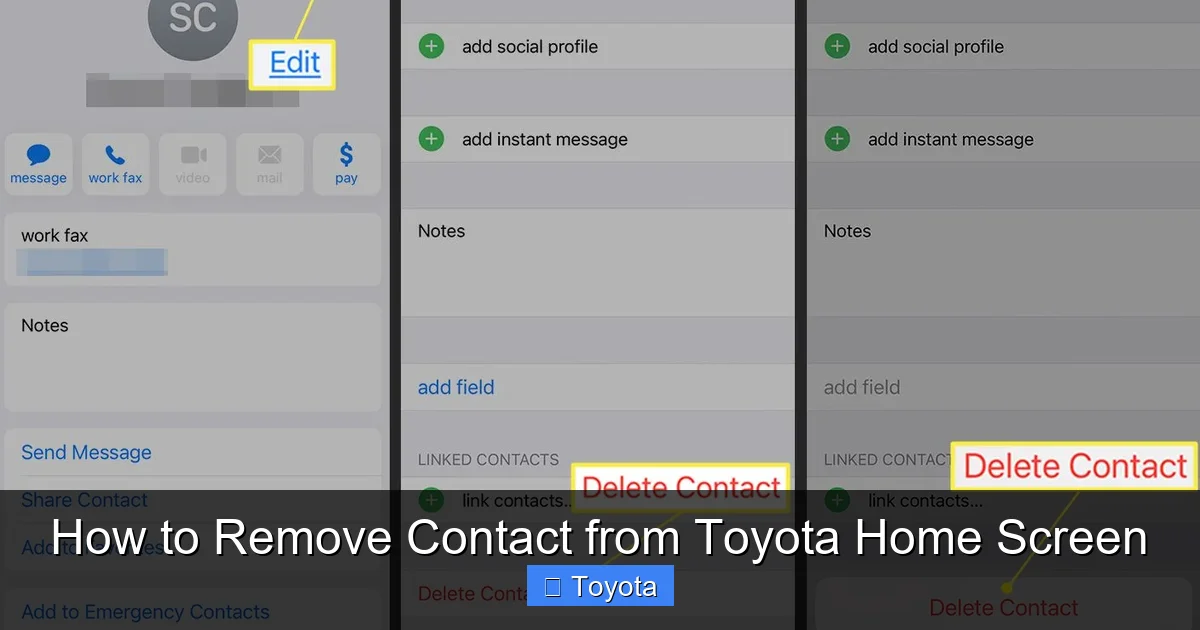
Visual guide about How to Remove Contact from Toyota Home Screen
Image source: lifewire.com
Contact Won’t Delete
If the “Delete” button is greyed out, the system may think the contact is in use. Try restarting the infotainment system: turn off the car, wait 30 seconds, then start it again. After the reboot, attempt the deletion once more.
System Freezes or Lag
A laggy screen can cause touches not to register. Make sure your phone’s Bluetooth connection is stable. If the problem persists, disconnect the phone, reboot the car, and reconnect.
Preventing Future Clutter
Maintaining a clean home screen is as important as removing existing contacts.
Regularly Review Your Contacts
Set a reminder once a month to glance at the contact list. Delete any numbers you no longer need. This habit keeps the list short and the home screen tidy.
Use Favorites Instead of Full List
Toyota allows you to create “Favorites” for the numbers you call most often. Adding a favorite removes the need to keep the full contact entry on the home screen, reducing visual clutter.
When to Seek Professional Help
Most contact removal issues are simple, but some problems need a technician’s touch.
Persistent Software Glitches
If the system repeatedly freezes or the delete function never responds, there may be a deeper software bug. Contact your local Toyota dealership or an authorized service center.
Contact with Toyota Support
The official Toyota support line can guide you through more advanced steps, such as resetting the infotainment system to factory defaults. This should be a last resort, as it erases all saved settings.
Conclusion
Removing contacts from your Toyota home screen is a straightforward task that enhances safety and reduces driver distraction. By following the steps outlined above, you can keep your dashboard clean, improve focus on the road, and enjoy a more organized driving experience. Remember to back up important data, restart the system if needed, and use favorites to keep frequently used numbers handy. If problems persist, don’t hesitate to reach out to Toyota support for professional assistance.
Frequently Asked Questions
Question?
Answer: You can usually delete a contact directly from the contact list in the navigation system. If the option is missing, try restarting the infotainment unit or checking for software updates.
Question?
Answer: Yes, most Toyota models let you delete contacts without a dealership visit. The process involves accessing the phone menu and using the delete function on each entry.
Question?
Answer: If a contact refuses to delete, it may be synced from your phone. Disconnect the phone, restart the car, and then try deleting again. Persistent issues may require a system reset.
Question?
Answer: Backing up contacts is simple—export the list to a CSV file using a smartphone app or the Toyota app. This ensures you won’t lose any important numbers.
Question?
Answer: Restarting the infotainment system often resolves temporary glitches that prevent contact deletion. Turn off the car, wait 30 seconds, then start it again.
Question?
Answer: For stubborn software errors, contact Toyota support or visit an authorized service center. They can perform a factory reset or apply necessary updates.