How to Play a DVD in a Toyota Sienna Without a Remote
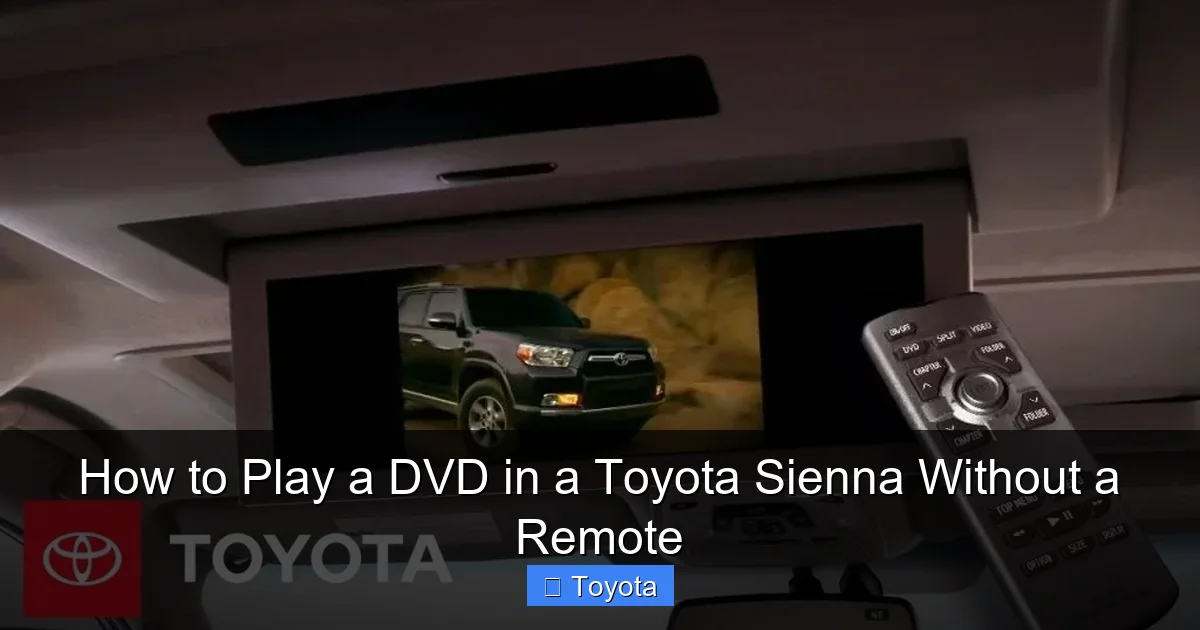
Playing a DVD in your Toyota Sienna without a remote is straightforward if you know the right steps. Your vehicle’s built-in control panel and center console buttons allow you to operate the DVD system manually. Follow this guide to troubleshoot common issues and ensure smooth playback, even without a physical remote control.
Key Takeaways
- Control Panel Buttons: Most Toyota Sienna DVD systems can be controlled using the buttons on the center console or touchscreen, eliminating the need for a remote.
- Check the DVD Slot: Ensure the DVD is properly inserted into the slot located in the center console or overhead console, depending on your model year.
- System Settings: Verify that the DVD system is powered on and set to the correct input mode (e.g., DVD or Entertainment) using the vehicle’s main menu.
- Compatibility: Use DVDs that are compatible with your Sienna’s system—standard DVDs work best, while Blu-rays may not function.
- Troubleshooting: If playback fails, check for scratches, clean the disc, or reset the system by turning it off and on again.
- Alternative Solutions: Consider using a USB drive or streaming device if repeated issues persist with physical DVDs.
- Maintenance: Regularly clean the DVD slot and system to prevent dust or debris from interfering with playback.
📑 Table of Contents
Understanding Your Toyota Sienna’s DVD System
Before diving into troubleshooting, it’s essential to understand how your Toyota Sienna’s DVD system works. Depending on the model year and trim level, your Sienna may have an infotainment system with a built-in DVD player or a separate entertainment system. The key to playing a DVD without a remote is knowing where the control panel buttons are located and how to navigate the system’s interface.
Location of the DVD Slot
The DVD slot in a Toyota Sienna is typically found in one of two places:
- Center Console: Many models have the DVD slot integrated into the center console, often near the climate controls or gear shifter.
- Overhead Console: Some higher-end trims or older models may have the slot in the overhead console, accessible via a small door.
Check your owner’s manual or look for a small slot with a DVD icon. If you’re unsure, the center console is the most common location.
Control Panel Layout
Once you’ve located the DVD slot, familiarize yourself with the control panel. The buttons on your Sienna’s touchscreen or physical buttons on the center console will allow you to:
- Play and pause the DVD.
- Eject the disc.
- Adjust volume and audio settings.
- Navigate menus and settings.
If your Sienna has a touchscreen, look for a dedicated Entertainment or DVD icon on the home screen. Touching this icon will switch the system to DVD mode.
Using the Control Panel Buttons to Play a DVD
Playing a DVD without a remote is a matter of using the physical buttons and touchscreen controls in your Sienna. Here’s how to do it:
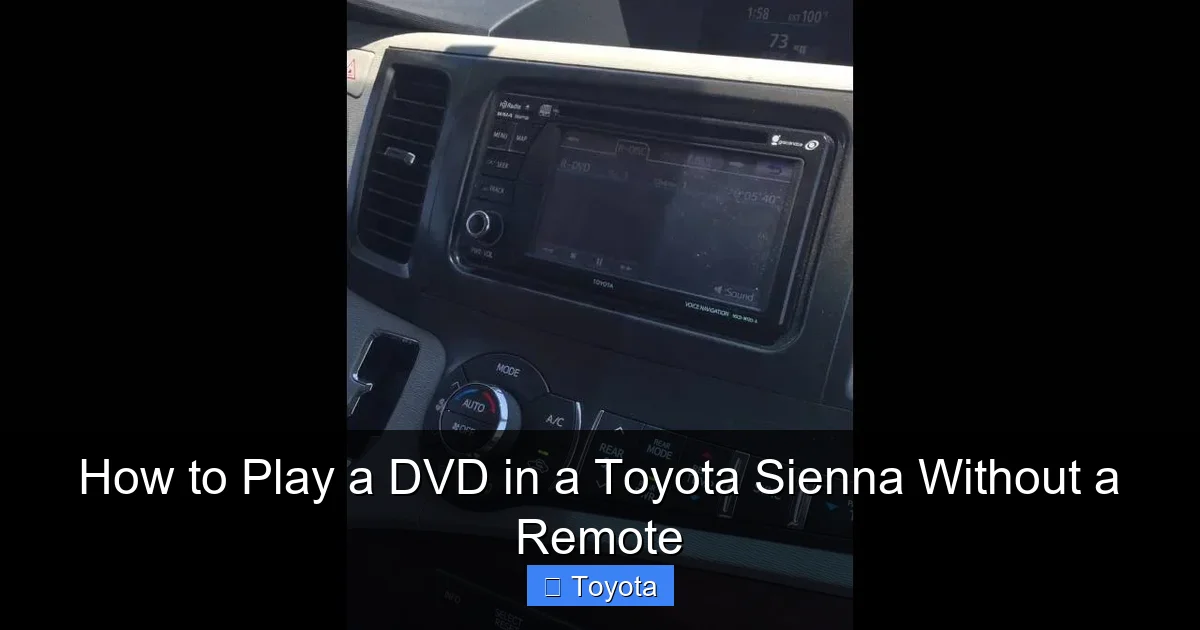
Visual guide about How to Play a DVD in a Toyota Sienna Without a Remote
Image source: thecarhow.com
Step 1: Power On the System
Start by turning on your Sienna’s infotainment system. This is usually done by pressing the power button on the center console or touchscreen. If the system doesn’t power on, check that the vehicle is in park or neutral, depending on your model.
Step 2: Insert the DVD
Open the DVD slot by pressing down on the cover (if it’s a center console slot) or pulling up the cover (if it’s an overhead slot). Insert the DVD with the label facing up (for center console slots) or down (for overhead slots), as indicated by an arrow on the slot. Press the disc gently until it clicks into place.
Step 3: Switch to DVD Mode
Using the touchscreen or physical buttons, select the DVD or Entertainment option. On a touchscreen, this might involve tapping an icon or navigating through a menu. If using physical buttons, look for a dedicated Source or Mode button and cycle through options until you see DVD appear.
Step 4: Play the DVD
Once the system recognizes the DVD, press the Play button on your touchscreen or center console. If the DVD doesn’t start automatically, navigate to the Setup or Settings menu and ensure the system is set to the correct input source. You can also adjust the volume using the volume controls on the center console.
Troubleshooting Common Issues
If the DVD isn’t playing, here are common issues and fixes:
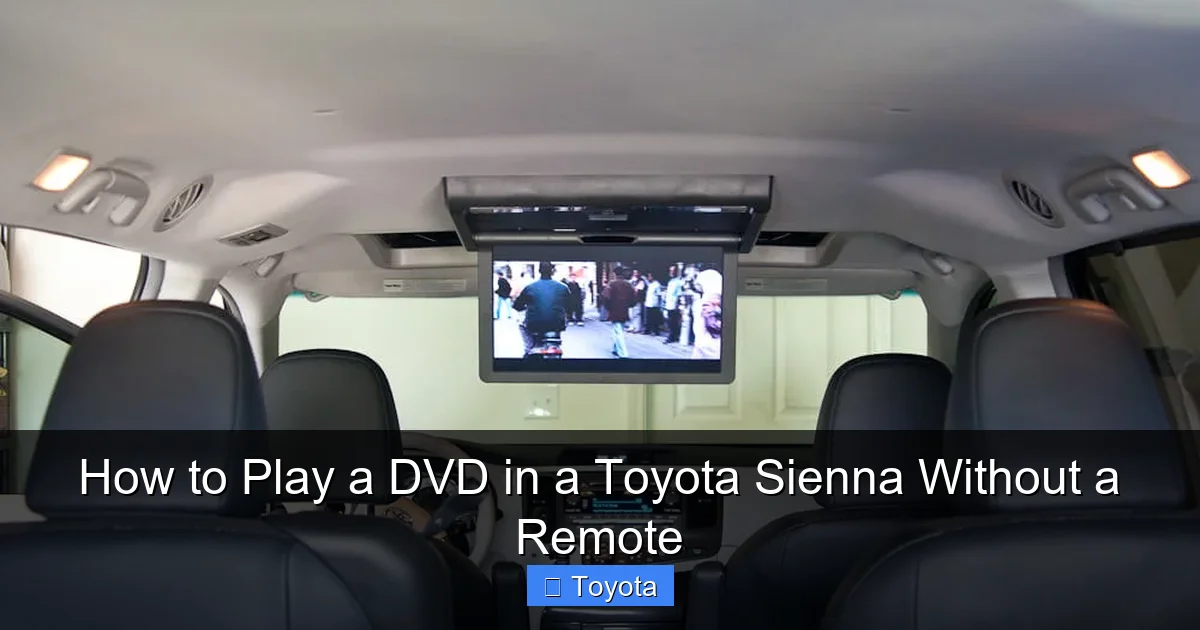
Visual guide about How to Play a DVD in a Toyota Sienna Without a Remote
Image source: automotiveex.com
Disc Not Recognized
If the system doesn’t recognize the DVD, try the following:
- Clean the disc: Use a soft cloth to wipe the DVD from the center outward. Scratches or fingerprints can prevent playback.
- Check compatibility: Ensure the DVD is not a Blu-ray or a region-locked disc. Most Sienna systems only support standard DVDs.
- Reset the system: Turn off the infotainment system, wait 10 seconds, and turn it back on. This can resolve temporary glitches.
Buttons Not Responding
If buttons on the center console or touchscreen aren’t responding:
- Check connections: Ensure no loose wires are interfering with the system. This is rare, but electrical issues can occur over time.
- Update the system: If your Sienna has a touchscreen, check for software updates at a dealership. Outdated firmware can cause malfunctions.
- Consult a professional: If buttons remain unresponsive, consider visiting a Toyota service center to diagnose potential hardware issues.
Audio/Video Sync Problems
If the audio and video are out of sync:
- Adjust the audio settings: Navigate to the audio menu and check for delay or sync options.
- Restart the DVD: Pause and resume playback to reset the system.
- Use a different DVD: Sometimes, the issue lies with the disc itself. Test with another DVD to confirm.
Alternative Solutions if the Control Panel Doesn’t Work
If your control panel or touchscreen is malfunctioning, consider these alternatives:
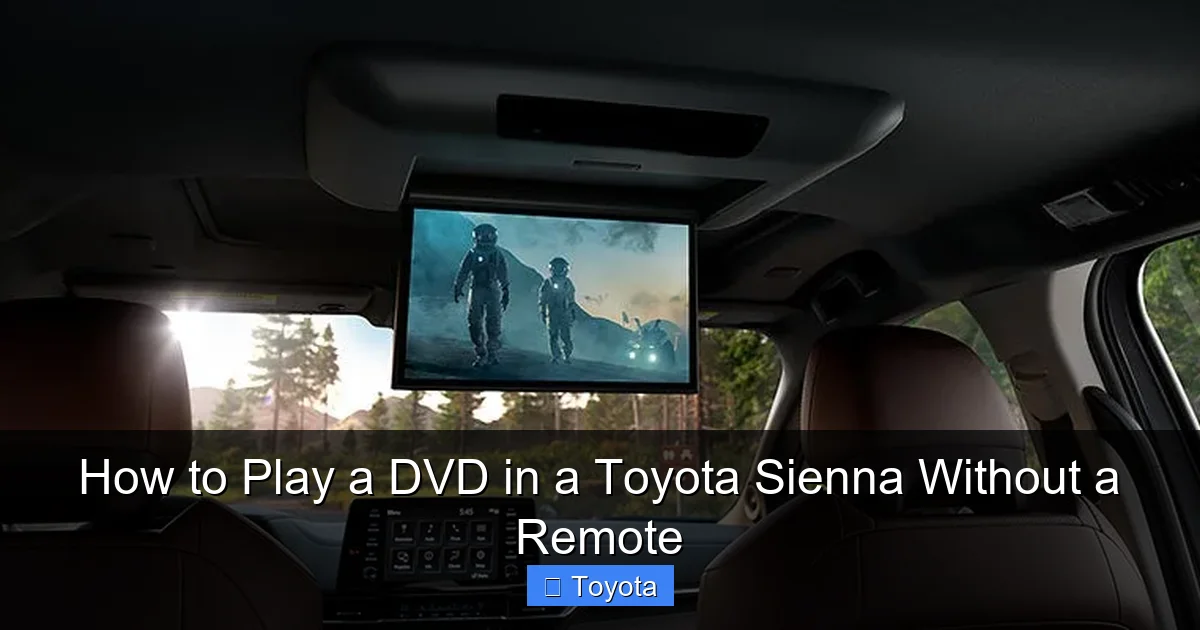
Visual guide about How to Play a DVD in a Toyota Sienna Without a Remote
Image source: automotiveex.com
Using a USB Drive
Many Toyota Sienna models allow you to play media from a USB drive. If your system supports this feature:
- Format a USB drive to FAT32 or NTFS.
- Copy your media files to the USB drive.
- Insert the USB into the designated port (often in the center console).
- Select USB as the input source on your touchscreen or control panel.
Streaming via Bluetooth or Auxiliary Cable
If your Sienna supports Bluetooth or has an auxiliary input:
- Pair your smartphone via Bluetooth and stream music or videos through compatible apps.
- Use an auxiliary cable to connect your device directly to the Sienna’s audio system for better sound quality.
Portable DVD Player
For a temporary solution, consider using a portable DVD player with wireless headphones. This is especially useful for rear-seat passengers who want to watch a movie without disrupting the driver’s focus.
Tips for Maintaining Your DVD System
To keep your Sienna’s DVD system functioning smoothly:
Clean the DVD Slot Regularly
Dust and debris can accumulate in the DVD slot, causing playback issues. Use compressed air or a soft brush to gently clean the slot every few months.
Store DVDs Properly
Store your DVDs in their cases to prevent scratches. Avoid leaving discs in the slot when not in use, as heat from the sun can warp them over time.
Update Infotainment Software
Check with your Toyota dealer for infotainment system updates. New software versions can fix bugs and improve performance.
Avoid Overloading the System
Don’t use multiple devices simultaneously (e.g., playing a DVD while charging a phone). This can strain the system and cause glitches.
Final Thoughts
Playing a DVD in your Toyota Sienna without a remote is a simple process once you understand your vehicle’s controls. By following these steps, you can troubleshoot common issues and even explore alternative methods like USB drives or Bluetooth streaming. Regular maintenance ensures your DVD system remains reliable for family road trips or quiet drives.
If problems persist, don’t hesitate to reach out to a Toyota service center. With a bit of patience, you’ll be back to enjoying your favorite movies on the road in no time.
Frequently Asked Questions
Can I play Blu-ray discs in my Toyota Sienna?
Most Toyota Sienna models do not support Blu-ray discs. The built-in DVD system is designed for standard DVDs and may not recognize or properly play Blu-ray formats. For high-definition content, consider using a USB drive or streaming device instead.
What if my DVD player only shows a black screen?
A black screen during DVD playback can result from several issues. First, ensure the DVD is properly inserted and the system is set to the correct input mode. If the problem persists, the disc might be unreadable due to scratches, or there could be a hardware issue with the DVD player itself. Try cleaning the disc or resetting the system as troubleshooting steps.
How do I eject a stuck DVD?
If a DVD is stuck in your Sienna’s system, turn off the infotainment system completely and wait 10–15 seconds before turning it back on. This often resets the system and allows the disc to eject automatically. If it still won’t eject, try pressing the eject button on the center console or touchscreen. As a last resort, consult a Toyota service center for assistance.
Can I use a different region DVD in my Sienna?
Most Toyota Sienna DVD systems are region-free, meaning they can play DVDs from any region. However, this may vary by model year. If you encounter issues with a specific disc, check your owner’s manual or contact a Toyota representative for confirmation.
What if the volume is too low on the DVD playback?
If the volume during DVD playback is too low, adjust the volume using the center console or touchscreen controls. You can also check the vehicle’s audio settings to ensure the balance and fader are properly configured. If the issue continues, the DVD itself might be damaged, so test it with another disc to rule out media-related problems.
Is there a way to bypass the DVD system entirely?
If you prefer to bypass the DVD system altogether, you can use alternative methods like streaming media via Bluetooth, using a USB drive, or connecting an auxiliary cable to play content from your smartphone. These options provide flexibility and can be more reliable than relying on physical media.